

AI-Powered Industrial Design Workflow: From 3D Draft to Design Proposal
Discover how to leverage AI tools like GenVizu to accelerate industrial and e-commerce design. This guide demonstrates a workflow from a basic 3D model to a full design proposal, including renderings, CMF boards, marketing visuals, and video concepts.
 Genvizu Team4 min read
For a long time, Design Xiaozhan has been dedicated to exploring methods and tools in the field of AI-assisted design. Today, we're demonstrating a solution designed to help industrial or e-commerce designers quickly generate a complete set of design materials. This is particularly useful for industrial designers, who can start from a simple 3D model draft and progressively generate a comprehensive design proposal.
Article Topic: Creating a design proposal for a concept instant camera.
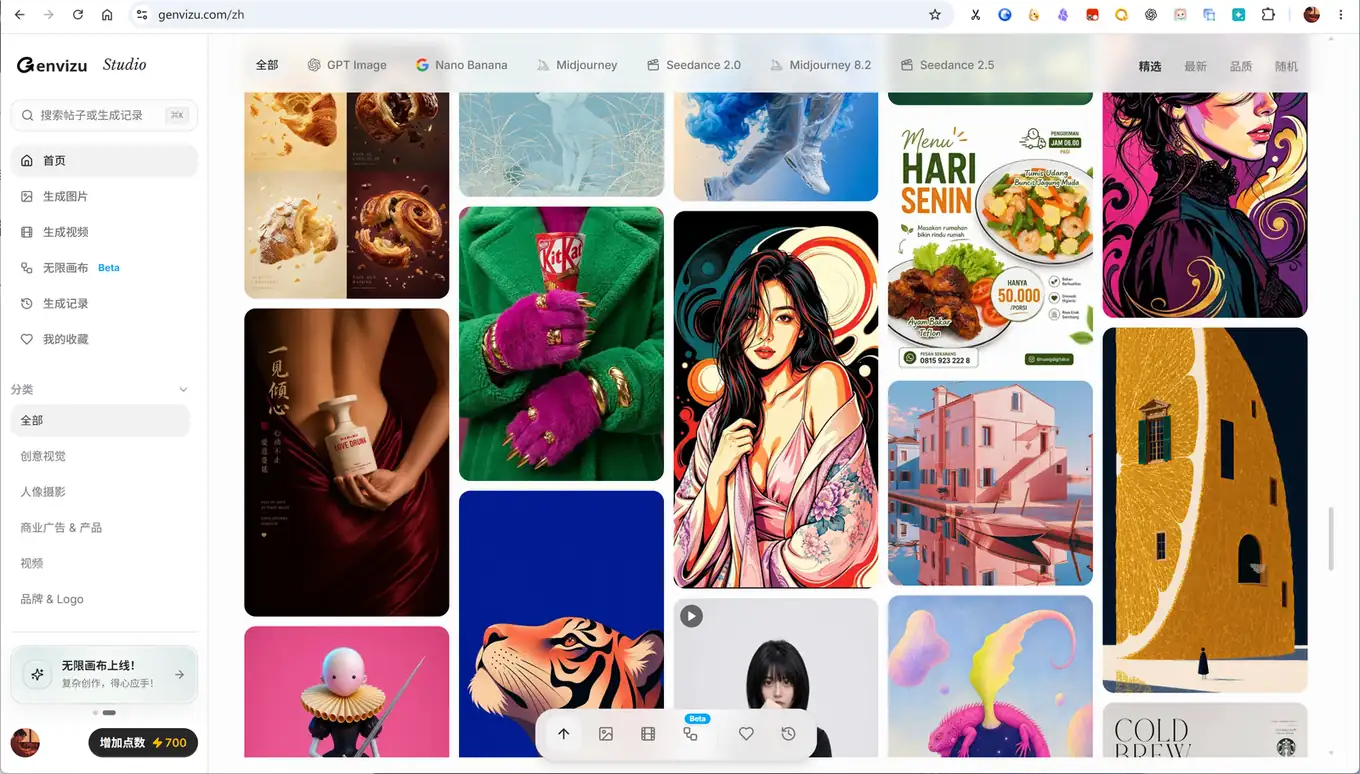
For this demonstration, we are using the GenVizu one-stop AIGC platform that I developed: https://genvizu.com.
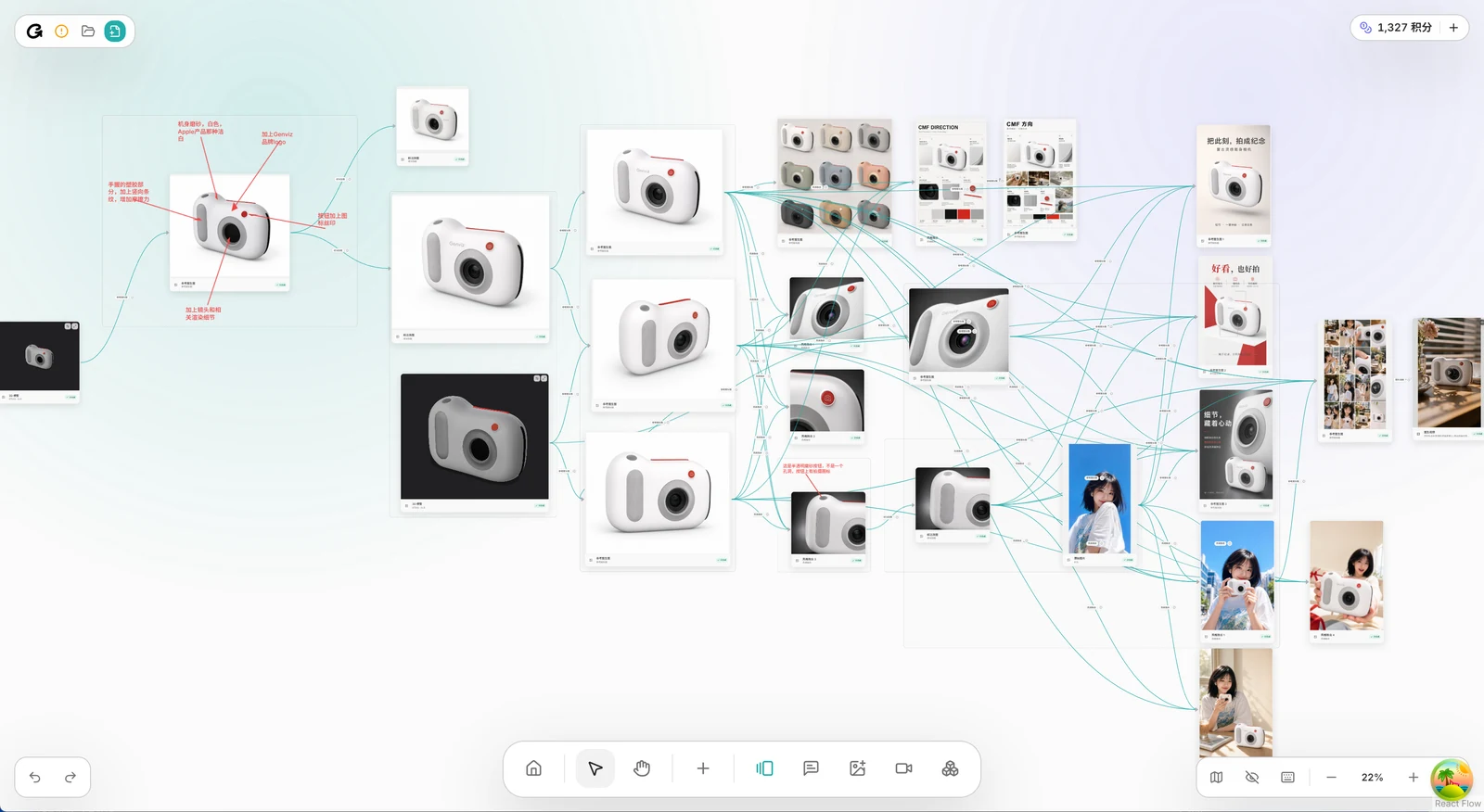
First, Let's See the Results
Input Materials
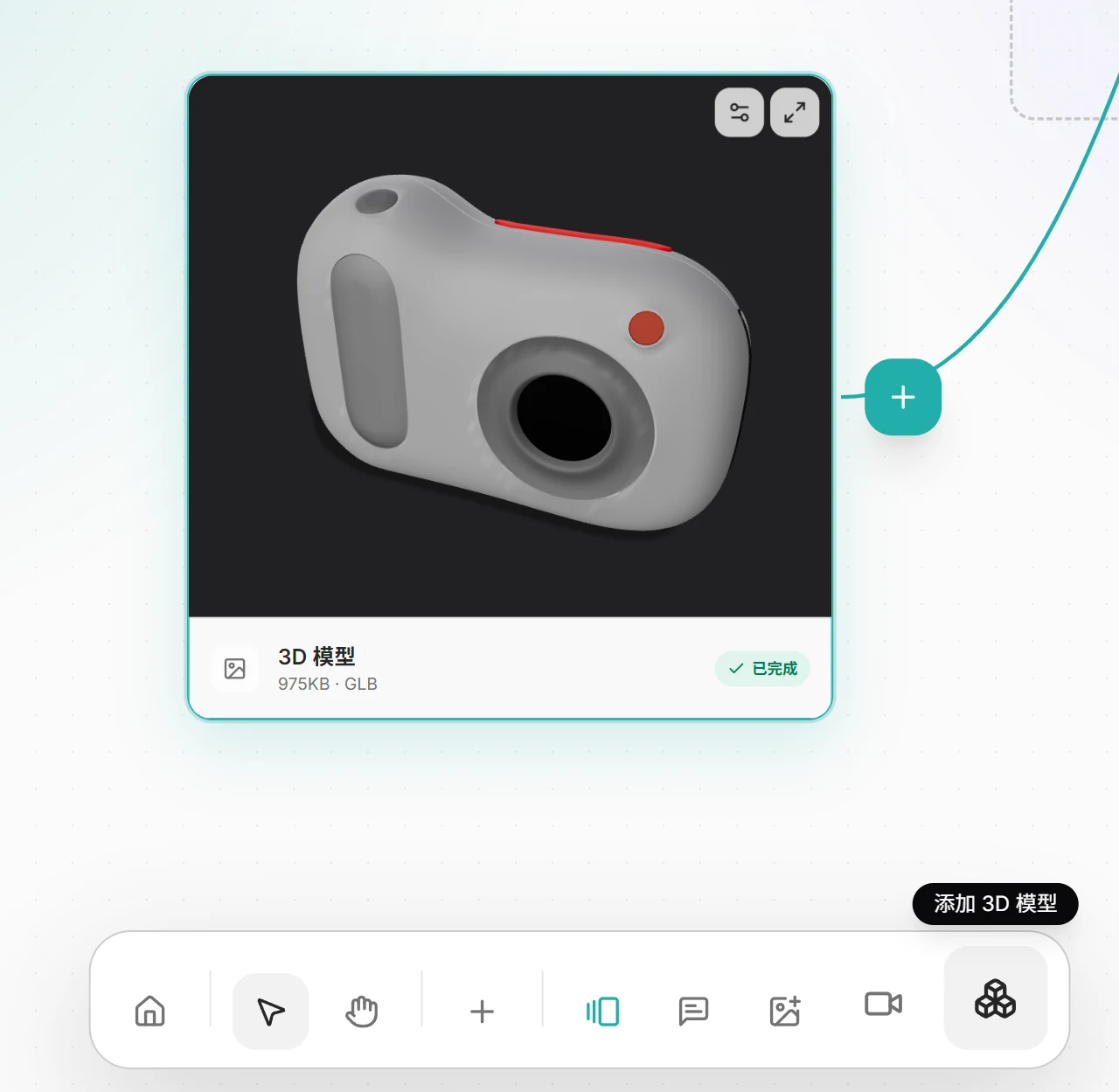
This is a 3D model from Blender, quite rough, with only key shape features and color schemes.
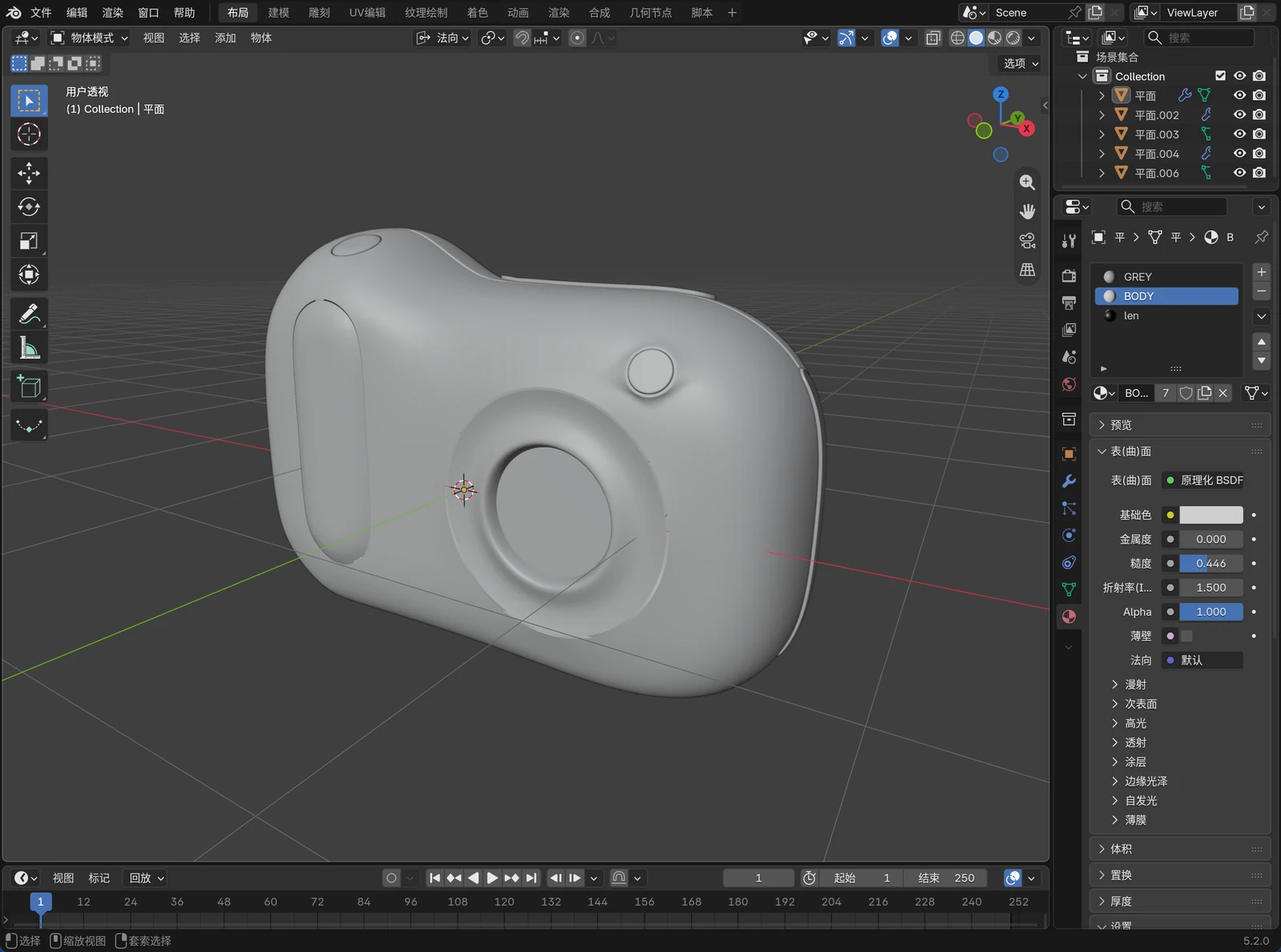
Note: The creative design of this model is not original; any resemblance to existing designs is purely coincidental.
Multi-Angle Output
Using GenVizu Canvas prompts and Agents, we generate renderings and multi-angle views.
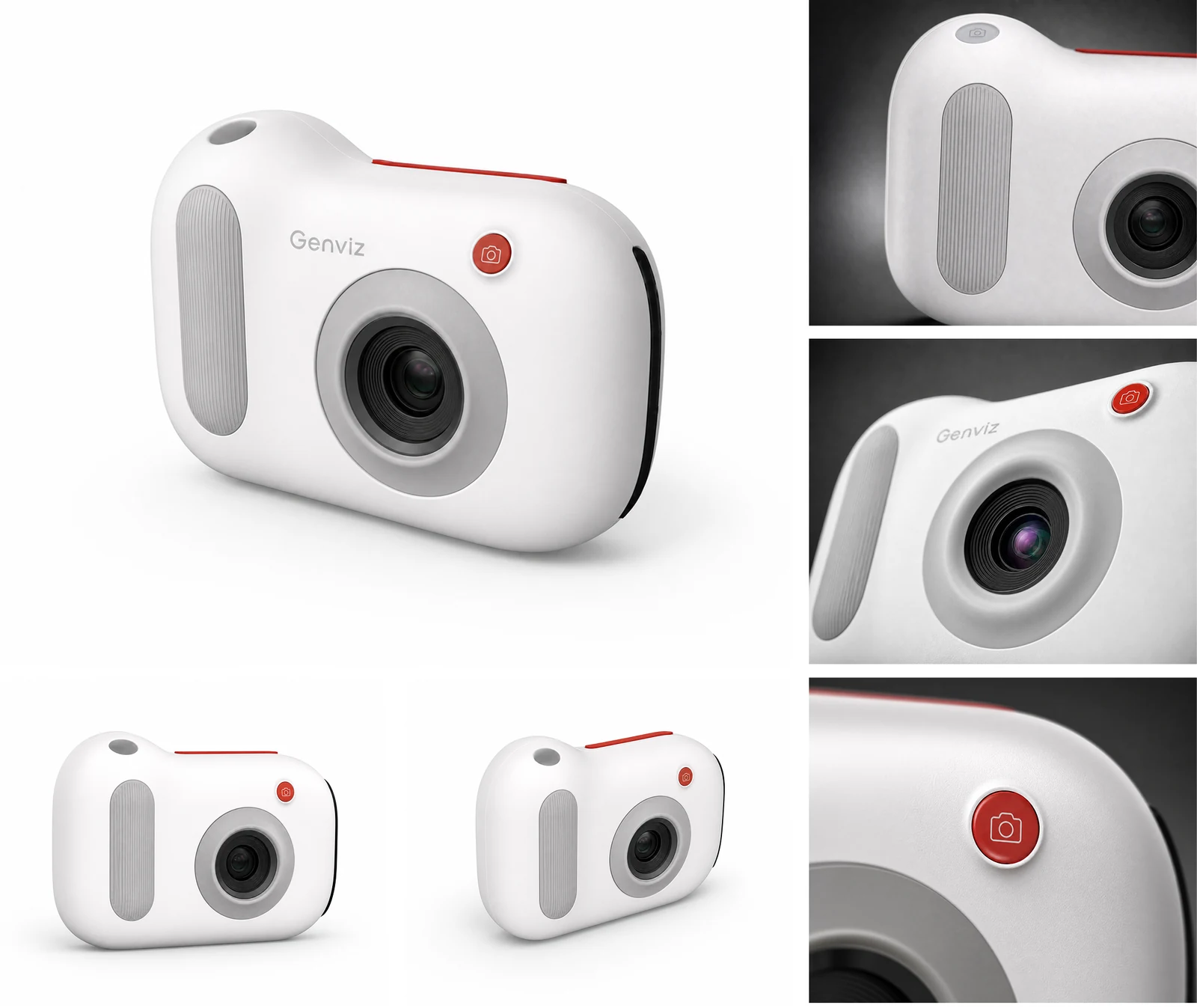
For demonstration speed, we only used 1K quality. For better results, you can choose 2K or 4K quality.
CMF Mood Board and Ideation
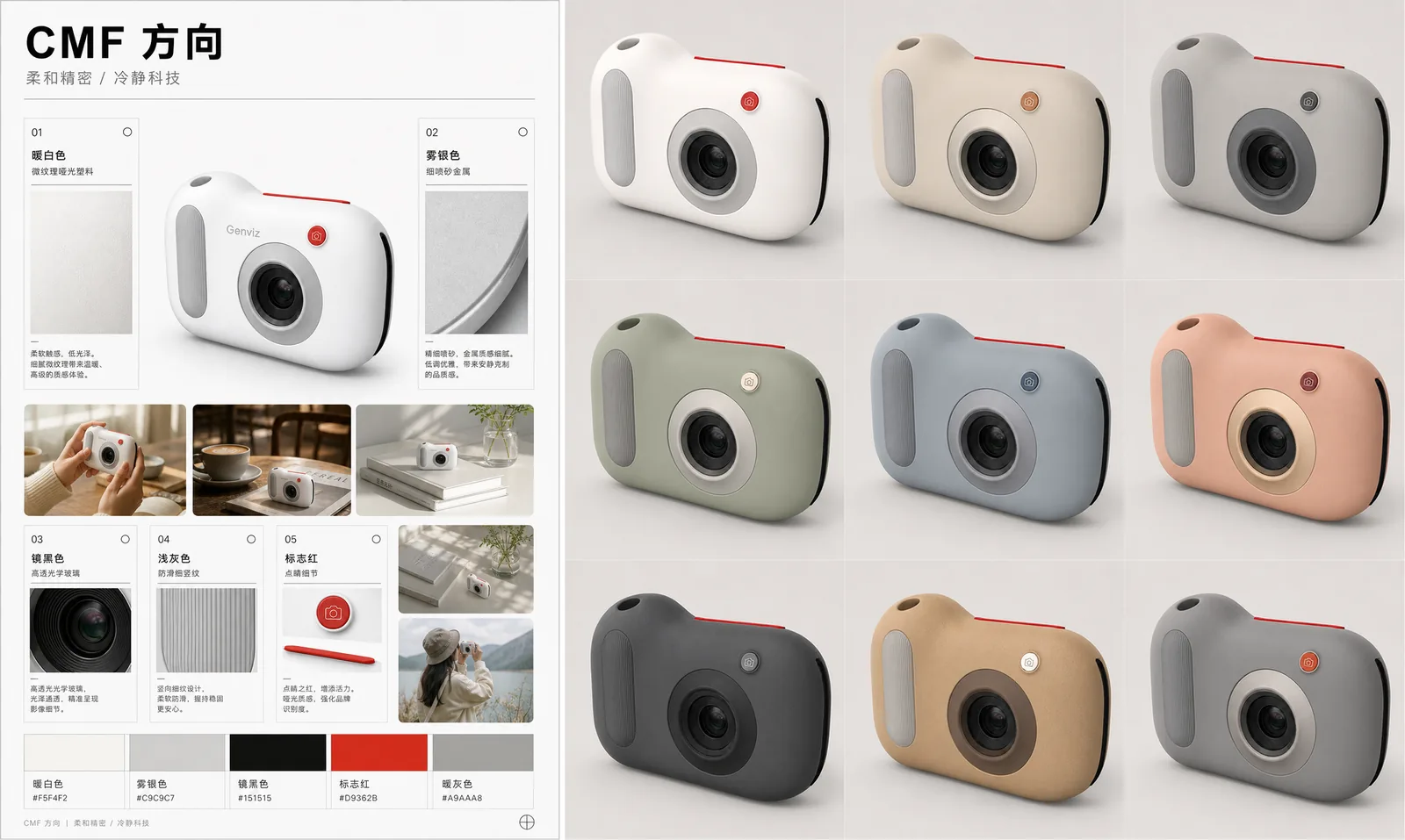
Marketing Key Visual Concepts
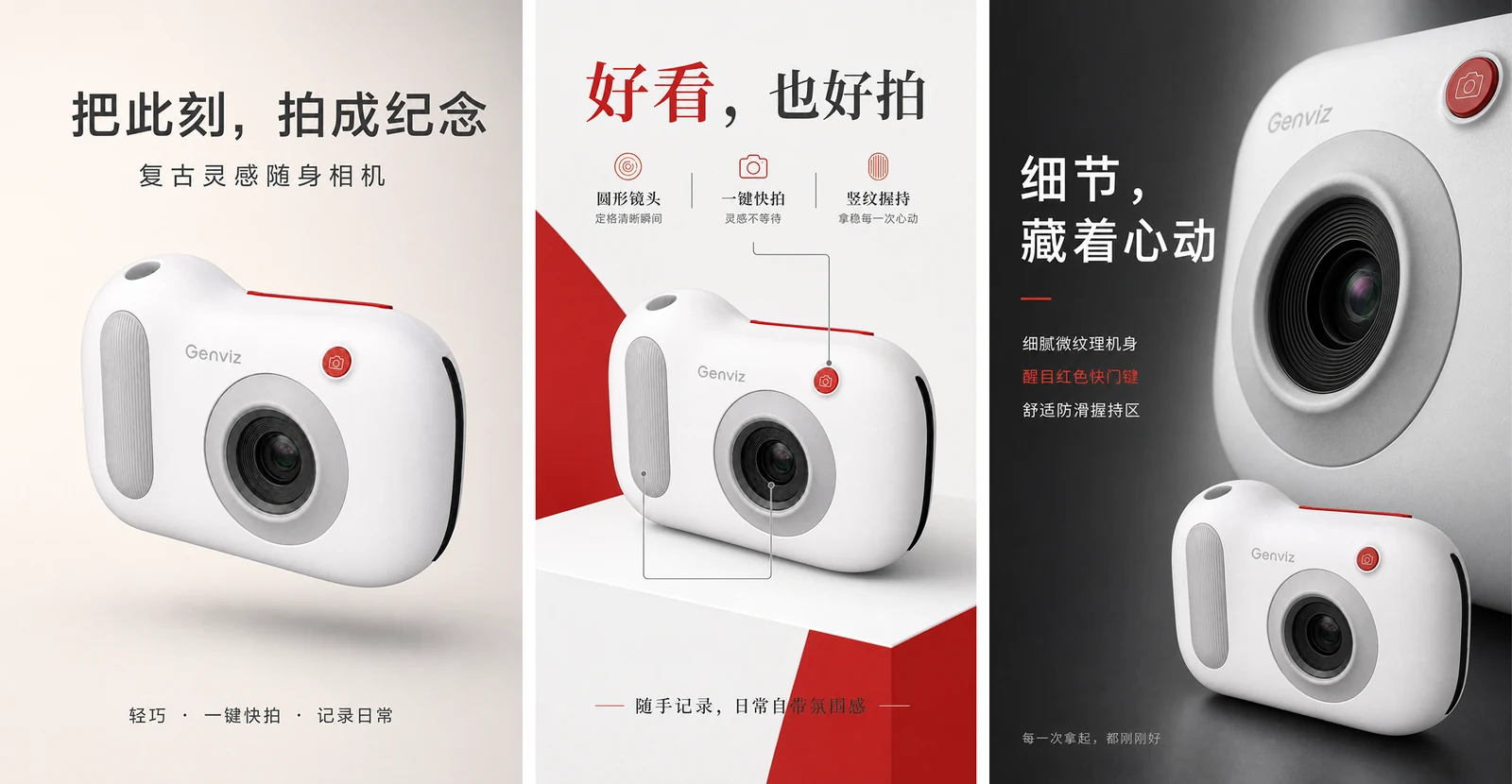
The copy was generated by AI based on the design. For better results, you can specify the copy. Of course, for practical use, providing accurate and comprehensive product information to the AI is necessary.
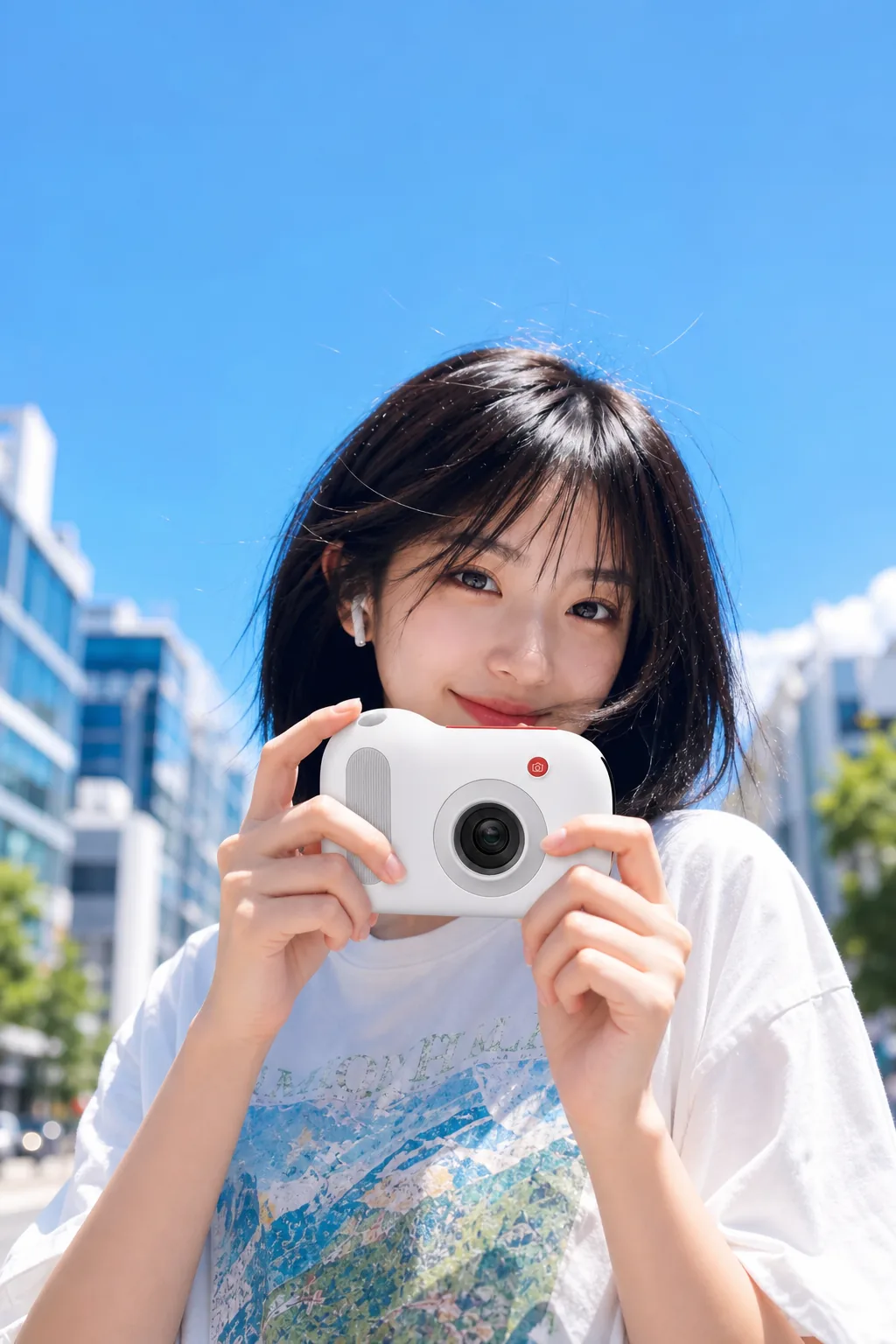
For actual use, some touch-ups would be needed. The following workflow demonstration shows how to use the annotation editing feature.
Video Ad Concepts

Due to model limitations, some product details remain inconsistent, but the overall feel is good.
Process and Steps
Step 1: 3D Model Draft
This step is highly flexible; it could also be a hand-drawn sketch. However, using a 3D model offers greater precision for controlling the subsequent AI image generation.
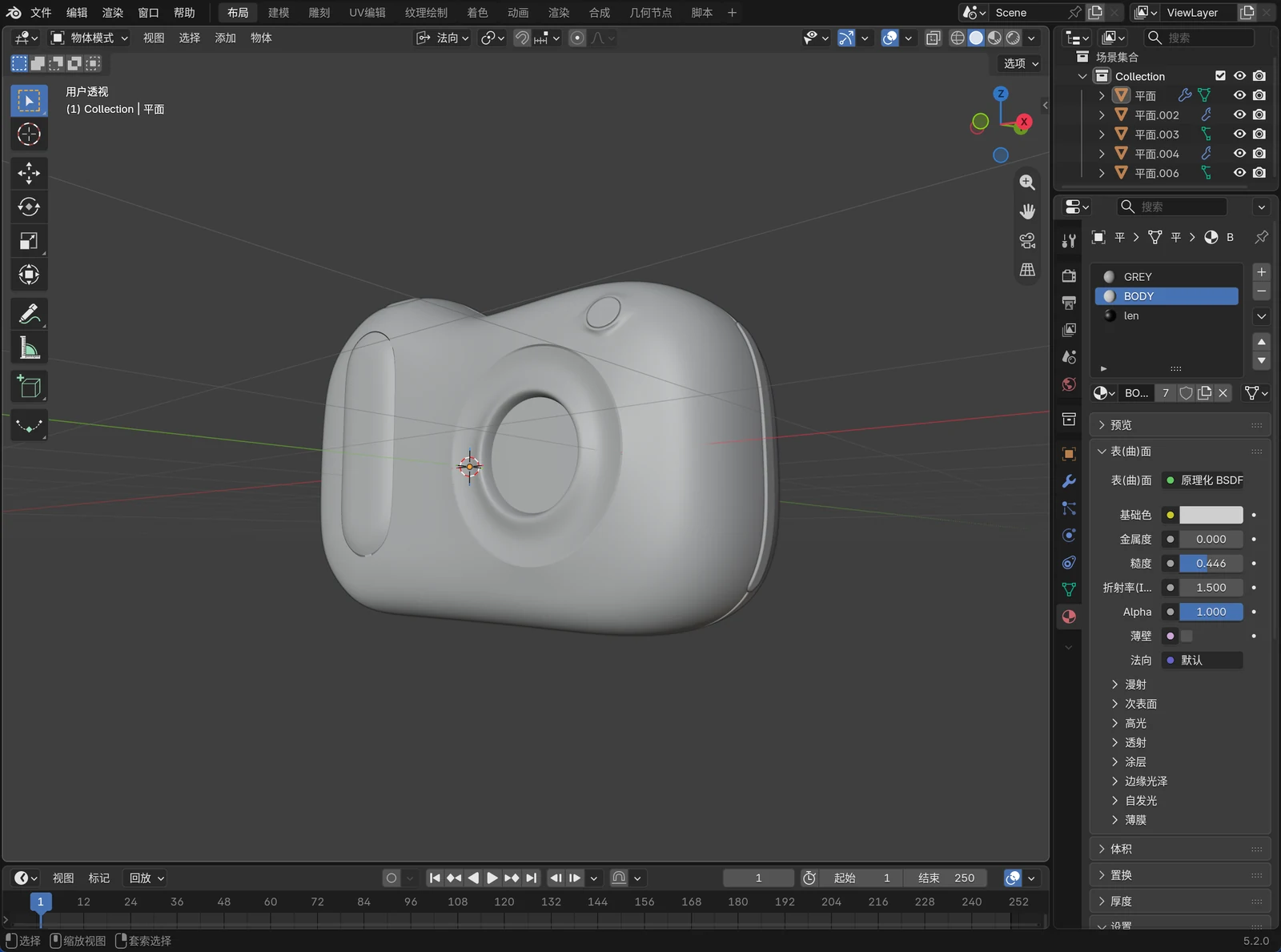
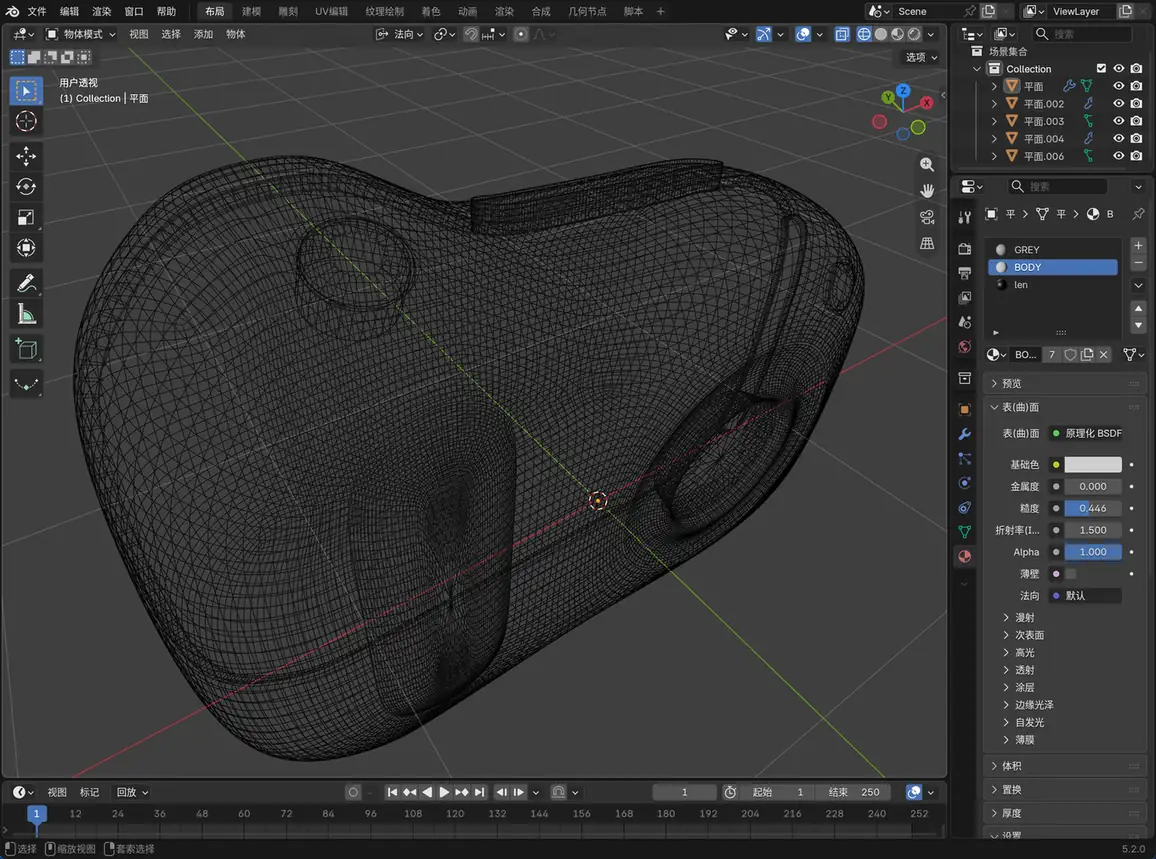
As long as the overall shape is clear, it's sufficient. Then, export the model in glb format:
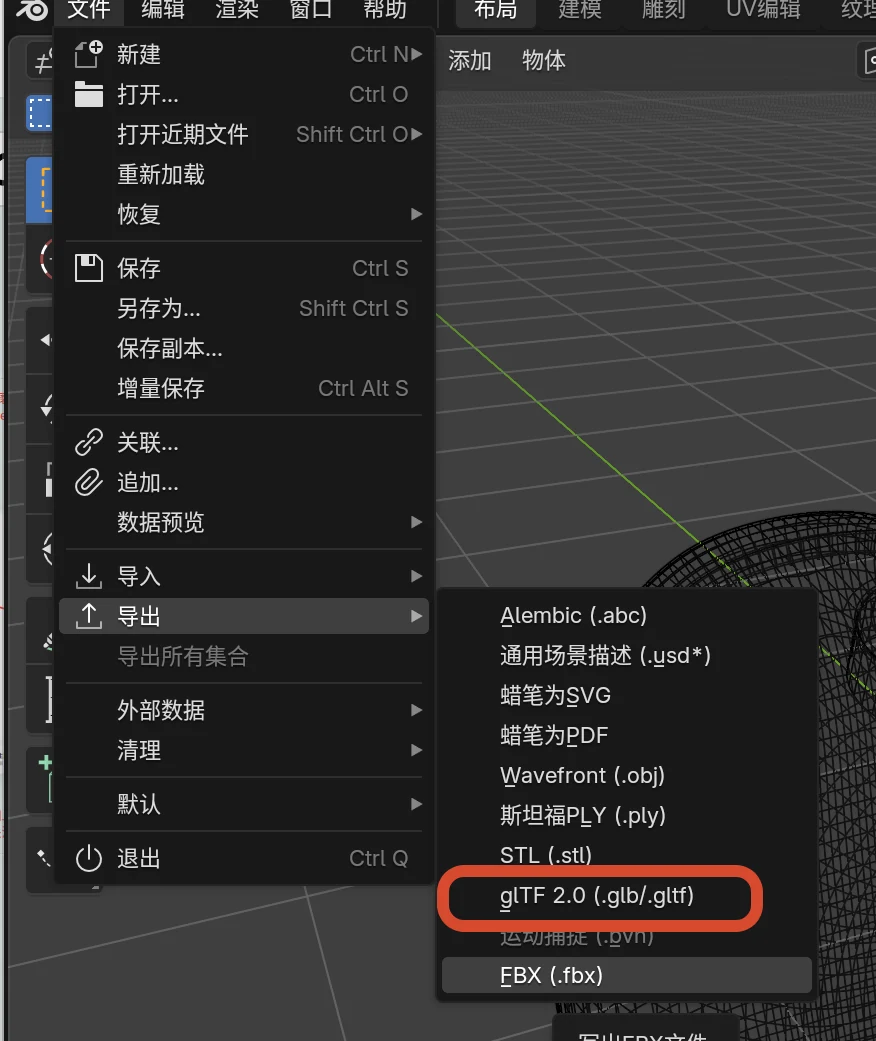
Step 2: Import 3D Model into GenVizu Canvas
Open the GenVizu website: https://genvizu.com/
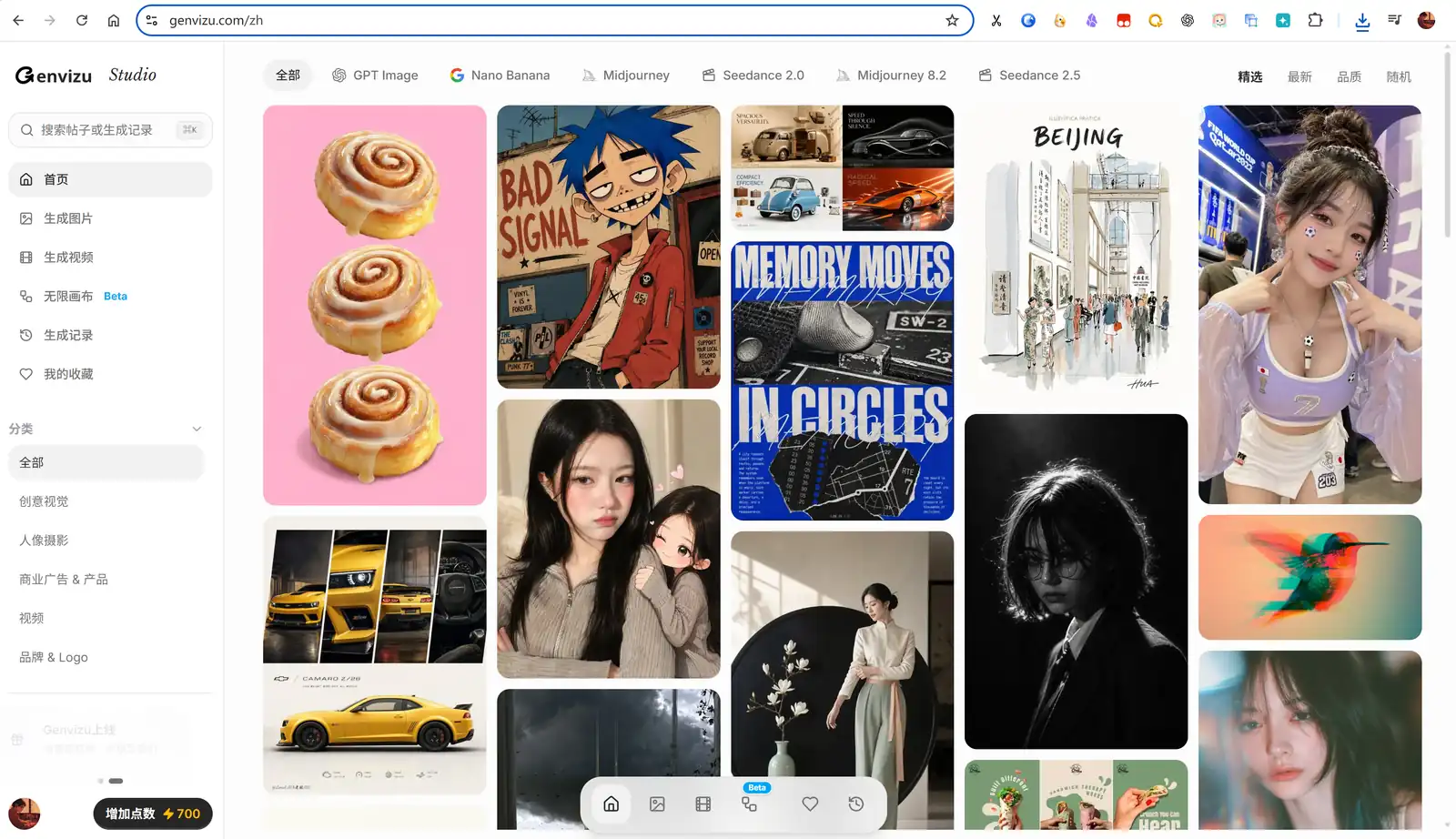
Enter Canvas mode.
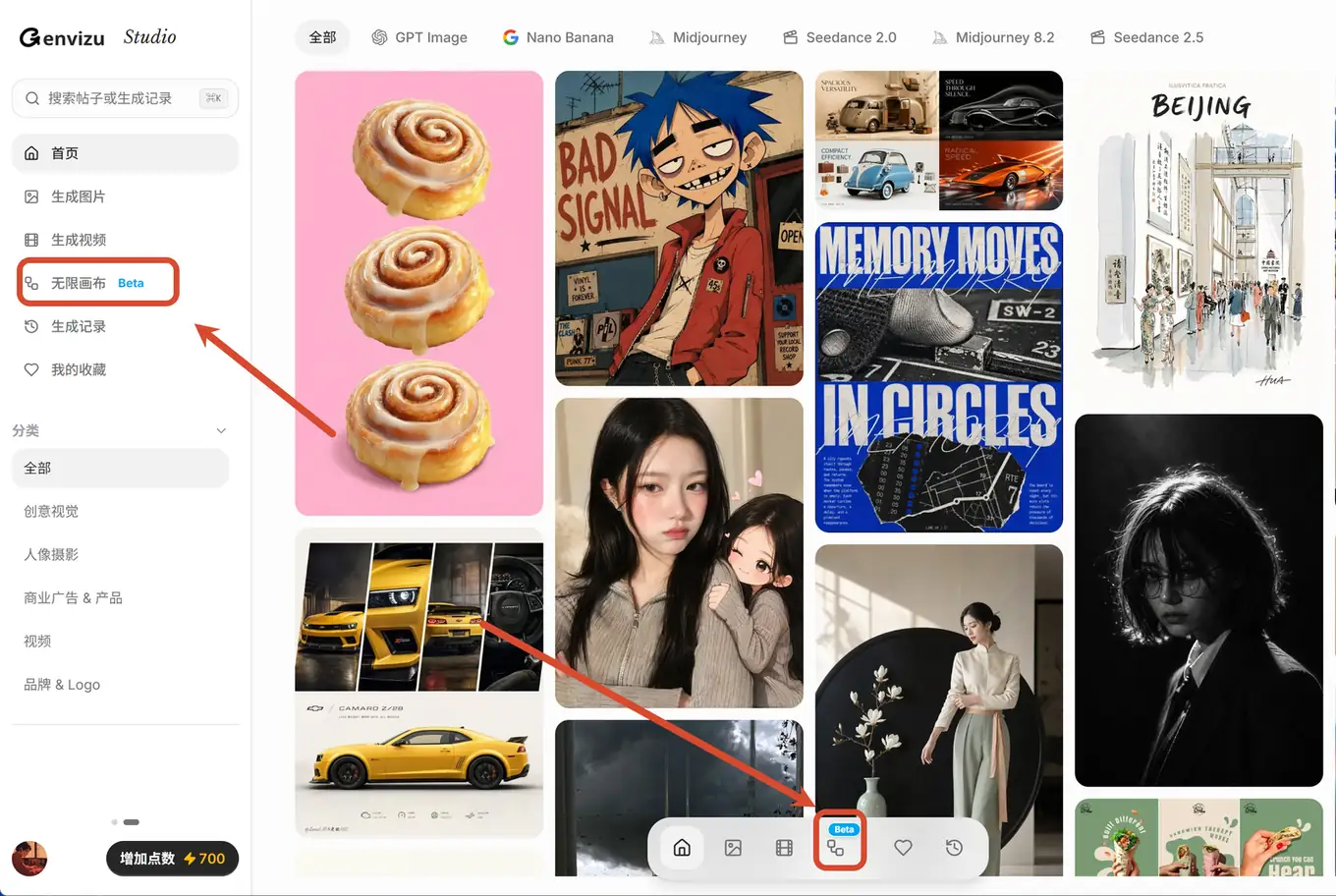
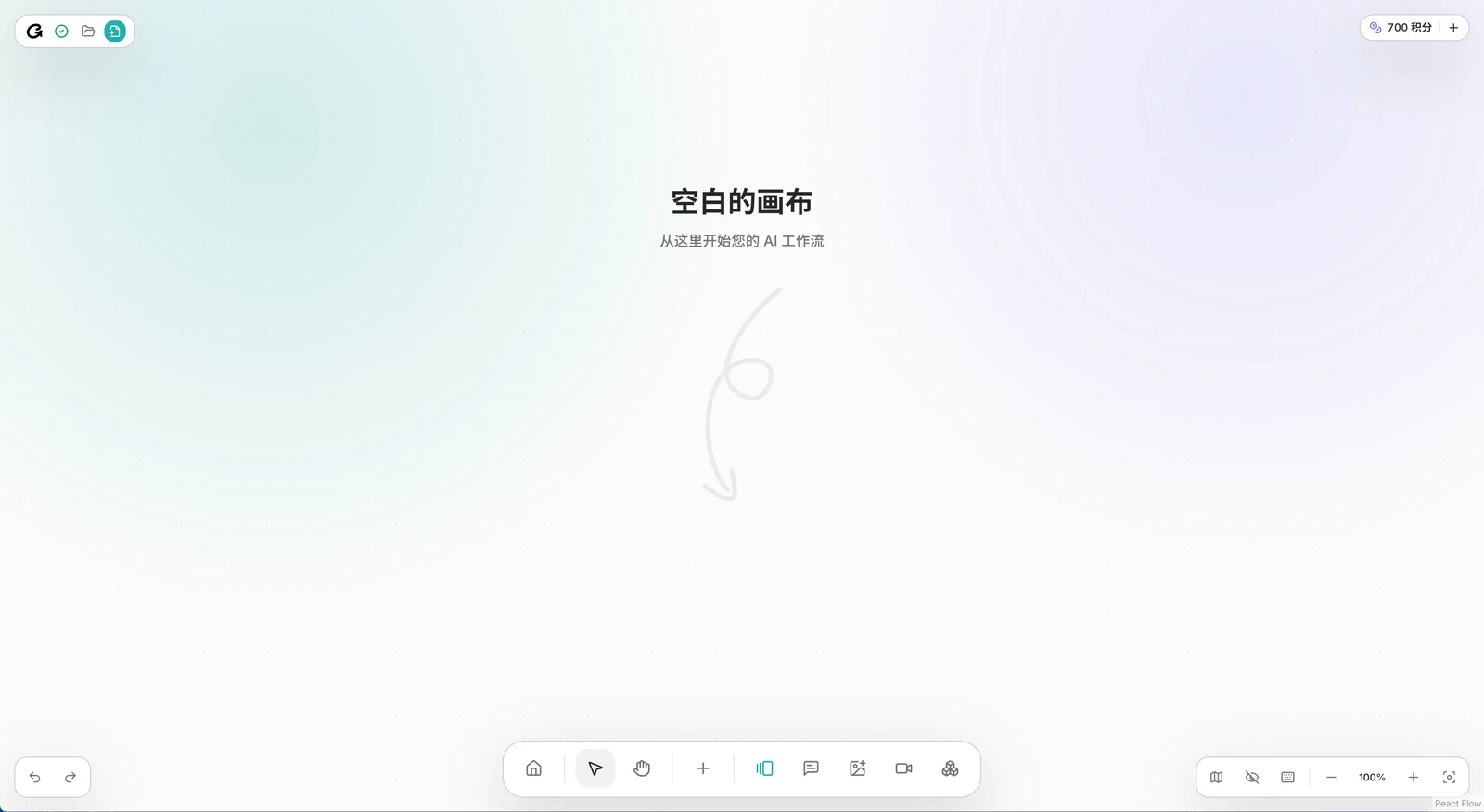
Click "Add 3D Model" in the toolbar or drag and drop the model file onto the canvas to import.
Step 3: Create Main Rendering
First Generation
First, rotate to a desired angle.


Then, click "+" to bring up the Action panel:
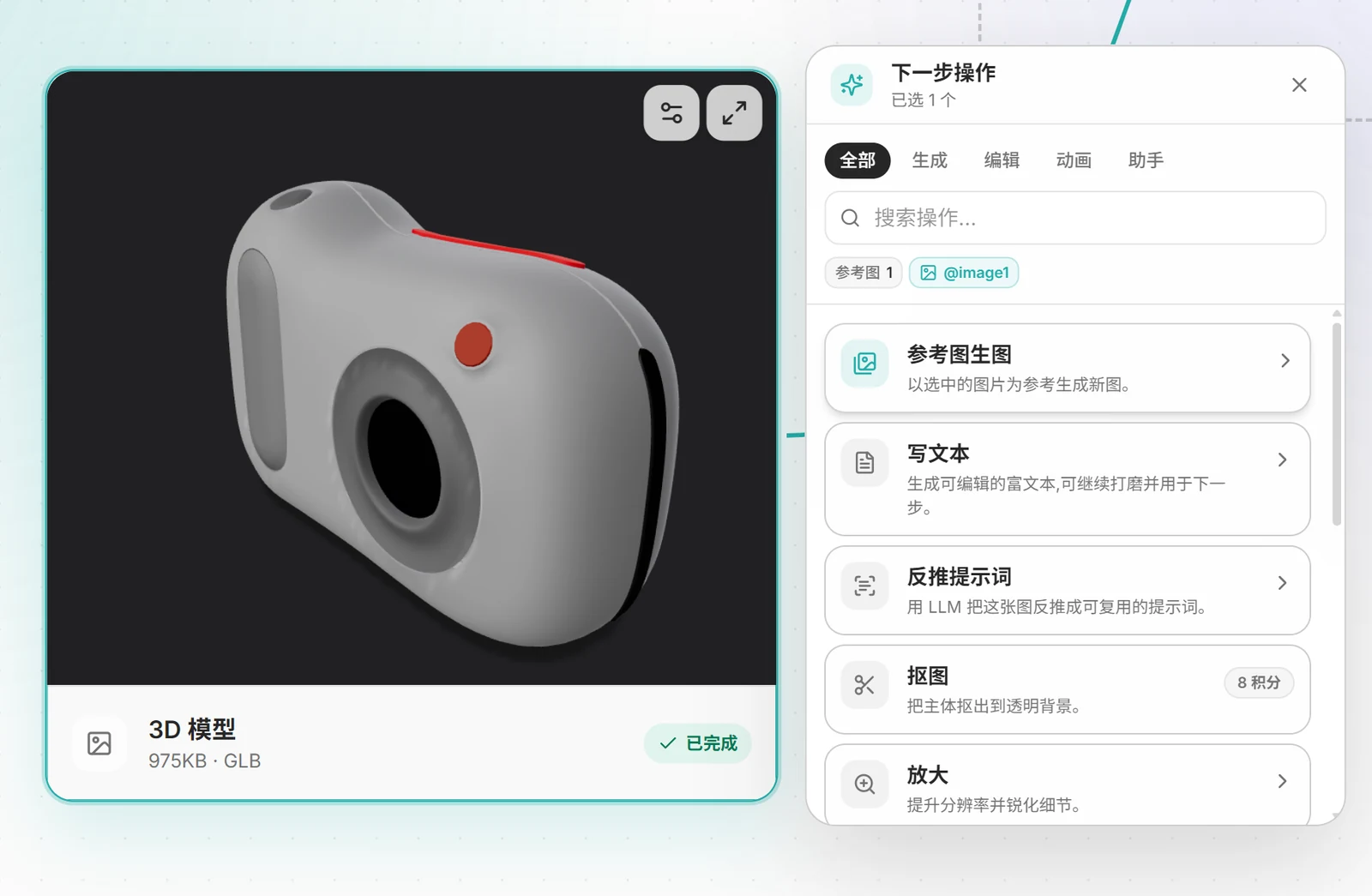
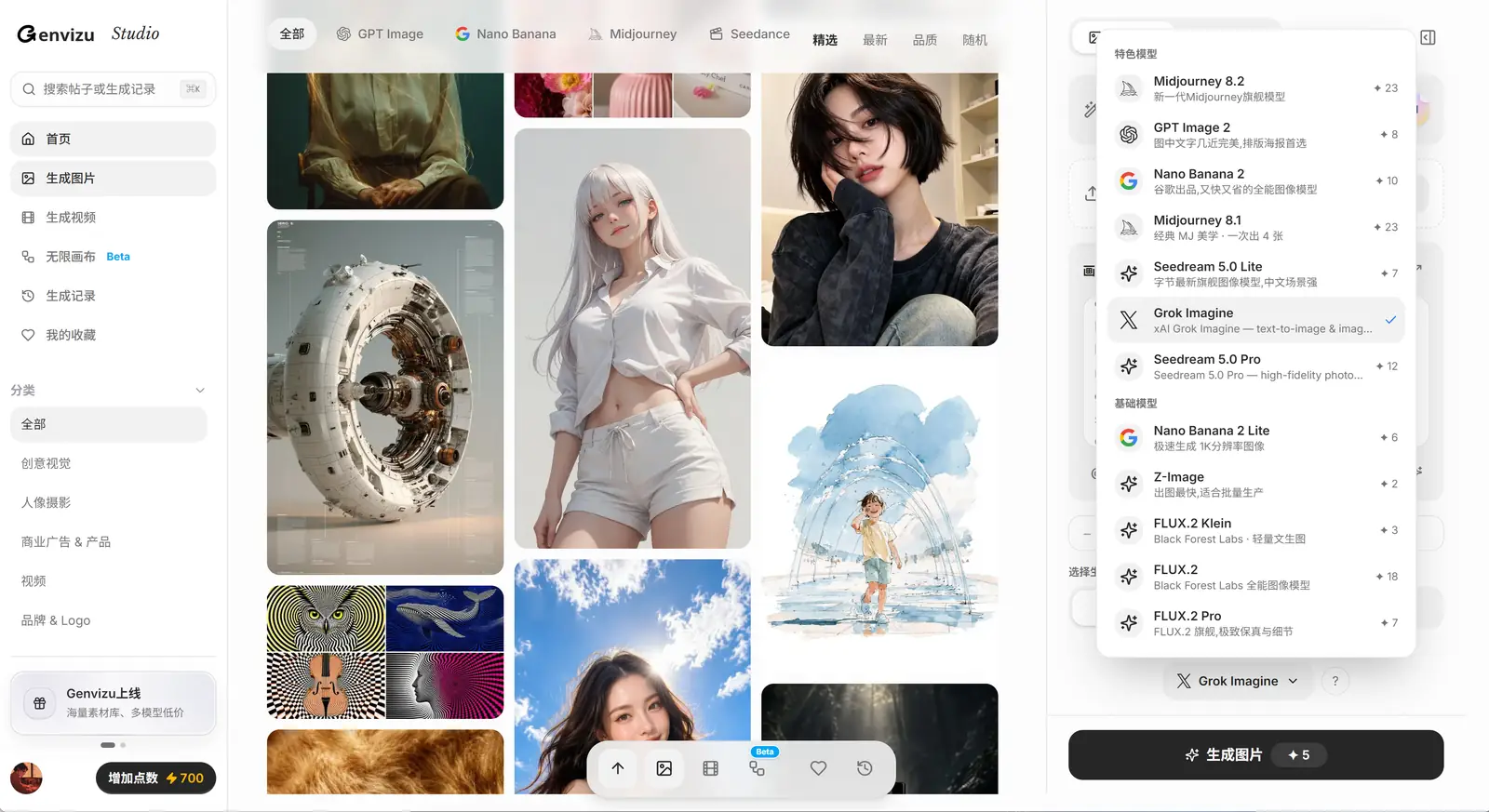
Select "Image to Image" generation, choose the GPT Image 2 model, set the parameters, and input the following prompt:
This is a 3D model of an instant camera. Render it as a realistic industrial design product render on a white background, in the style of Apple product renders.
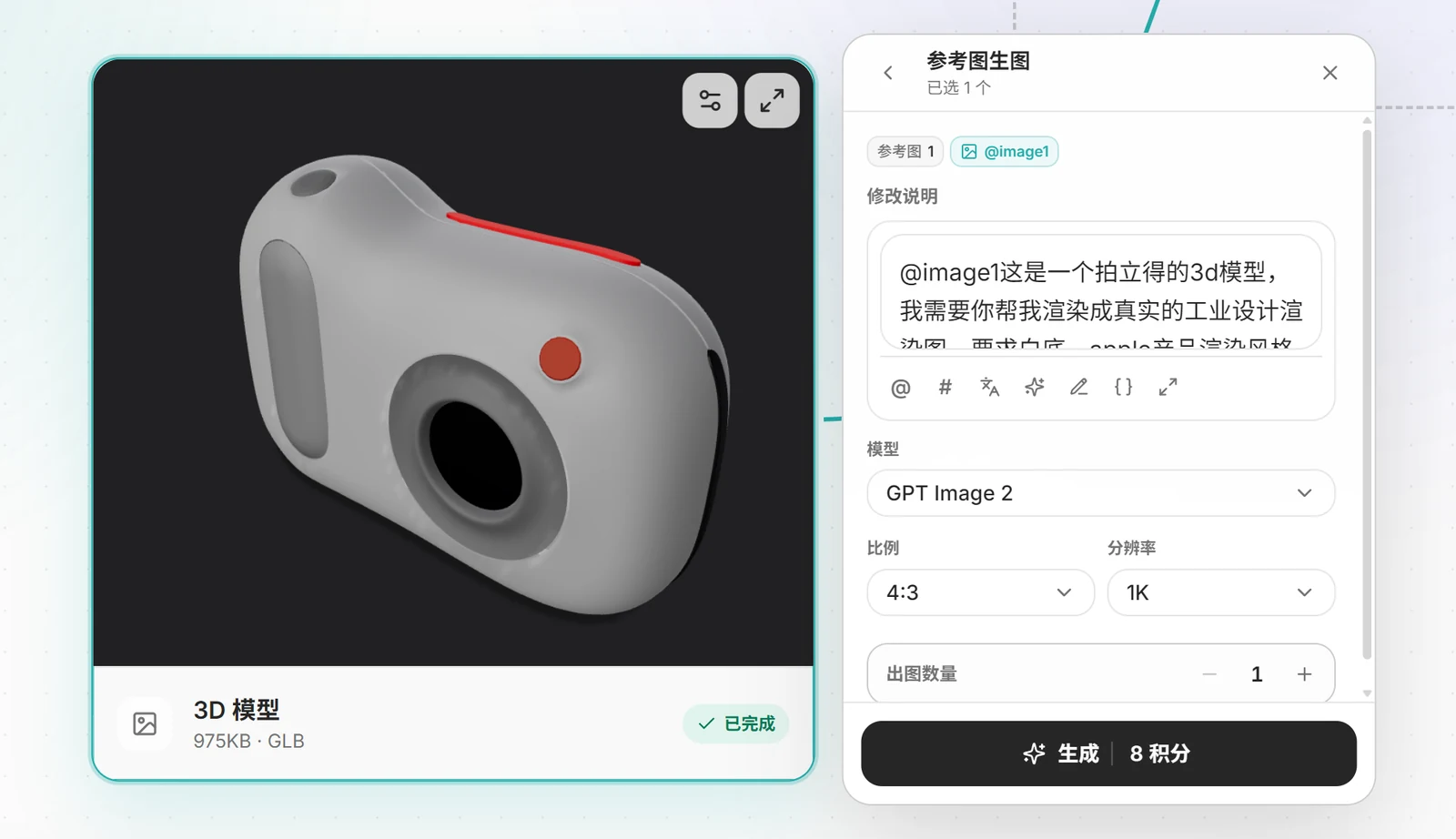
Of course, adjust the prompt according to your needs.
Annotated Editing
AI models often have deviations. This output has several detail issues; it's essentially a rendering with a slight material effect.
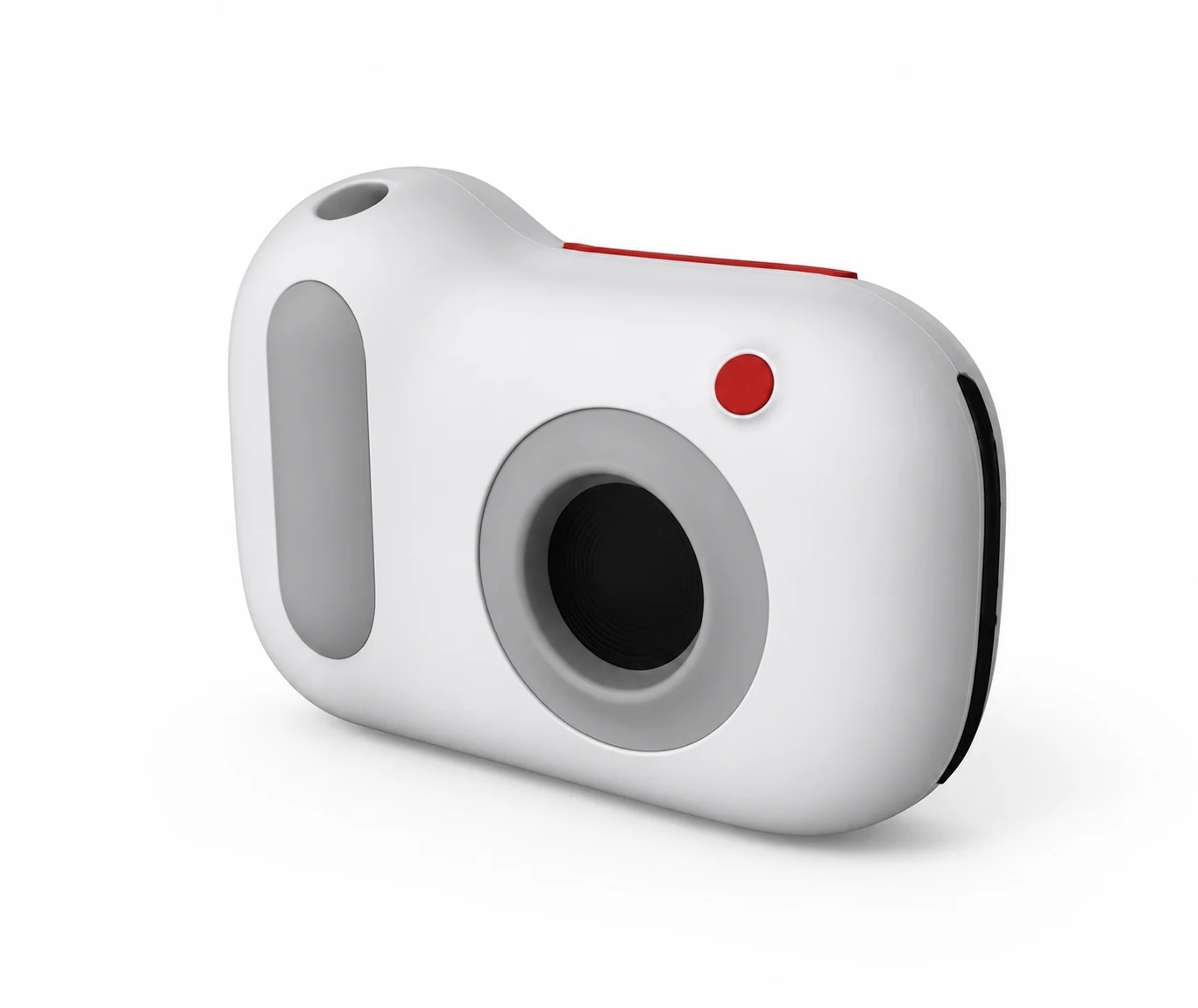
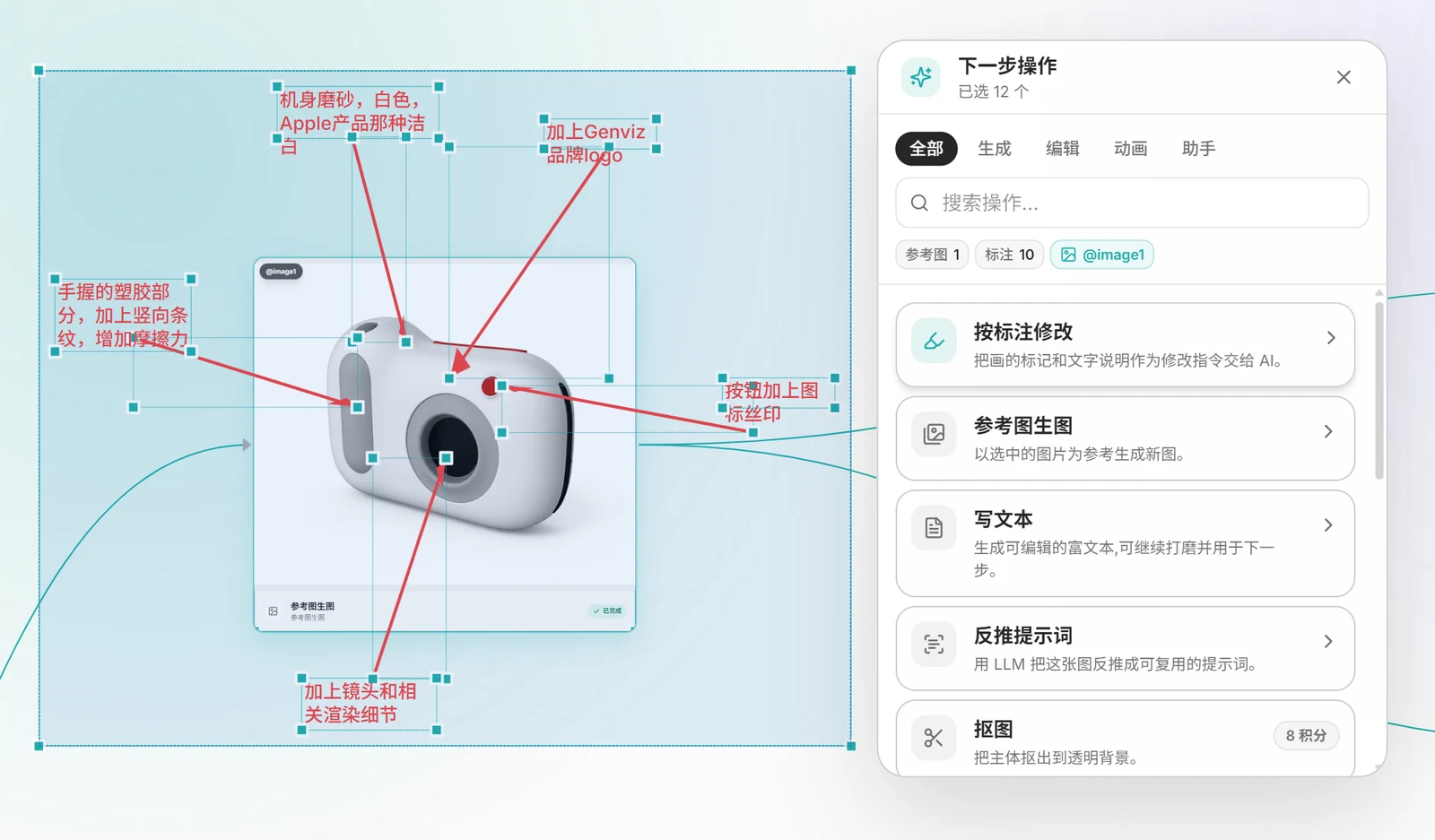
The Canvas provides an annotation editing feature, allowing for precise modifications.
After writing your modification instructions, click "Annotated Edit" in the Action panel.
The edits are then applied!
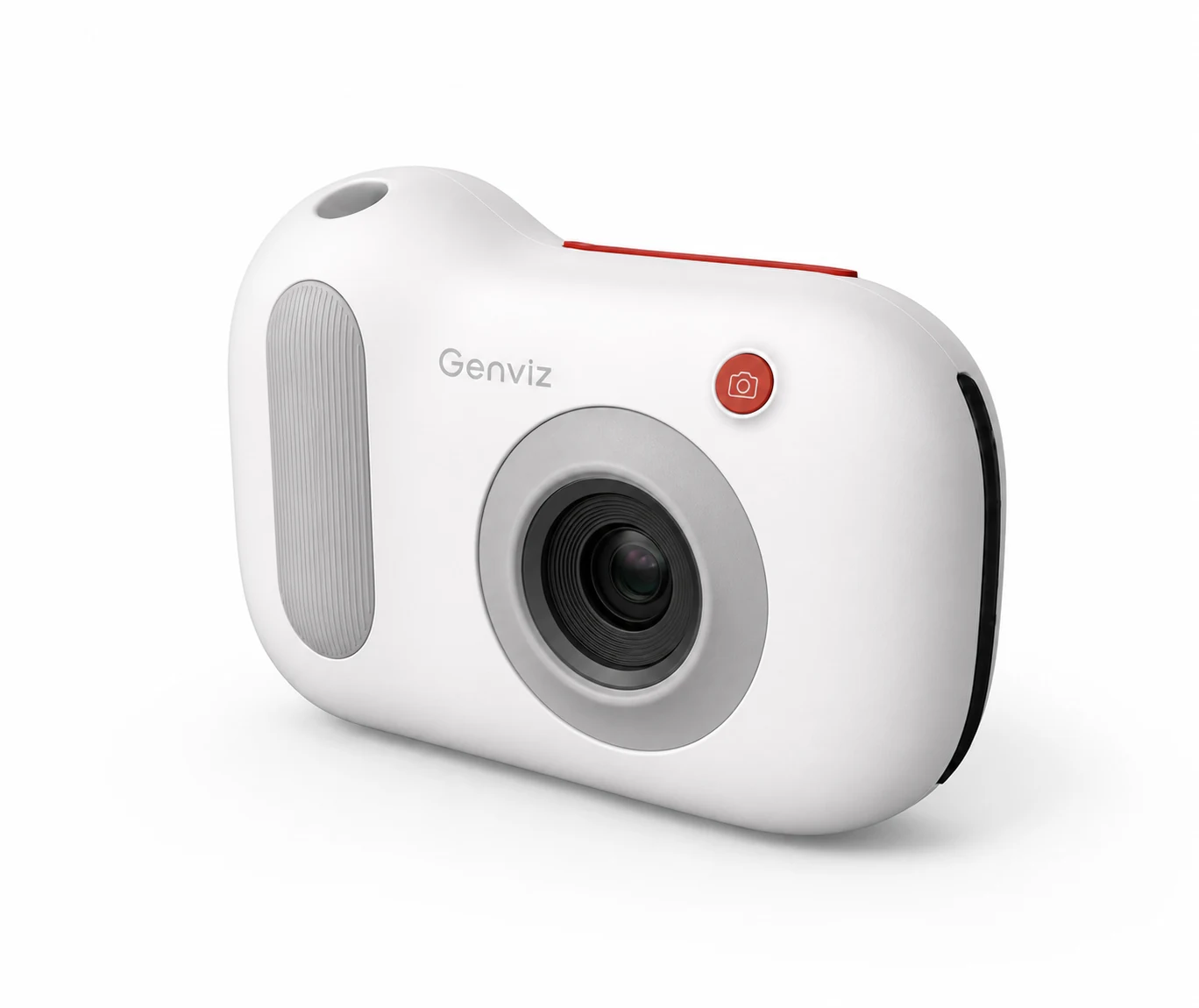
You can see the vertical lines at the grip, lens details, and button silkscreen icons are now present. However, due to using 1K output, the overall clarity is still somewhat lacking.
Step 3: Multi-Angle Output
With the main rendering ready, while you could directly ask the AI to output an effect from a specific angle, it's often less controllable and prone to distortion. Let's continue to leverage the advantages of the 3D model for precise multi-angle outputs.
First, select the model at a specific angle in the 3D software, then multi-select images and the 3D model, and click the "+" Action panel:
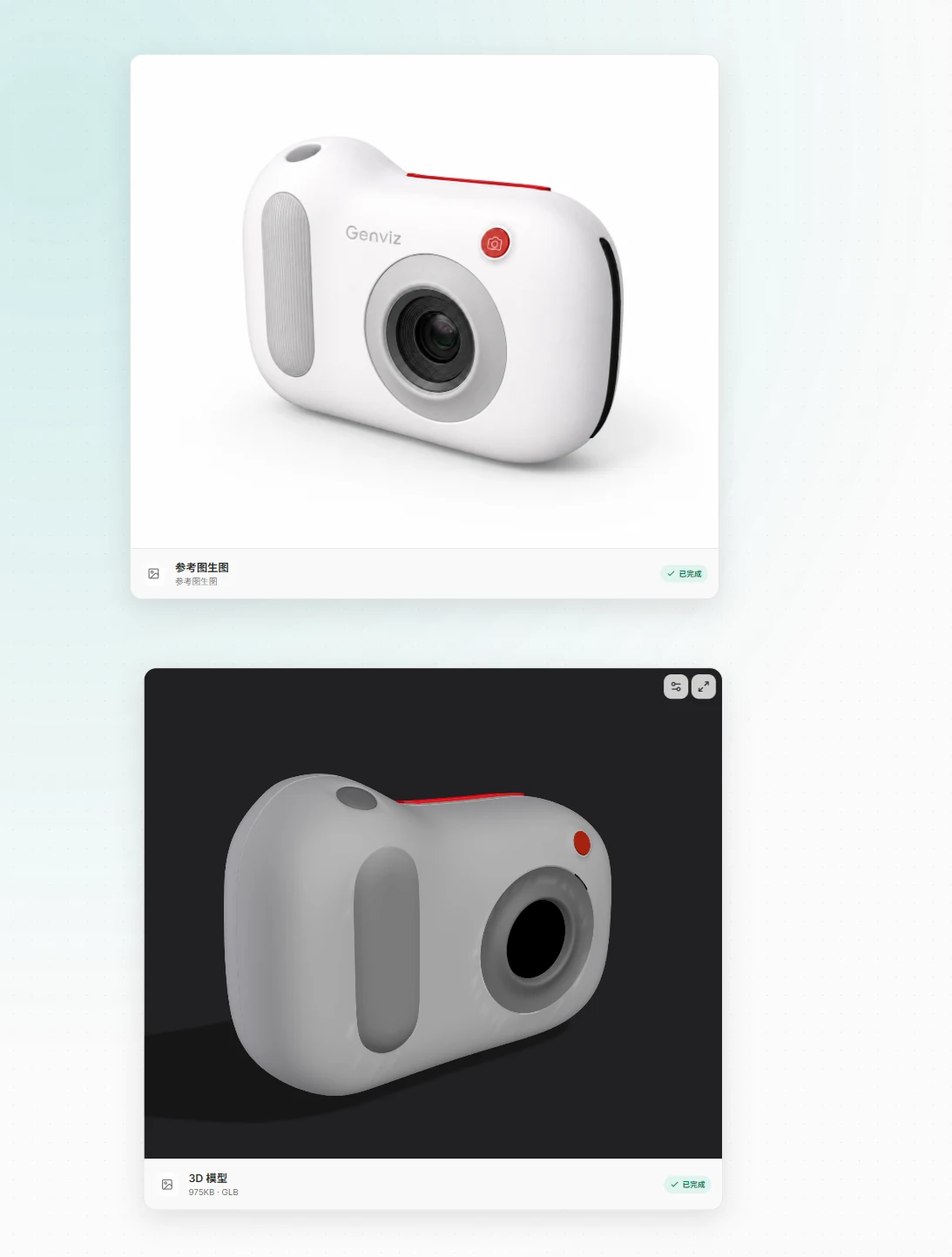
Input the following prompt:
@image1 is the final product render, and @image2 is a 3D perspective and angle reference. Based on the product look in @image1, generate it from the angle shown in @image2 so the product is viewed from a different angle.
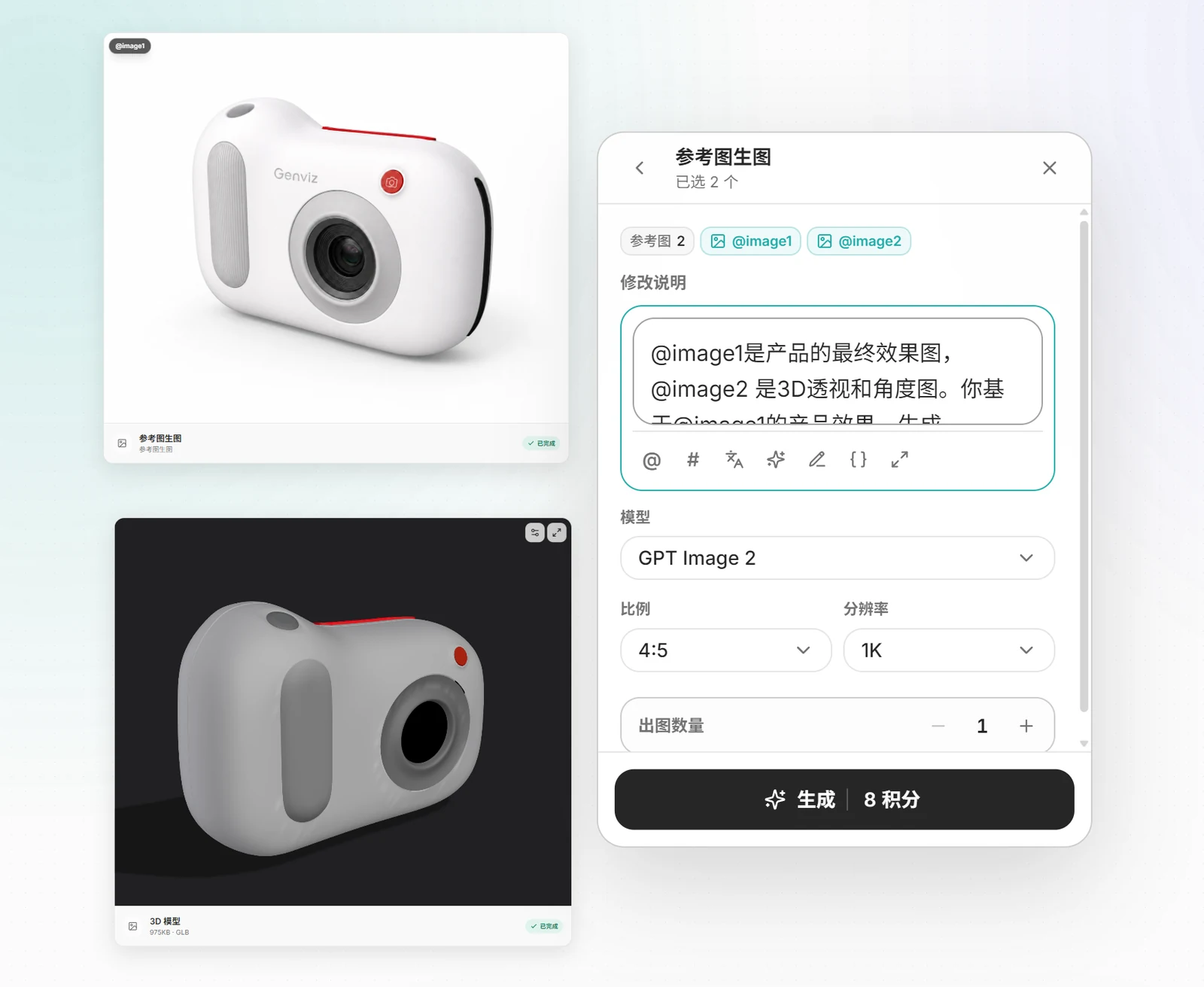
Repeat this process for multiple angles, including detail shots. The structure and form will be almost perfectly maintained.
GENVIZI_MD_TOKEN_0011
Step 4: CMF Ideation and Mood Board
This step requires extensive copywriting and definition, so using an Agent is helpful. For ideation, letting the AI brainstorm is perfectly fine.
To operate, click the main rendering you just created -> "+" Action panel -> Select Agent.
Plan first, then execute. You can also output images for CMF mood boards, and the results look quite professional.
Step 5: E-commerce Concept Images
I haven't detailed or optimized this step, but using an Agent follows a similar process.
Simply select a product image and a model image, then enter the Agent panel and input:
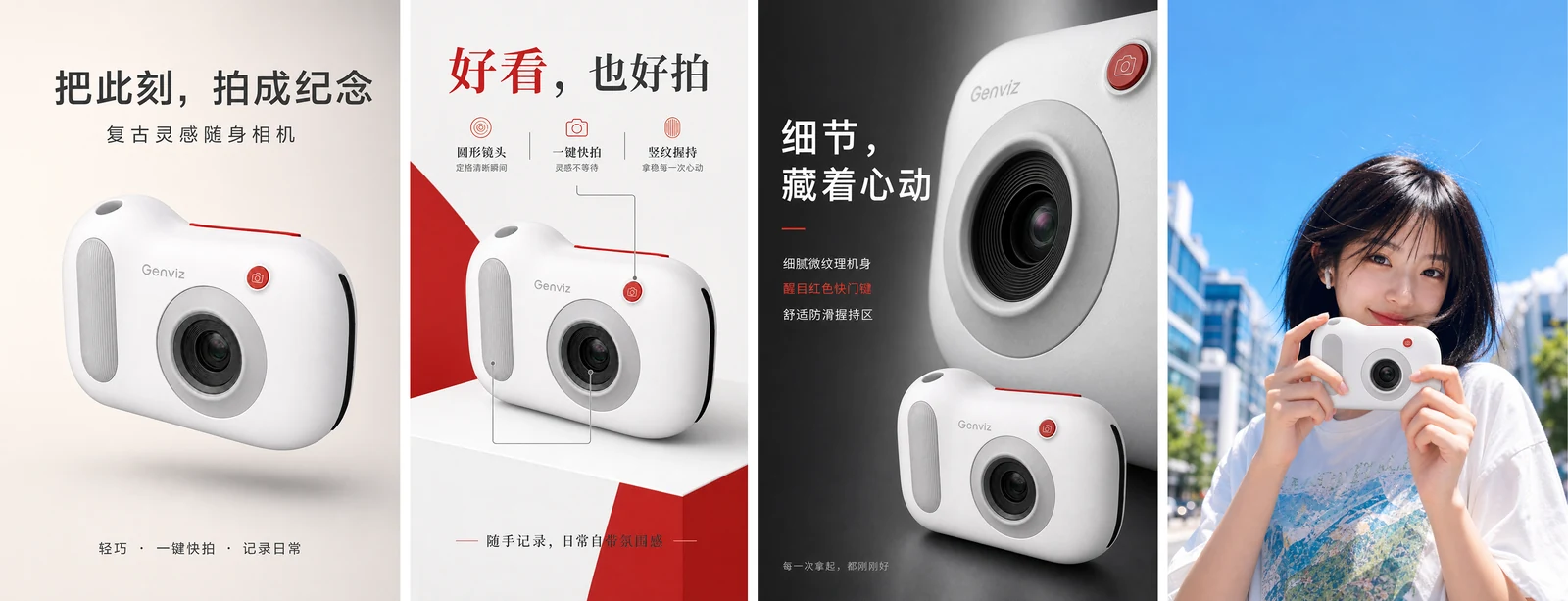
Based on the product image and the model image, output an e-commerce image set: 1. hero visual; 2. selling-point image; 3. detail image; 4. lifestyle scene image. 4 images in total, vertical (portrait), output separately. Product selling points: summarize them from the product's appearance and from what matters for instant cameras in general. Each image needs copy that highlights the product's features and makes people want to buy at first glance.
This allows the Agent to help plan the copy and generate multiple images with one click.
GenVizu currently supports up to 4 images generated simultaneously.

You can create your own models, or if you can't find suitable ones, GenVizu's rich gallery offers a large selection of "young ladies" that can be used.
Using them is simple: click the gallery entry in the Canvas toolbar:
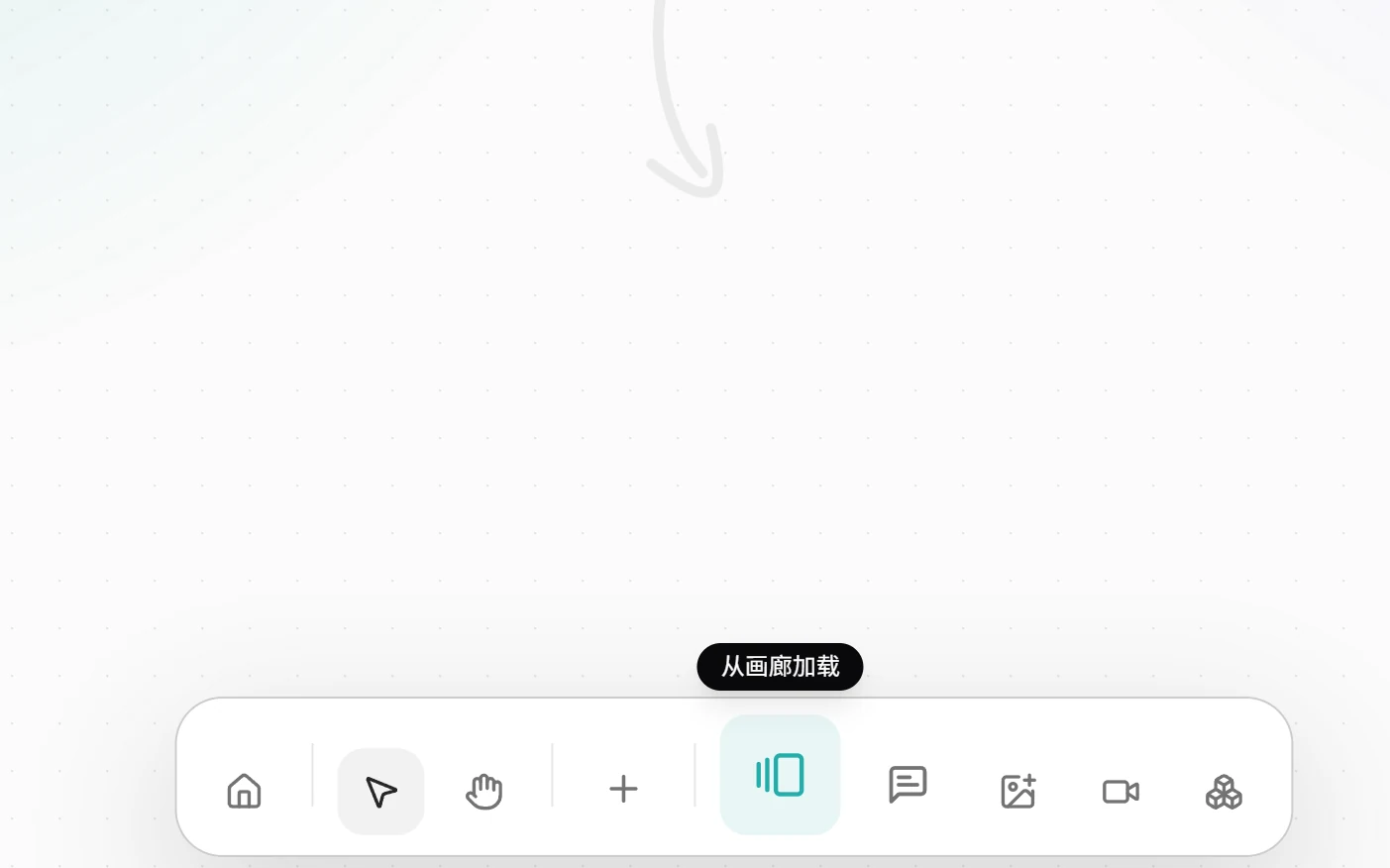
Then, find the desired character from the gallery popup:

Step 6: Create Concept Video
Script Generation
Let's ask the Agent to help create the video script. Select the product image, then input the following in the Agent panel:
Based on the product image set and detail images, lock the product's design form and design details, combine them with the model scene, and output a 16-panel storyboard grid for a relatable, immersive video ad that makes viewers want to buy at first sight. Plan it for a 10-second duration. Vertical (portrait) aspect ratio.
After executing the plan, storyboards will be generated:
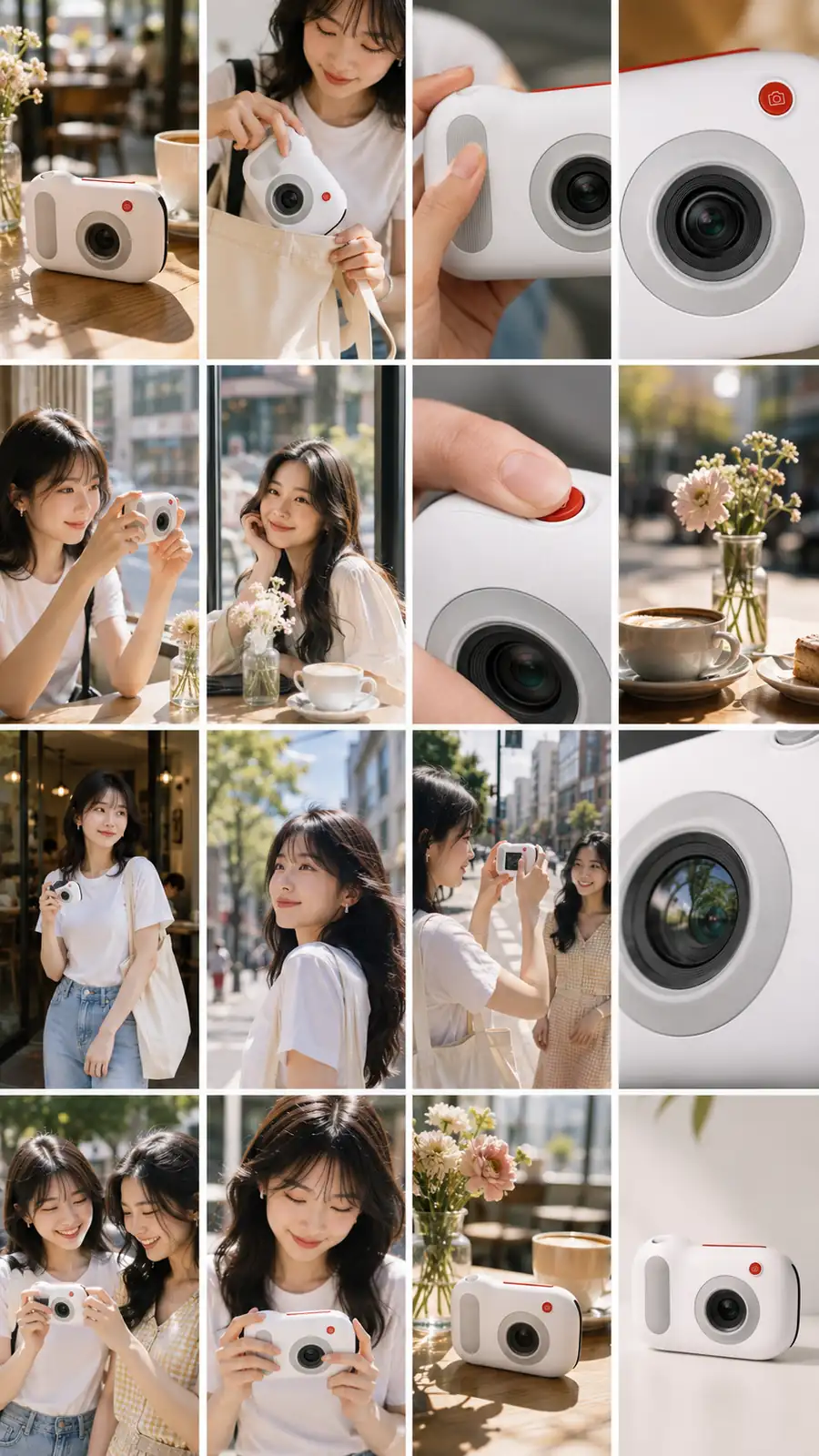
Video Generation
Select the storyboard, click "Animation" in the Action panel, and then "Generate Video." Input your prompt:
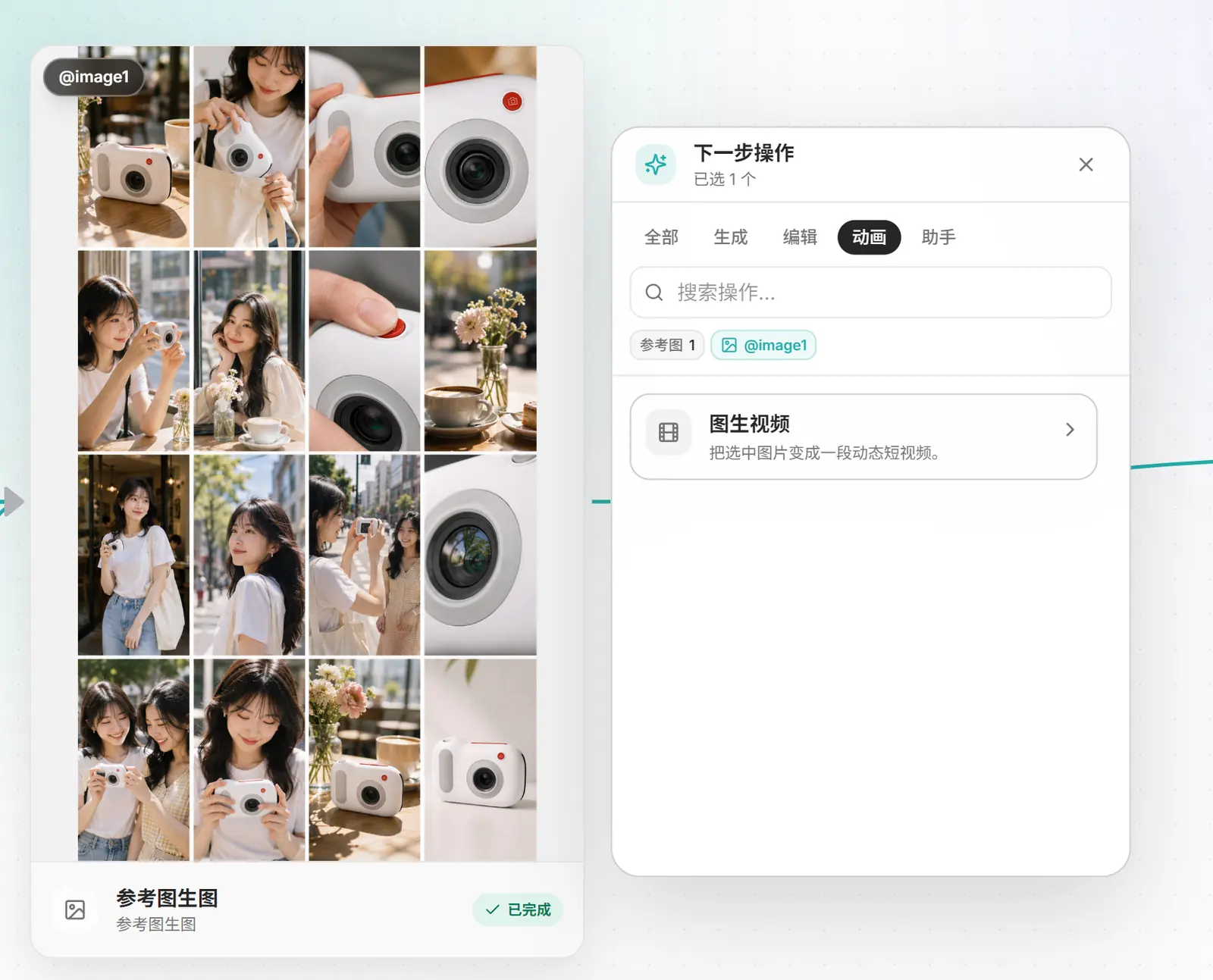
Generate an instant camera video ad from storyboard @image1, editorial-pick quality, commercial advertising. Rough script: Story setup: a young, stylish Asian woman strolls through a sunny weekend city café and street corner, using this compact camera to capture her friends and everyday moments. The storyboard shows, in order: 1 morning light falling on the camera on a café table; 2 the woman takes the camera out of her tote bag; 3 fingers touching the vertical-ribbed grip; 4 macro of the lens and red shutter button; 5 she raises the camera toward a friend by the window; 6 the friend smiles by the window; 7 close-up of pressing the red shutter button; 8 coffee and flowers seen through the lens; 9 she walks out of the café holding the camera easily in one hand; 10 sunlit backlit street portrait; 11 side tracking shot of her photographing her friend; 12 the camera lens reflecting city light and shadow; 13 the two friends interacting naturally; 14 she looks down to review the shot with a satisfied smile; 15 a refined hero shot of the product beside a coffee cup and bouquet; 16 a closing product close-up on a clean warm-white background, leaving simple negative space at the top. Camera language in each panel is clear and varied, including wide environmental shots, medium shots of people, hand close-ups, product macros, and product hero shots; natural warm sunlight, a subtle film look, shallow depth of field, realistic skin and authentic commercial photography texture, emphasizing lightweight portability, capturing moments on the go, and joyful immersion. Include music and any necessary voiceover lines.
Conclusion
This covers only a portion of the AI-assisted design process. With these toolsets and AI capabilities, you can generate much more material, such as wireframes and exploded views for packaging. If you need to ensure no deformation or distortion, 3D models are an excellent input material.
In a real-world scenario, the process demonstrated above would likely involve multiple rounds of iteration (like drawing cards). This demonstration focused solely on showcasing the workflow, omitting the iterative drawing steps.


