Gemini Omni Flash 1.1 Launched: Motion Graphics, UI Animation, Brand Videos on Genvizu
Gemini Omni Flash 1.1 is live on Genvizu: flat per-segment pricing, 720p/1080p same price, first/last-frame mode — built for motion graphics and brand videos.
 Genvizu Team7 min read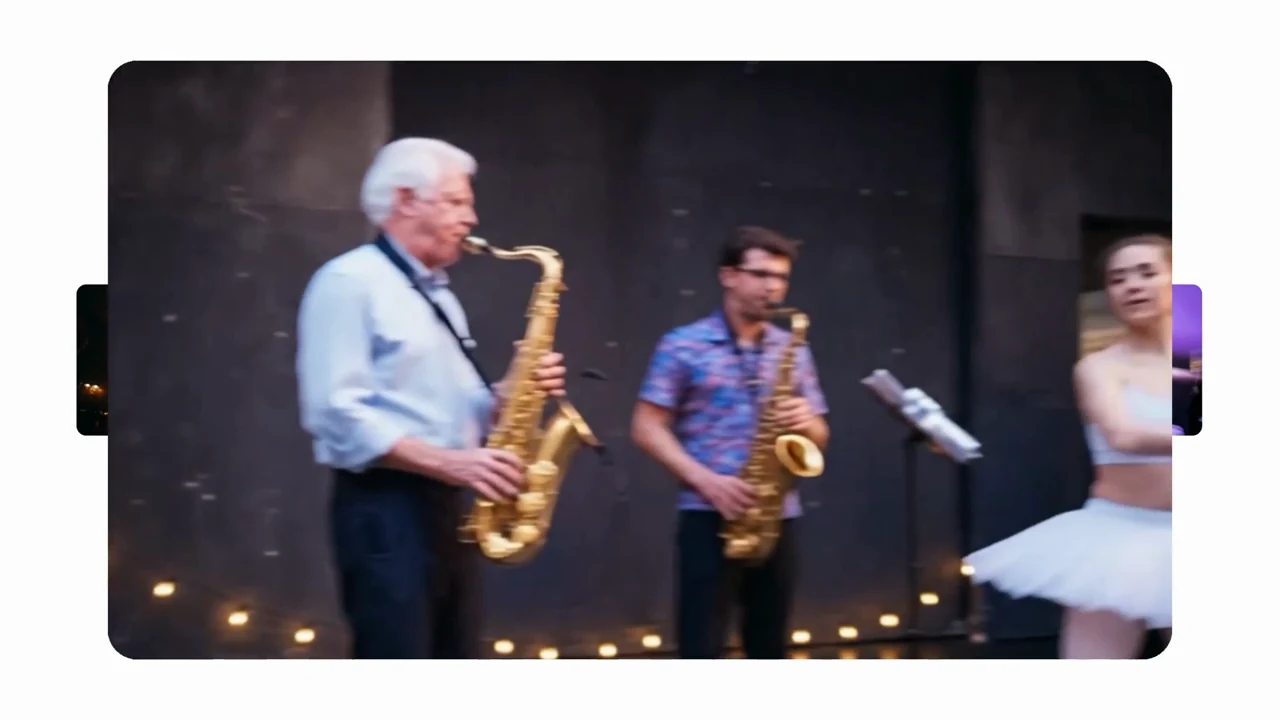
Gemini Omni Flash 1.1, the multimodal video model Google DeepMind released on August 27, 2026, is now live on Genvizu — you can select it directly from the model picker.
Here's what it looks like on Genvizu in three sentences: it supports text-to-video, plus reference-image mode (up to 7 images) and first/last-frame mode (a first frame plus an optional last frame); duration comes in four tiers — 4 / 6 / 8 / 10 seconds — with 16:9 / 9:16 aspect ratios and 720p / 1080p / 4K resolution; pricing is flat per segment, not accumulated per second, 720p and 1080p cost the same, and the cheapest segment is 79 credits. Output is an MP4 with an audio track — the official docs state the model tries to generate a fitting soundtrack by default, and you can also describe the music or sound effects you want directly in the prompt.
This post isn't about general camera-work tips — it's about the one category of work where this model really pulls ahead: motion graphics, interface/UI animation, and brand promo videos.
How to use it on Genvizu
- Open Studio or the Infinite Canvas, and switch to video;
- Pick Gemini Omni Flash 1.1 (under the Google brand, marked Featured);
- Choose your input mode — no image (text-to-video), a reference image, or switch to first/last-frame mode;
- Set duration, aspect ratio, and resolution, write your prompt, and click generate.
The prompt limit is 20,000 characters — plenty of room for a full shot list. There's no audio toggle, because this upstream version doesn't expose a separate audio parameter — the soundtrack is generated together with the visuals, so describe whatever sound you want directly in the prompt. Generated results land in your generation history as usual, and you can keep working on them on the canvas.
Why it's a good fit for motion graphics and brand videos
- On-screen text is actually readable. The official docs explicitly state the model renders on-screen text correctly and legibly, and even give a "one word at a time" example. Titles, taglines, and data labels — the things AI video used to mangle most — can now be treated as real design elements.
- First/last frame = keyframe thinking. Google describes this capability as "smoothly transitioning between a starting image (first frame) and an ending image (last frame)" — which is exactly how motion graphics work: define the start and end states, and let interpolation handle the motion in between.
- Timeline prompts = a shot list. You can write
[0-3s] A person is walkingdirectly in the prompt, orAfter 3 seconds, a woman enters the scene, to lay out timing down to the second. - Single shot, no cuts. Adding a line like
In a single unbroken scene/No scene cutsstops the model from cutting on its own — unwanted jump cuts are the last thing you want in a UI demo or logo reveal. - Native audio. BGM mood and sound-effect timing can be described directly in the prompt, like
Include calm background musicorhigh energy techno beat— no need to score a separate track. - Vertical output, natively. 9:16 is a native aspect ratio, not a horizontal crop, so social shorts come out ready to post.
Third-party reviewer invideo, in a hands-on test across more than 30 samples, called "motion graphics with keyframe animation and stable text" a real breakthrough for this generation, and noted that text overlays stay locked to the moving subject. That's their read, not a Genvizu measurement — you'll still want to run your own tests on your own material.
Above: the first/last-frame demo from Google's official launch blog post, source, copyright Google; click to play (muted by default).
Three copy-paste prompt recipes
We recommend writing prompts in English for the most reliable instruction-following. All three recipes below follow the same rule of thumb: short, sparse, big — no more than 3 words per screen is a safe target based on Google's official "one word at a time" example, not a guarantee.
① Brand Logo Reveal / Slogan Animation (4s / 16:9 / 720p, 79 credits)
In a single unbroken scene, no scene cuts. Dark charcoal background with soft
volumetric light from the upper left.
[0-2s] A thin white geometric mark draws itself stroke by stroke at the center,
lines snapping into place with a subtle spring.
[2-4s] The mark scales down and slides to the left; the words "STUDIO NORTH"
fade in beside it in a bold sans-serif, large and clean.
Text on screen: "STUDIO NORTH" only. Keep typography large and readable.
Include calm minimal background music with one soft impact when the text appears.
② UI / Product Interface Animation (8s / 16:9 / 1080p, 132 credits)
One continuous shot of a clean dashboard interface on a light background,
no camera cuts, gentle parallax only.
[0-2s] A card slides up from the bottom and settles with an ease-out motion.
[2-4s] A bar chart inside the card grows from zero to full height, bars rising
one after another.
[4-6s] A label reading "+38%" appears above the tallest bar and stays locked to it.
[6-8s] The cursor moves to a rounded button labeled "Publish"; the button lifts
slightly and glows.
Text on screen: only "+38%" and "Publish". Large and high contrast, no small text.
Include soft UI click sounds and a light ambient pad.
③ Vertical Brand Promo Short (6s / 9:16 / 720p, 105 credits; add one more beat with 8s = 132 credits)
Vertical 9:16 framing. One unbroken handheld shot, warm morning light in a small
coffee bar. No scene cuts.
[0-2s] Steam rises from a cup as a barista slides it across the wooden counter.
[2-4s] The camera pushes in slowly; the words "SLOW MORNINGS" appear across the
upper third, one word at a time.
[4-6s] The frame settles on the shop logo embossed on the cup sleeve.
Text on screen: "SLOW MORNINGS" only, three words maximum per frame.
Include warm acoustic background music and gentle room tone, no voiceover.
Swap in your own brand name, numbers, and scene, and re-time the timeline brackets to match your chosen duration — this structure holds up across reuses.
First/last-frame workflow: lock two stills, then let it fill in the motion
This is the most effective way to use Gemini Omni Flash 1.1 as a motion-graphics tool, and the whole workflow runs inside Genvizu:
- Generate the starting state first. Use one of the image models on the platform — Grok Image 2, GPT Image 2, or Nano Banana 2, for example — to generate the first frame: a logo sitting still and centered, an empty UI state, a product not yet expanded.
- Then generate the ending state. Keep the same style description and change only the layout: the logo shrinks into a corner, the cards are fully expanded, the product reaches its finished state. Keep the color palette, lighting, and composition consistent across both images, or the transition in between will drift.
- Switch to first/last-frame mode and upload the two images. Order follows upload order: the first image becomes the first frame, the second becomes the last frame; upload only one and only the first frame gets locked.
- Write the prompt about motion only. Don't re-describe what the frames look like — the images already show that; spend your words on how things move:
Smoothly transition from the first frame to the last frame. The mark scales down while the panel expands from the right. Steady camera, no cuts.
Reference-image mode (up to 7 images) takes a different path: it doesn't lock a first/last frame — instead it feeds in characters, products, color palettes, and type samples together as style and subject references. The two modes are mutually exclusive; use only one at a time.
Above: the "explained with real-world knowledge" sample shown on Google DeepMind's model page — explainer and edutainment-style motion content is a signature use case for this class of model, source, copyright Google.
Pricing: flat per segment, no surcharge for aspect ratio or reference images
| Duration | 720p / 1080p | 4K |
|---|---|---|
| 4s | 79 credits | 184 credits |
| 6s | 105 credits | 210 credits |
| 8s | 132 credits | 237 credits |
| 10s | 158 credits | 263 credits |
Three things worth noting: 720p and 1080p cost the same, so there's no reason to pick 720p for a deliverable; aspect ratio, number of reference images, and first/last-frame mode never change the price — 7 images or 0 images cost the same; 4K requires PAYG or a Starter plan or above. See the full per-model price list at Genvizu Model Pricing, and plans/credit packs on the Pricing page.
For drafts, we recommend running several passes at 4s / 720p (79 credits) to nail down the text and timing, then move up to 8s / 1080p for the final cut once the structure checks out.
Choosing between the video models on Genvizu
- Seedance 2.5: up to 30 seconds, with reference-image, reference-video, and reference-audio channels all available — best for full narrative work. See the launch post.
- Grok Imagine Video 1.5: cheap and fast, good for high-volume drafting and quick iteration. See the model page.
- MiniMax H3 (Hailuo 03): 2K resolution plus stereo audio, leaning toward finished-footage quality. See the model page.
- Gemini Omni Flash 1.1: text rendering, keyframe control, and native audio — the top pick for motion graphics, interface animation, and brand videos.
What's in the official release that Genvizu hasn't enabled yet
Google's launch blog also announced scene extension up to 40 seconds, referencing external video clips of up to 3 seconds, and a 360p draft mode (which Google says is up to 60% faster and roughly a third of the cost). None of these three are enabled in the current Genvizu version — this rollout ships text-to-video, reference-image, and first/last-frame modes only. Upstream voice editing is also marked unsupported by Google. In addition, all outputs carry an invisible SynthID watermark, which is a fixed, model-level behavior.
Try it now
Want to see what it can do with your own brand logo, a UI walkthrough, or a vertical short? A single 4s / 720p test pass is enough to start — Open Gemini Omni Flash 1.1 to start creating