

Video to Storyboard Sheet: Genvizu Infinite Canvas 'Extract Storyboard' Creates a Full Storyboard Image Instantly
Learn how Genvizu's new 'Extract Storyboard' feature in Infinite Canvas transforms AI-generated videos into comprehensive storyboard sheets in seconds, directly in your browser.
 Genvizu Team5 min read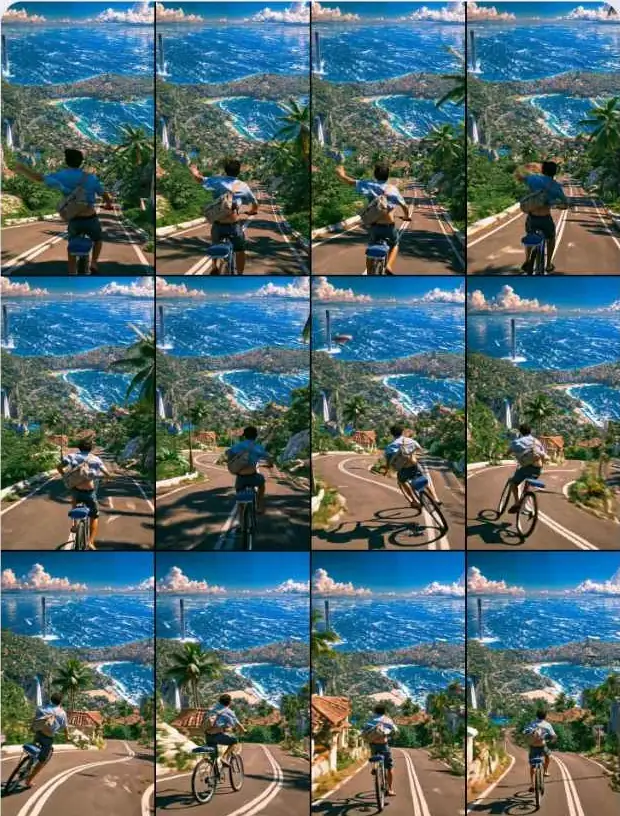
Video to Storyboard Sheet: Genvizu Infinite Canvas 'Extract Storyboard' Instantly Assembles a Storyboard Image
Want to turn an AI-generated video into a storyboard that clearly shows the entire video's pacing at a glance? No need for editing software or painstakingly capturing and stitching frames. Genvizu Infinite Canvas's newly launched Extract Storyboard feature allows you to select video nodes, choose a grid, and generate a complete storyboard image in seconds to tens of seconds. The entire process is done locally in your browser and does not consume credits.
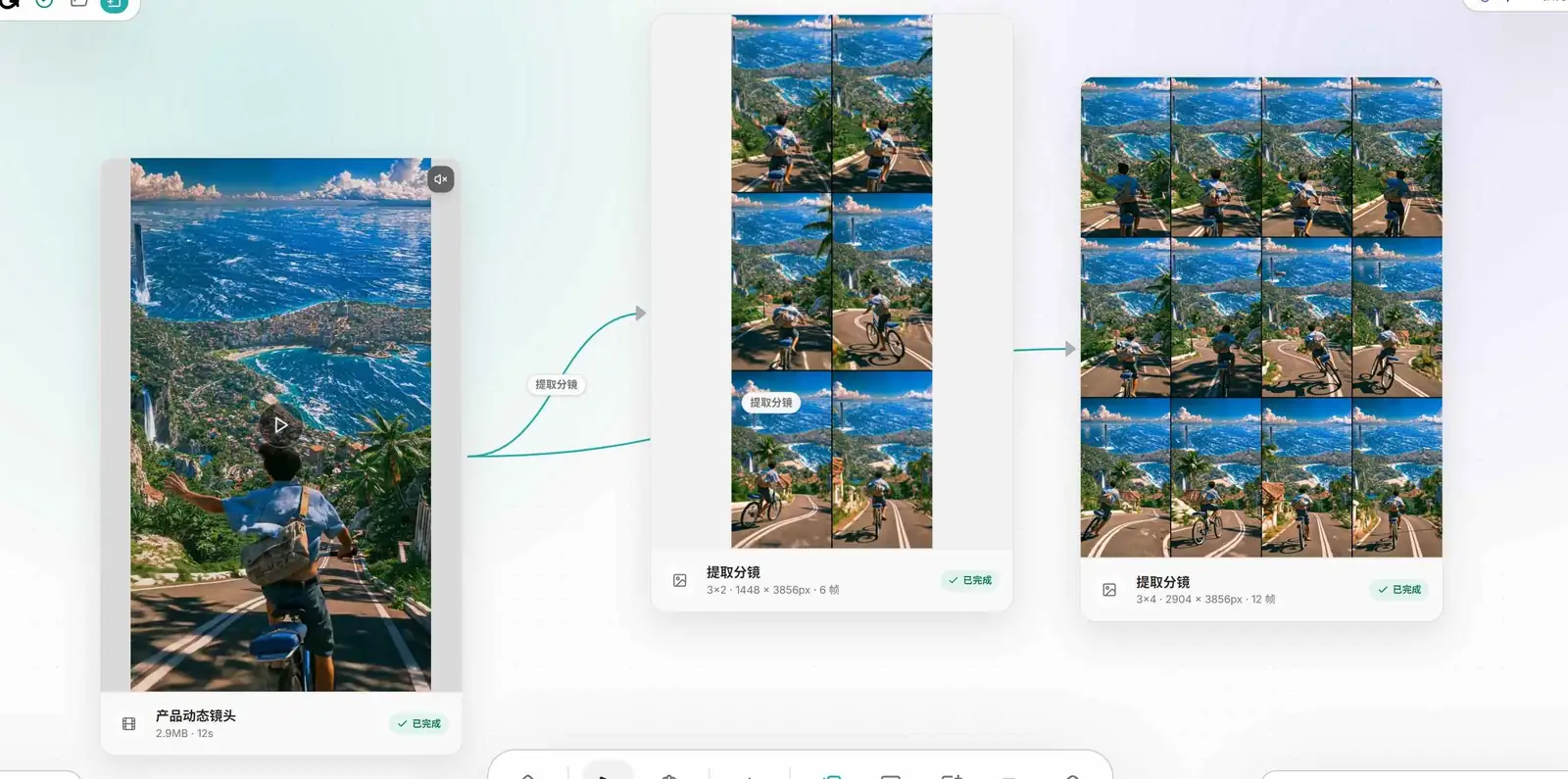
Screenshot of Genvizu Canvas: The left side shows a 12-second cycling video, which was used to generate two storyboard images, 3x2 (6 frames) and 3x4 (12 frames), using 'Extract Storyboard'.
Where to Find It: Select a Video Node, Open from the '+' Next Action Menu
After importing or generating a video in Infinite Canvas, select the video node. Click the adjacent '+' next action panel, and you'll find the Extract Storyboard tool. It only recognizes video nodes, does not consume generation credits, and does not call any AI interfaces. It's purely frame extraction and image stitching computations within your browser; the original video file remains unchanged.
Clicking it opens a settings dialog: preset grids include 4 / 6 / 9 / 12 / 16 / 20 / 24 frames. Vertical videos will automatically transpose the grid to a row/column layout that better fits the aspect ratio (e.g., 12 frames change from 4x3 for horizontal video to 3x4 for vertical). You can also customize the number of rows and columns, from 1 to 8 each, with a maximum of 48 frames to avoid excessively long extraction times.
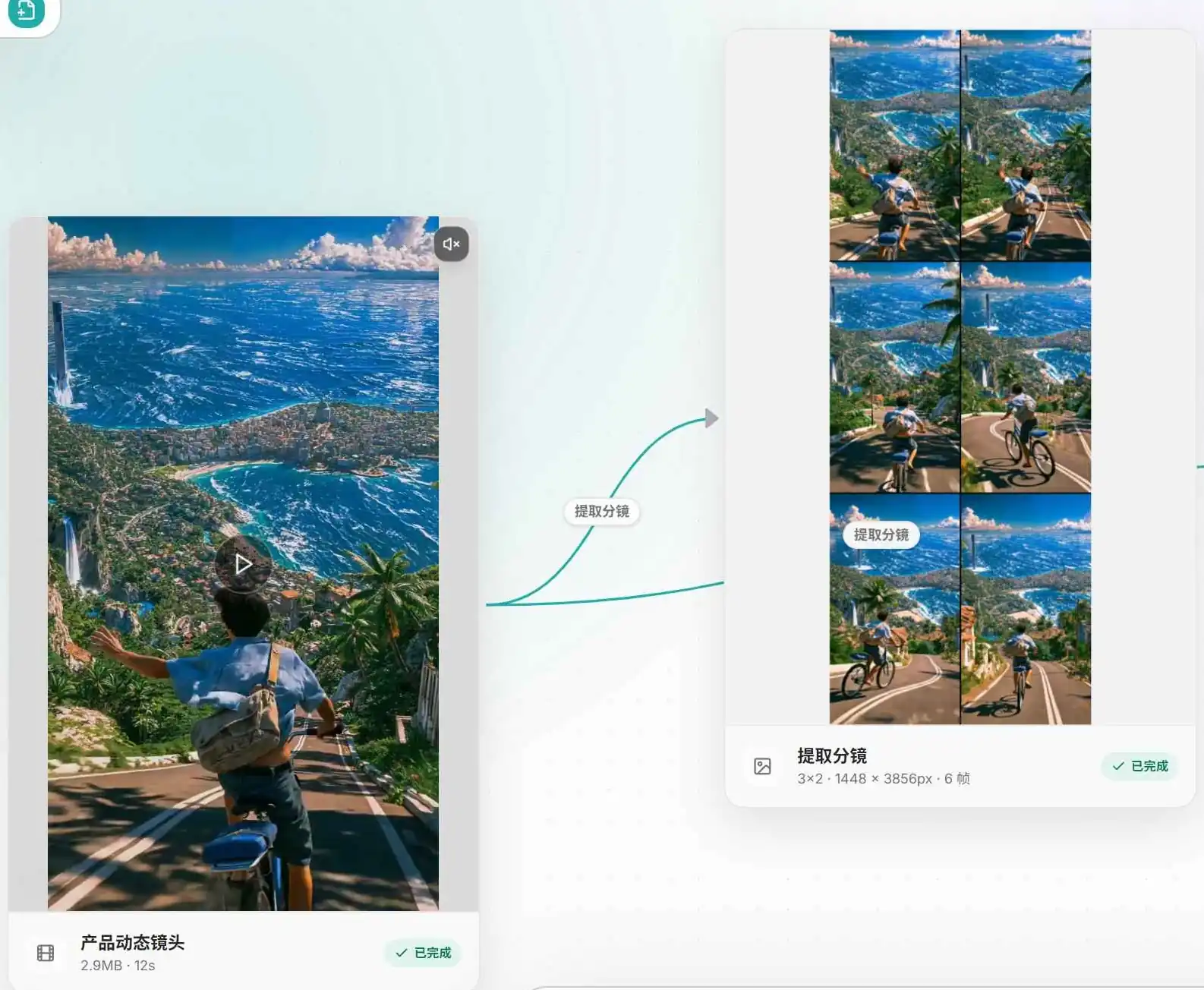
Screenshot of Genvizu Canvas: After selecting a video node and clicking 'Extract Storyboard', a 3x2, 1448x3856px, 6-frame storyboard image result node appears next to it within seconds.
Preview Available Upon Opening the Dialog, No Need to Wait for Generation to See the Layout
As soon as the video metadata is read, the dialog immediately performs a lightweight preview: it extracts anchor frames from the corresponding time segment for each grid cell, rendering them as small thumbnails within the grid. For a 9-frame grid, it takes about 1 second; for a 24-frame grid, about 3 seconds to see the layout's rough form. Each cell also displays its corresponding timestamp in the bottom right corner. Adjusting rows/columns or switching presets has a 300ms debounce to re-extract frames only when you stop making changes. Adjusting parameters like spacing, background color, and numbering, which are purely visual, only redraws the preview without re-extracting frames. Clicking 'Generate Storyboard' replaces the preview thumbnails with the final version—each frame is optimized within its segment, rather than being a simple anchor frame.
Why Not Just Simple Equal-Interval Screenshots?
Dividing a video into N segments of equal duration and picking one frame from each is the most common approach for storyboards/contact sheets in the industry. However, strictly picking frames at fixed intervals often leads to issues: capturing black screens or transition frames, moments of motion blur, or consecutive frames of static shots looking almost identical. Genvizu's approach is segment optimization based on uniform segmentation:
-
First, locate the midpoint of each segment as a time anchor and select a few candidate frames around it.
-
Filter out pure black or pure white frames (like fade-ins/outs) from the candidate frames.
-
Score frames by clarity to eliminate those with motion blur or during crossfades.
-
Calculate the visual difference from the 'previously selected frame' to prioritize frames with significant changes, avoiding consecutive frames that look too similar.
-
If the difference between adjacent candidates is too large, suggesting a potential cut, these candidates are down-weighted.
-
In extreme cases where all candidates are filtered out, the system defaults to the midpoint frame of the segment, ensuring the process doesn't get stuck.
This logic does not perform full shot/scene detection. Most in-app videos are single AI-generated shots lasting 5-15 seconds, where true shot change detection is less meaningful and might revert to uniform sampling due to insufficient scene count. Therefore, the current solution is more like 'smarter equal-interval frame extraction': it still divides the timeline uniformly to cover the entire duration, but picks the most representative frame from each segment.
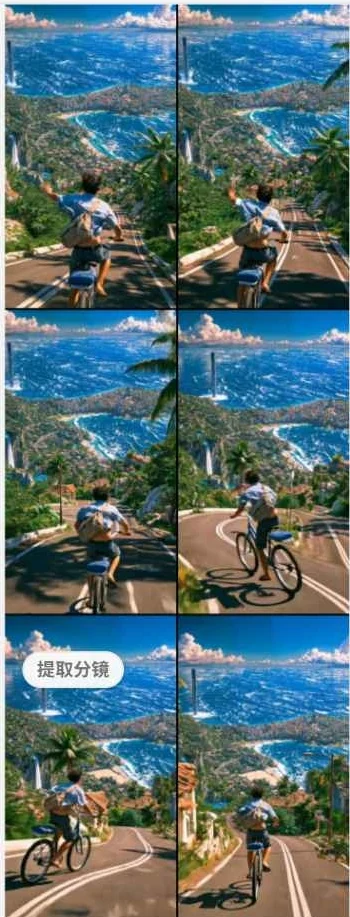
Screenshot of Genvizu Canvas: A close-up of a 3x2 storyboard. The 6 frames are evenly divided by time, with the best frame selected from each segment, clearly showing the progression of action.
Dimensions and Optional Parameters
The generated storyboard image supports a maximum long edge of 4096px. Each frame maintains the original video's aspect ratio, never stretching or deforming the image, nor upscaling low-resolution material. The size of each frame is limited by the source video's resolution. Only when the entire storyboard image exceeds 4096px on its longest side will it be scaled down proportionally.
The dialog also offers several adjustable options:
OptionDescriptionSpacingPadding between frames, selectable as 0 / 8 / 16pxBackground ColorBlack or white backgroundOverlay NumberingAdds frame numbers to each cell, disabled by defaultOutput Individual Frame NodesWhen enabled, an additional multi-image node is created, allowing each individual frame to be extracted for further editing
The generated storyboard image appears as a new image node on the canvas and is automatically linked back to the original video node, making it easy to trace its source. When saving the project, this storyboard image is stored at its original resolution without being compressed to a smaller resolution by the general saving process.
Screenshot of Genvizu Canvas: The same video is used to generate a 3x4 (12 frames) grid again, resulting in more frames and finer time segmentation.
Three Practical Scenarios
-
Instantly Grasp the Pacing of an AI Video: Instead of dragging the video back and forth, a single storyboard image shows how the camera movement, composition, and actions evolve, making it easier to review and adjust prompts.
-
Select a Frame for Image-to-Image or Further Creation: Pick the most satisfying frame from the storyboard, crop it, or save it separately, then use it in Image-to-Image to maintain composition and subject while fine-tuning details for consistent sequels.
-
Storyboard Overview for Operations or Clients: Before delivering short videos, use a storyboard image to replace verbal descriptions of the content flow, simplifying reporting and archiving.
If you haven't generated a video yet and need to break down a story into a timeline of prompts, you can use Genvizu AI Video Prompt Generator to split a one-sentence story into a storyboard timeline. That step addresses planning storyboards before generation, while the newly launched 'Extract Storyboard' addresses how to deconstruct finished videos for review after generation.
Try It Now
Drag your Seedance 2.5 or other video model generated assets into the canvas, select it, and click 'Extract Storyboard' to see the assembled storyboard image: Open the Genvizu AI Infinite Canvas


