Genvizu Canvas Video Transitions: AI Automatically Generates Seamless Connections
Discover Genvizu's new Canvas Video Transitions feature. Learn how to use AI to automatically create seamless transitions between video clips, enhancing your AI video editing workflow.
 Genvizu Team3 min read
Canvas Video Transitions Launched: Select Two Clips, AI Automatically Generates Seamless Connections
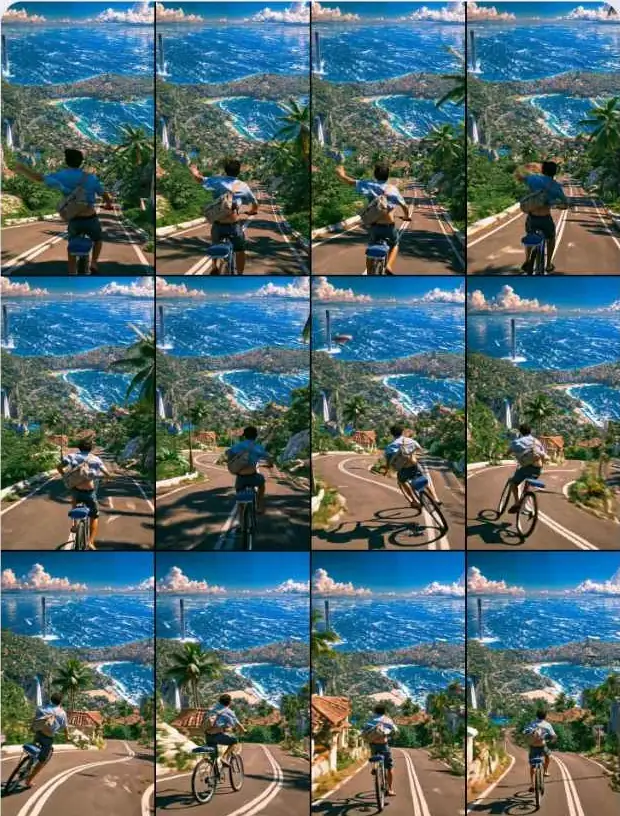
Two individual clips might be good on their own, but stitching them together can feel jarring, like two separate worlds. This is a common issue in AI video creation. Genvizu's Infinite Canvas now features Video Transitions: simply select two clips and click, and the system automatically uses the last frame of the first clip and the first frame of the second to generate a transition clip that connects them naturally. Best of all, there's no extra charge – transitions are billed at the standard generation price of your chosen video model.
Select Two Clips, Click "Video Transitions"
On the Infinite Canvas, select two video nodes. The "Video Transitions" option will appear in the operation panel. The system automatically extracts the tail frame of the first clip and the head frame of the second clip to serve as the start and end frames for the transition. The model then fills in the middle transition – you don't need to screenshot, export, and re-upload.
Position Determines A/B, Swap with One Click in Panel
Which clip is A and which is B is determined by their position on the canvas: top-to-bottom, left-to-right, consistent with the ordering rules for multi-image references. To make it clear:
-
Nodes are marked with "Video A / Video B" corner tags, so you can instantly see which comes first.
-
The operation panel displays thumbnails of "A Tail Frame → B Head Frame," making it obvious which frames are being used.
-
If the order is reversed, simply click to swap; no need to rearrange on the canvas.
Automatic Avoidance of Black Frames
Extracting transition frames can be tricky: the last or first frame of many videos is a fade-out or fade-in black screen. Using these directly as start/end frames means the model has to start generating from black. The system automatically avoids black frames when extracting, ensuring it grabs a frame with actual visual content for a proper transition.
Style Can Be Described, Defaults to Smooth Transition
There's an optional transition style description box in the panel. Describe the feel you want, such as "flash white transition" or "camera movement transition." If left blank, it defaults to a smooth transition, which is sufficient for most narrative scenes.
Models and Pricing: Standard Video Price, No Extra Charge for Transitions
Transitions require models that support head and tail frames. The system will automatically select video models that support head/tail frames (Seedance series), or you can manually switch from the candidate list. Duration is selectable, with the shortest option being the most cost-effective by default.
The pricing rule in a nutshell: billed at the standard video generation price of the selected model, with no additional charge for the transition itself. For example – Seedance 2.0 Fast · 480p · 4 seconds = 80 credits, the same price as generating a 4-second video directly.
Three Scenarios for Immediate Use
-
Complete Transitions Before Editing – When assembling several clips into one video, generate a transition for each pair. This ensures smooth connections when you import them into your editing software.
-
Intermediate Connection for Outfit/Scene Changes – For the same subject, where the first clip features outfit A and the second clip is in scene B, let the transition clip visually depict the change rather than a hard cut.
-
Stitch Independent Clips into a Continuous Narrative – AI videos are often generated as individual segments. Using transitions to link them creates a cohesive film rather than a series of disconnected clips.
Polished Concurrently
In this update, we've also refined three aspects of the Canvas experience: transition results are now returned to the canvas node in real-time and maintain their connections; selected text in the pop-up window after canvas selection no longer shows a selected state; and pricing estimates now display a detailed breakdown of the actual duration, so you know the exact cost before confirming.
Also launched concurrently are Video to Script and Video Upscale (Topaz Engine), complementing Seedance 2.0 Reference Video Upgrade – enabling script reverse-engineering, segmented generation, transition filling, and upscaling to delivery quality, all within the Canvas workflow.
Try It Now
Drag those two clips that never connected smoothly into the Canvas, select them, and click "Video Transitions": Open the Genvizu AI Infinite Canvas