Capsule-Eye Bot Avatar: Turn Any Photo Into a Minimal Icon on the Genvizu Canvas
A new Genvizu canvas Skill turns a photo into a flat avatar with two solid capsule eyes, a mouthless round face, and a corner-peek pose, in black, matched, or white.
 Genvizu Team4 min read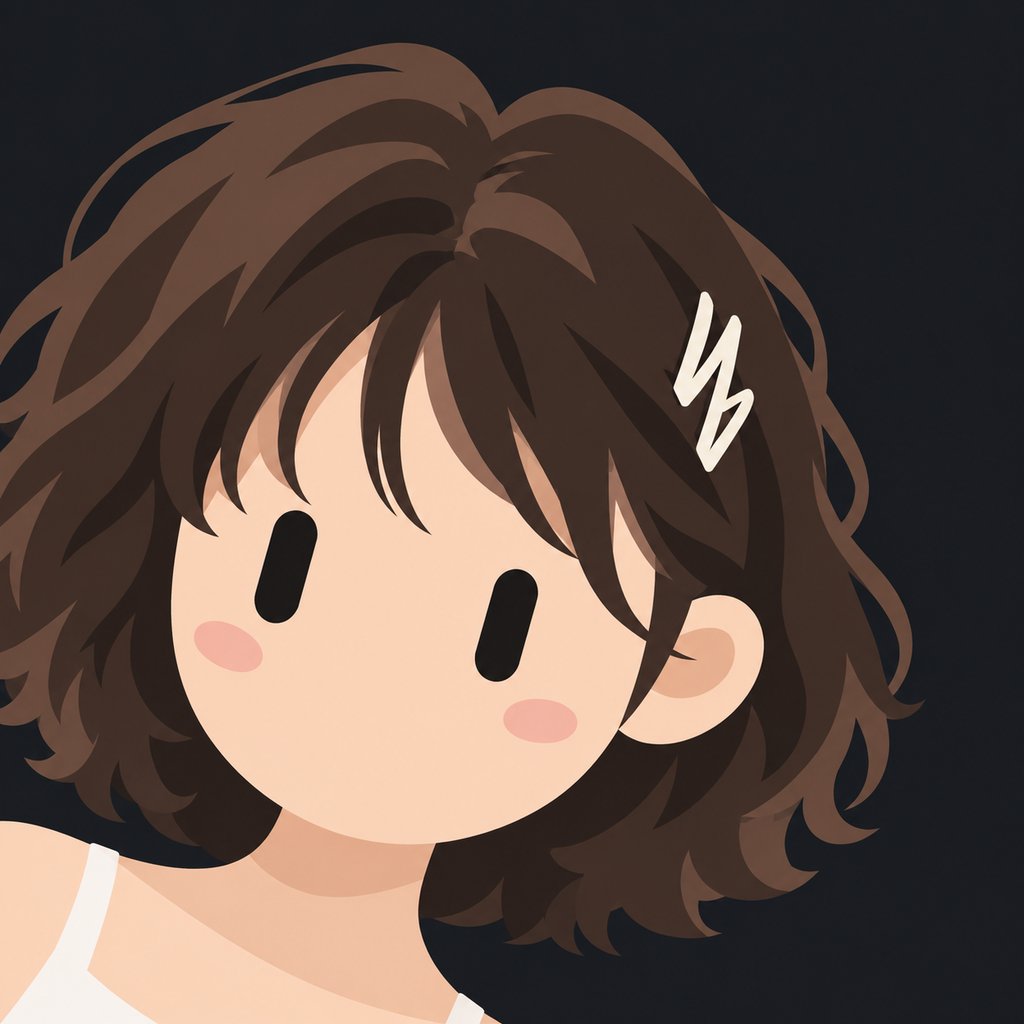
There's a new Skill on the Genvizu infinite canvas: Capsule-Eye Bot Avatar. Upload a portrait or a character photo and it rebuilds the face as one square, flat 2D icon — two solid black vertical capsule eyes, an oversized round face with no nose and no mouth, two faint blush ovals, the whole head peeking in from the lower-left corner at a slight clockwise tilt, with quiet negative space in the upper right. The backdrop is a single flat colour: black, a colour matched to the subject, or plain white.
The Skill's cover image — default black background, default lower-left entrance.
Why a plain prompt won't hold this look
The style reads as simple, but it only works when three things hold at once — and left alone, a model will drop at least one of them.
The eye shape has to be locked. Both eyes need to be solid black, vertical capsules with rounded ends, roughly two and a half to three times taller than wide, and fully filled — no pupil, no highlight, no white, no eyebrow, and nothing covering them. Ask for "two black eyes" in a plain prompt and most models default to drawing a pupil and a catchlight, because that's what "eyes" means in almost everything they were trained on.
There's no nose and no mouth, at all. Not toned down — absent. Image models carry a strong prior for faces, so even an explicit "no mouth" instruction often leaks a faint mouth shape or a nose shadow back in once lighting gets involved.
The pose has to peek in from a corner, tilted. The head rotates 15 to 20 degrees clockwise and enters from the lower-left, leaving calm negative space in the upper right, with both eyes staying visible and the face never centred. That's the opposite of how most avatar generations default to a centred, front-facing crop. Spelling out the tilt, the crop and the negative space in one prompt is fiddly, and doing it again for the next photo rarely lands the same way twice.
The Skill turns those three judgment calls into fixed rules, and leaves you two switches: background and entrance direction.
The two parameters, and when to use each
Background has three settings. Black is the default — a near-black charcoal fill, quiet and matte, good for dark UI, Discord-style avatars, and dark profile cards. Matched colour reads the strongest non-skin anchor in your photo (a hair clip, a hat, a garment) and converts it into a muted, low-saturation complementary hue, so a set of avatars for different people each carries a bit of its own colour — useful for a team roster or a grid of profile icons. White is a clean #FFFFFF, the option to reach for in light-themed docs, business cards, or print.
Entrance has two settings. Lower-left peek is the default: the head tilts clockwise and enters from the lower-left. Lower-right mirror flips that: the head tilts counter-clockwise and enters from the lower-right. Reach for the mirror when you're pairing two avatars so they visually "face" each other, or when a layout reads better with the head pointed the other way. Used on its own, either direction works equally well — it's a matter of composition preference.
The brief field, "traits to keep," can stay blank and the Skill will pick up to three anchors from your photo on its own, or you can name one or two things explicitly — round glasses, a full beard, a red baseball cap.
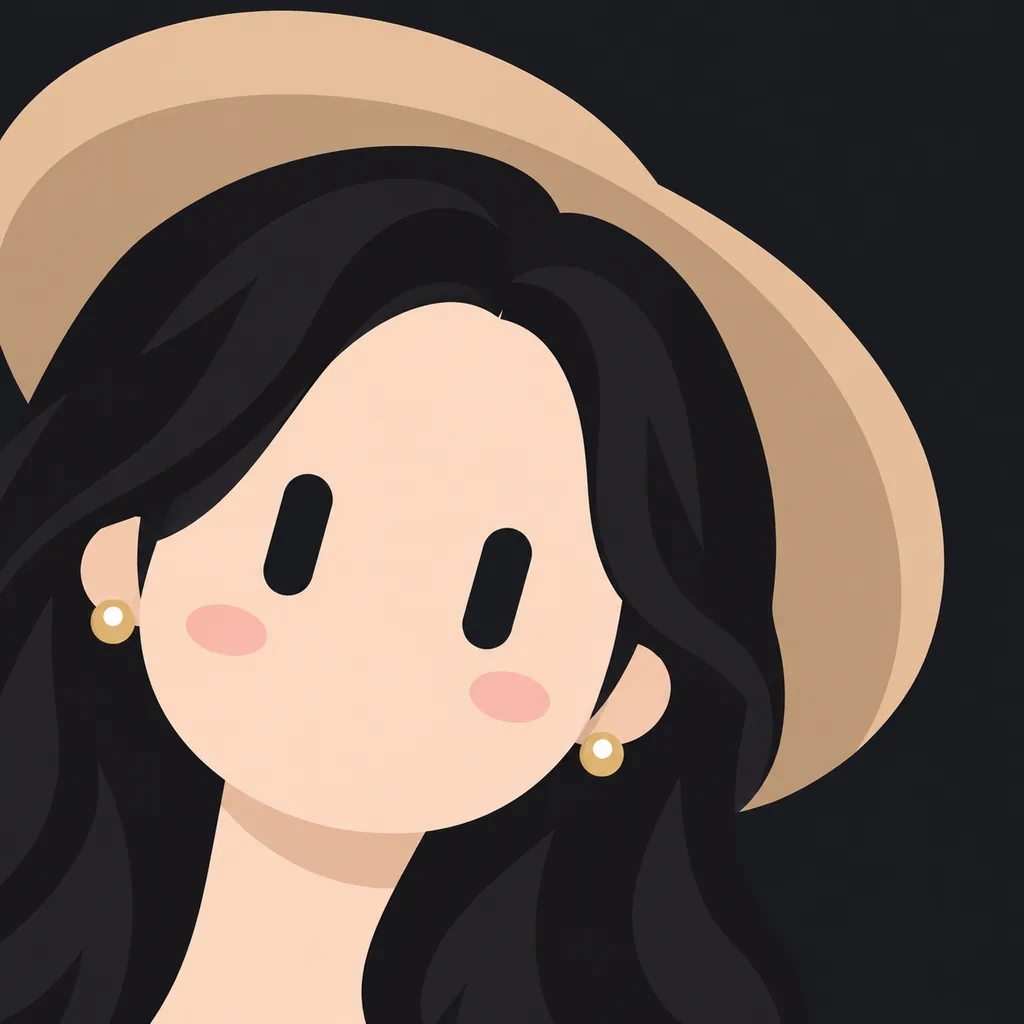
A real output of the Genvizu canvas Skill, generated with GPT Image 2.5 from the same source photo — black background, default settings.
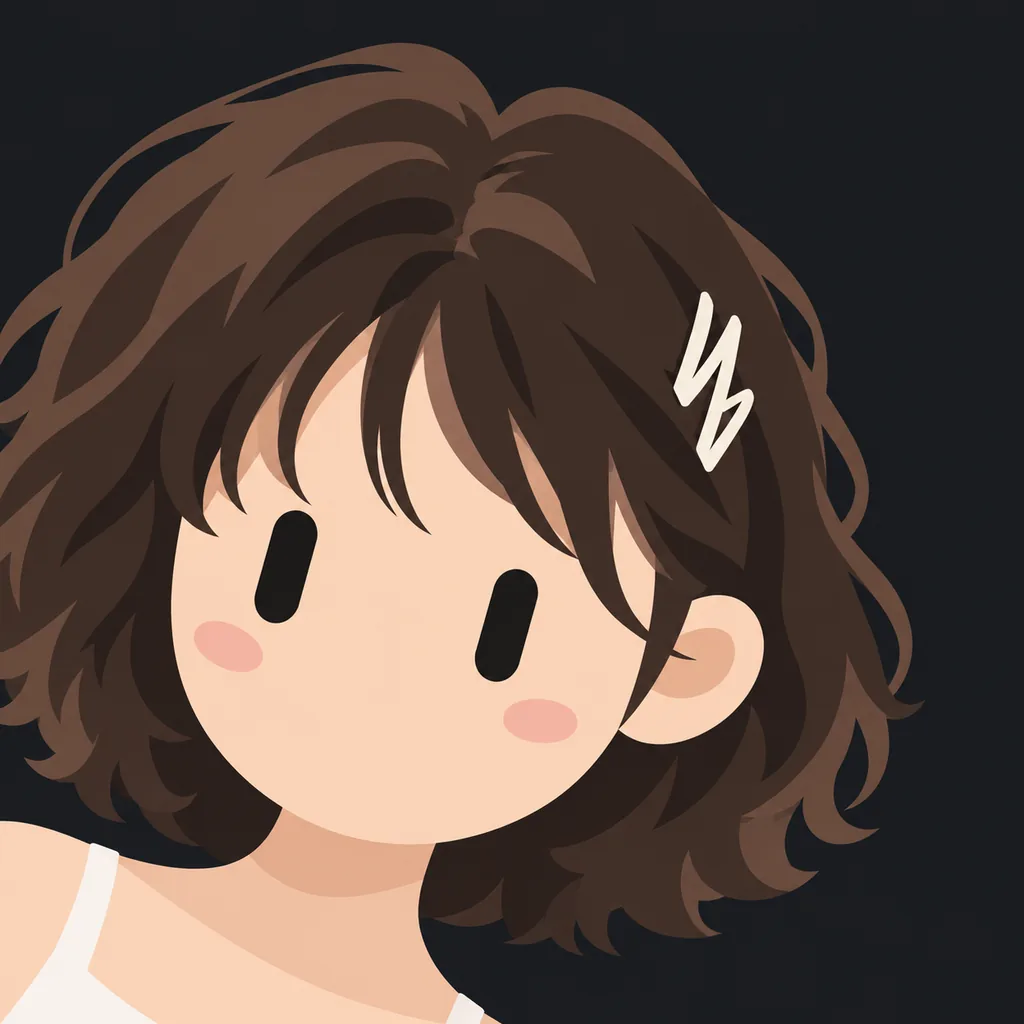
A real output of the Genvizu canvas Skill, generated with GPT Image 2.5 — a second run on the same photo and settings, showing the natural variation between generations.
Running it on the canvas
- Open the Genvizu infinite canvas and drag in, or upload, the photo you want to convert;
- Select the photo node, click the "+" next to it (or right-click), and switch to the Skills tab;
- Find Capsule-Eye Bot Avatar under the Illustration category;
- Pick a background and an entrance direction, and optionally note one or two traits to keep;
- Generate. To try a different background, just change the parameter and generate again — no need to re-upload the photo.
It defaults to GPT Image 2.5, locked to a square aspect ratio at 2K resolution by default. The cost is identical to a regular GPT Image 2.5 generation on Genvizu — the Skill doesn't add a surcharge. See the pricing page for the exact credit cost.
This capsule-eye, mouthless, corner-peeking style has become a common sight on X (Twitter) lately, and many people associate it with Grok's bot character, which is likely why it looks familiar. This Skill produces that same family of minimal visual language reliably from your own photos — it isn't reproducing any specific brand's mascot.
When to reach for something else
If you need the result to actually look like the person — an ID photo, a professional headshot, or anything where real facial features have to be recognisable — this isn't the right tool, since it deliberately drops the real eyes, nose and mouth and keeps only skin tone, hair silhouette, and up to three accessory anchors. It also needs an actual photo as input; there's no text-only path to a specific likeness. And it handles one photo and one character per generation, so it isn't built for splitting a group photo into separate avatars. For a style that keeps full facial detail, browse the other illustration Skills in the same panel.
Make one on the canvas
Upload a photo, pick a background and a direction, and let it build the rest — open the Genvizu infinite canvas