Genvizu Canvas Adds 'Photo Rescue' Skill: Fix Dull Skies, Backlighting, and Strangers in One Click
Discover Genvizu's new Photo Rescue Skill on the infinite canvas. Easily fix overcast skies, backlighting, and unwanted crowds while strictly preserving facial identity and natural skin texture without prompts.
 Genvizu Team6 min read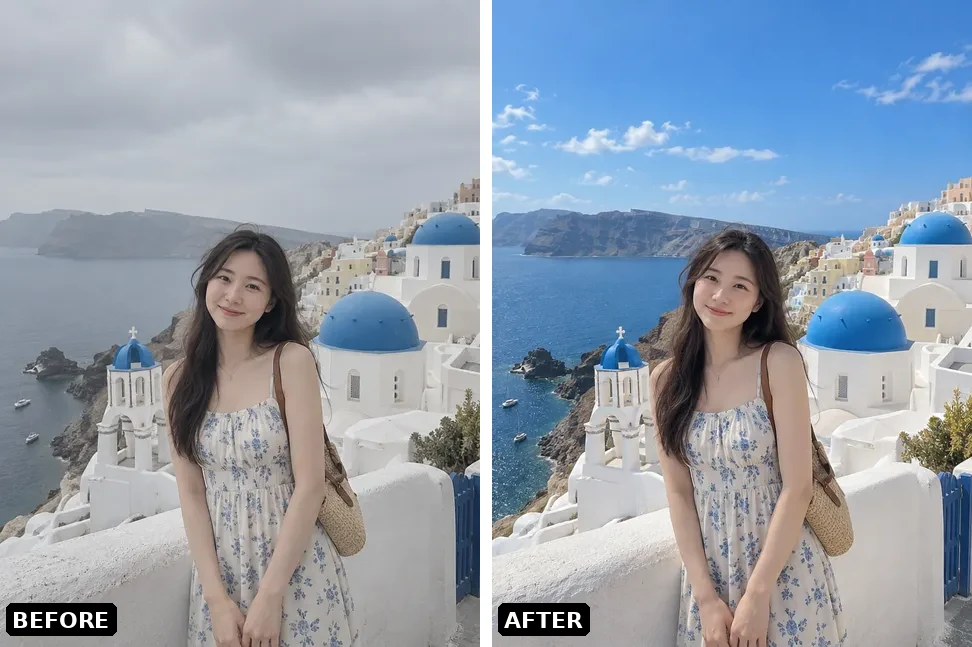
When going through your vacation photo album, there are always a few pictures that are "so close to being great": the sky is gray, faces are in shadow, or strangers are cluttering the background. Today, Genvizu's infinite canvas introduces a new Skill: Photo Rescue. Drag your photo into the canvas, pick one of 8 rescue modes, and hit generate. It will rework the weather, lighting, distractions, or overall vibe while preserving your facial features, hairstyle, posture, and clothing. No prompts needed, no photo-editing skills required.
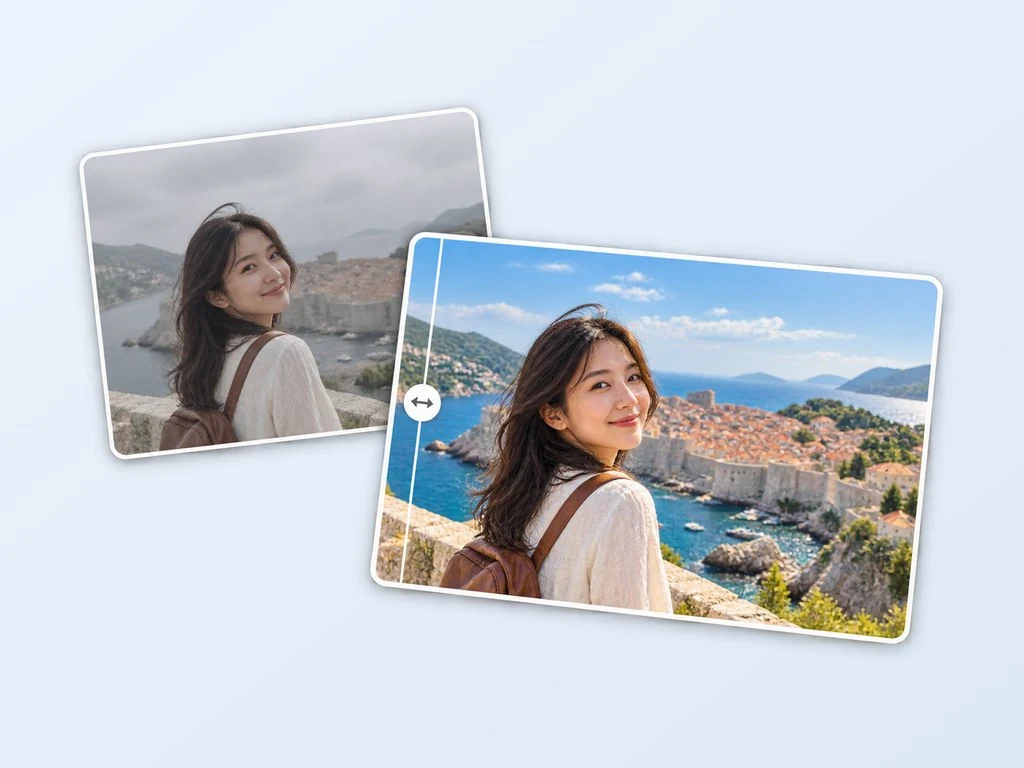
Cover of the "Photo Rescue" Skill: Before and after comparison of the same photo.
How It Differs From Regular "AI Retouching"
Most AI photo editors on the market are single-function tools: changing the sky is one tool, removing pedestrians is another, and color grading requires yet another. Photo Rescue turns the most common "flaws" in travel photos into fixed modes. Behind each mode is a thoroughly tested restoration prompt. You only need to decide "what's wrong with this photo" and select the corresponding mode.
More importantly, identity locking is built-in. All 8 modes share the same strict constraint: using your uploaded photo as the sole character reference, strictly preserving facial features, facial proportions, eye shape, hairstyle and color, body posture, clothing, and overall identity. It retains real skin texture without plastic smoothing, face slimming, or eye enlargement. The edited photo must still be "a real photo of the same person," not an AI-generated image that merely resembles you.
8 Rescue Modes
Every mode in the panel features a set of curtain-style before-and-after thumbnail comparisons. Hovering your mouse over them will pause the comparison so you can preview the effect before choosing.
One-Click Rescue
Choose this when you aren't sure what's wrong with the photo. It instantly removes haze and color casts, restores natural vibrant colors, rebalances exposure and contrast, gently lifts the subject out of the background, cleans up small edge clutter, and subtly crops the composition if necessary. The location, weather character, and time of day remain recognizable. The result feels like "the exact same photo taken by someone better at photography."
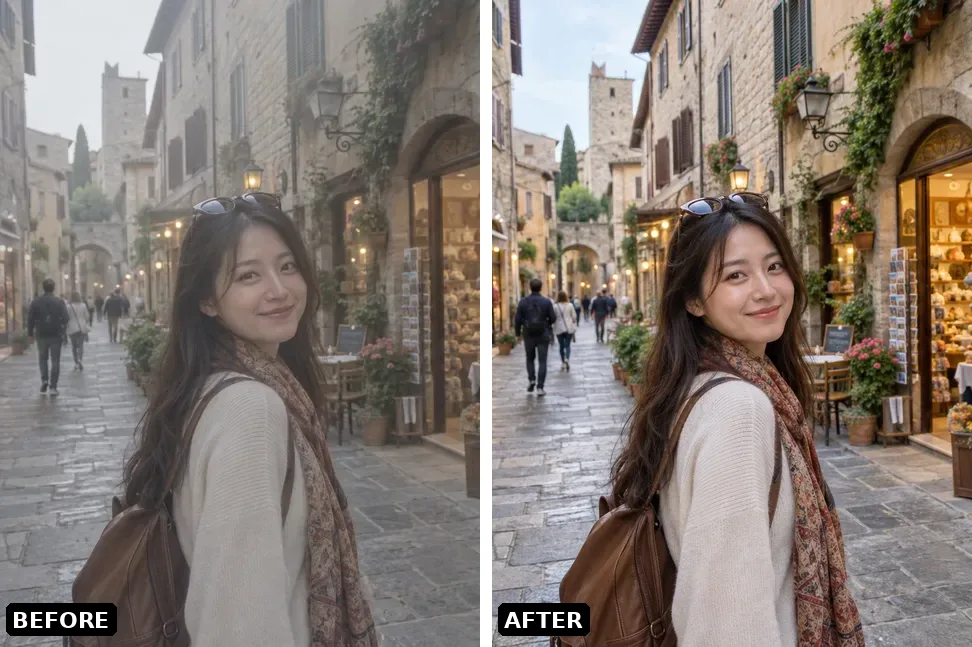
"One-Click Rescue" mode demo: Left is before, right is after.
Weather Rescue
Designed specifically for overcast days. It replaces gray, gloomy, or hazy skies with clear, deep blue skies accompanied by natural fluffy clouds, and re-lights the entire scene: consistent sun direction, matching shadows on the ground and the subject, and realistic sunlight coloring on buildings and landscapes. Locations, composition, and object placement remain untouched, avoiding the look of a pasted-on fake sky.
"Weather Rescue" mode demo: Left is before, right is after.
Lighting Rescue
Choose this for backlit photos with dark faces, severely under-exposed pitch-black areas, or noisy night scenes. It uses soft key light to recover facial and subject details, tames blown-out highlights, lifts crushed shadows, clears noise while preserving fine textures, and keeps the original environmental atmosphere and time of day believable.
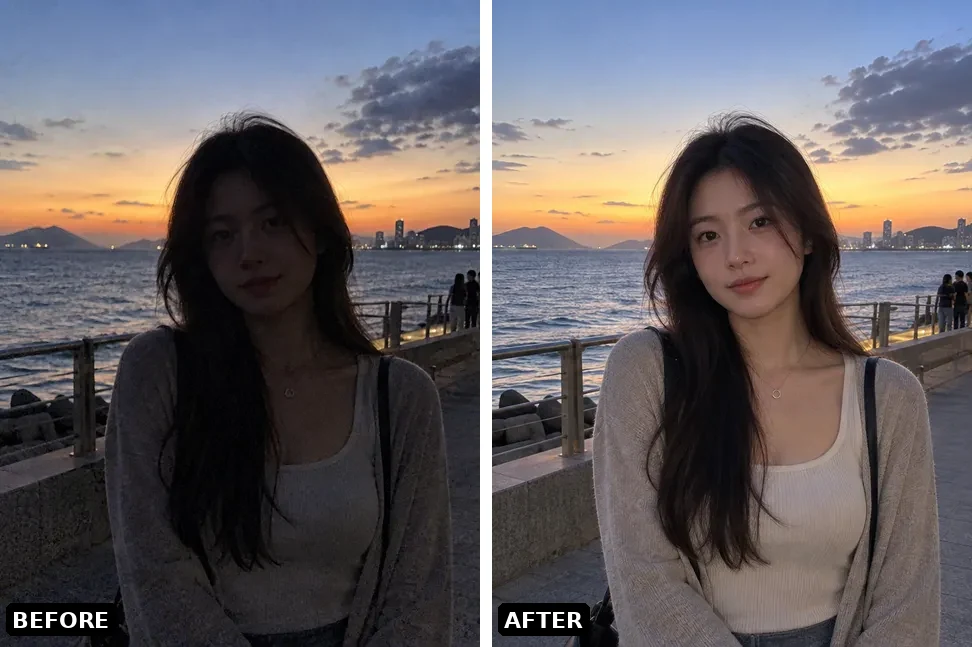
"Lighting Rescue" mode demo: Left is before, right is after.
Stranger Removal
Select this for photos taken in crowded tourist spots. It erases tourists, pedestrians, vehicles, trash cans, wires, road signs, and other distracting background elements while intelligently filling in the obscured scenery. The main subject remains unchanged down to the pixel, and the lighting, weather, and composition stay intact.
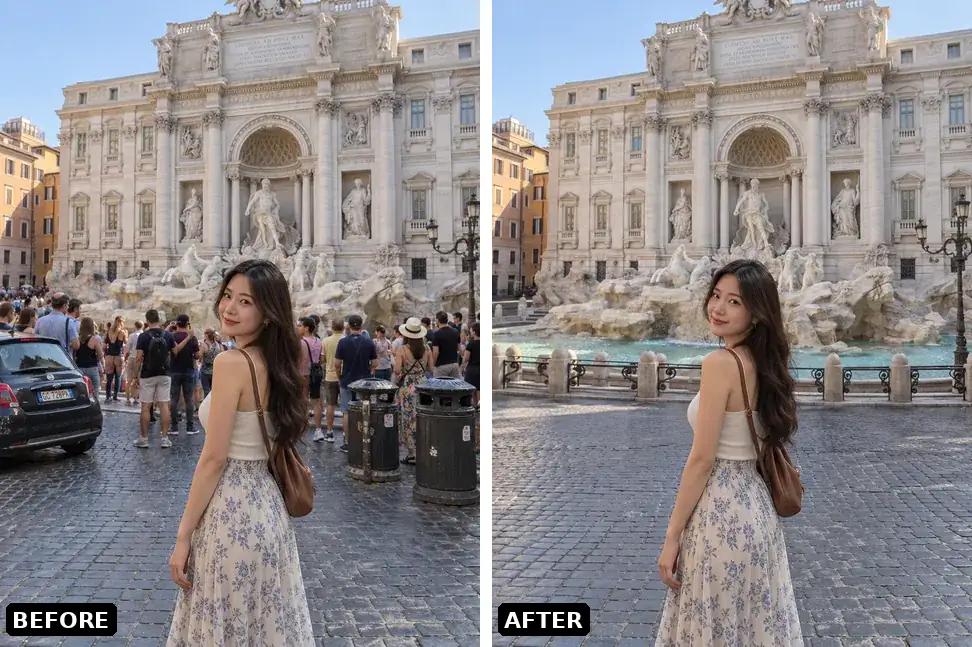
"Stranger Removal" mode demo: Left is before, right is after.
Retro Blue (Vertical)
A creative re-imagining mode tailored for portraits. It transforms the background into a bright, clear outdoor scene paired with a vintage blue sky and a crisp blue-and-white tonal balance, complete with subtle grain, shallow depth of field, creamy bokeh, and soft light spots, mimicking the cinematic feel of an 85mm portrait lens. Hairstyles remain untouched, allowing only a few strands of hair to drift in the wind. This mode defaults to a vertical 3:4 composition.
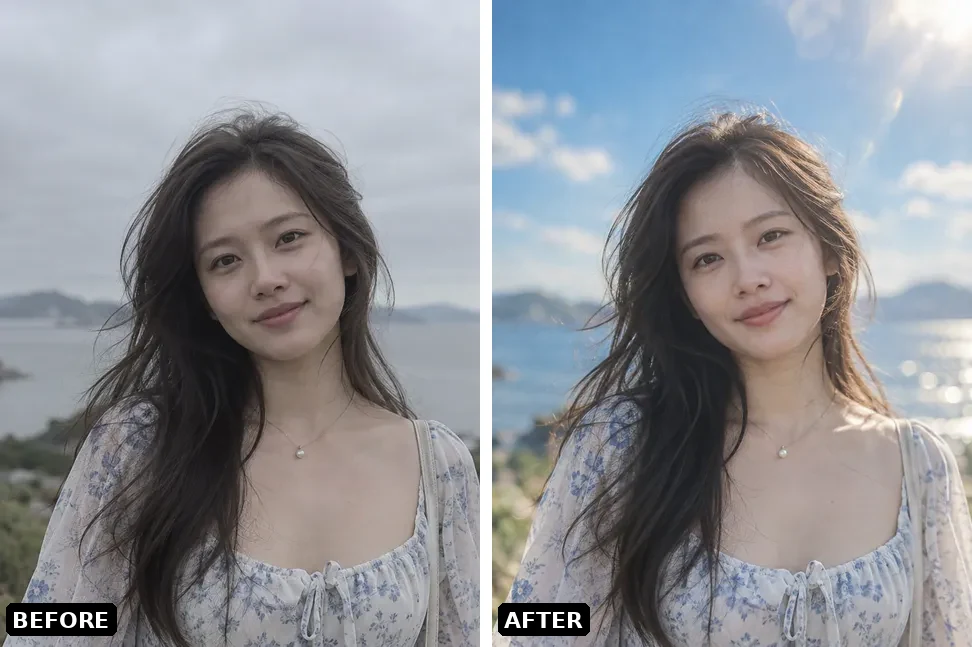
"Retro Blue" mode demo: Left is before, right is after.
Sunset Vibe
Turns your photo into a golden-hour portrait: warm, low-angle sunlight streams from behind, casting a glowing rim light along hair and shoulders. The entire scene bathes in warm tones with soft sun flares and long shadows, resembling a cinematic sunset still while remaining completely realistic.
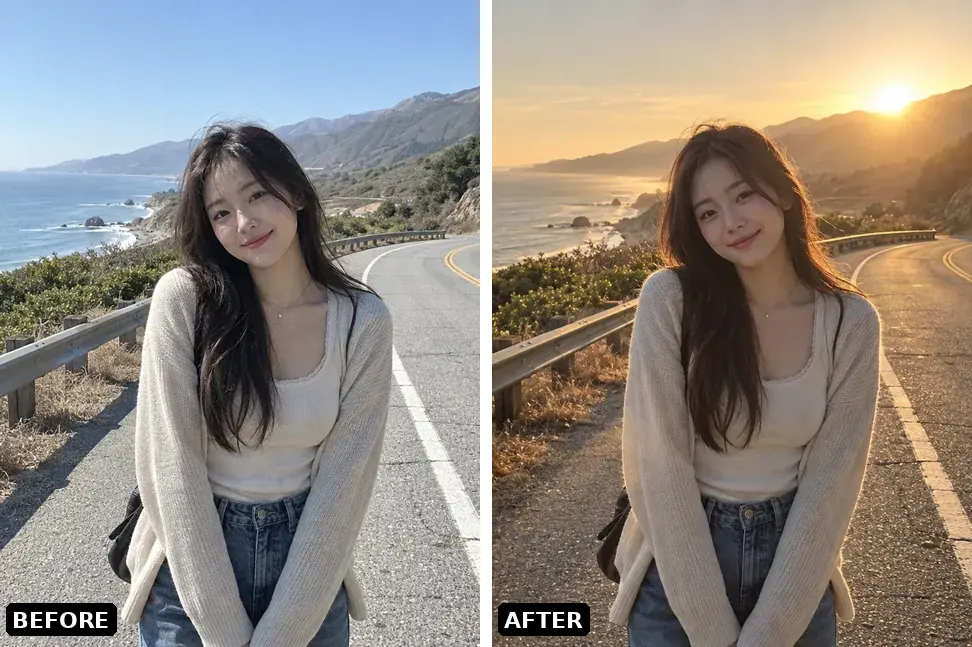
"Sunset Vibe" mode demo: Left is before, right is after.
Film Texture
Modifies only the rendering style without altering content: soft contrast curves, slightly darkened greens, warm skin tones and highlights, delicate organic grain, subtle halos around bright areas, and natural vignetting. Composition and content remain completely unchanged, making it ideal for photos that are already well-composed but need an upscale color grade.
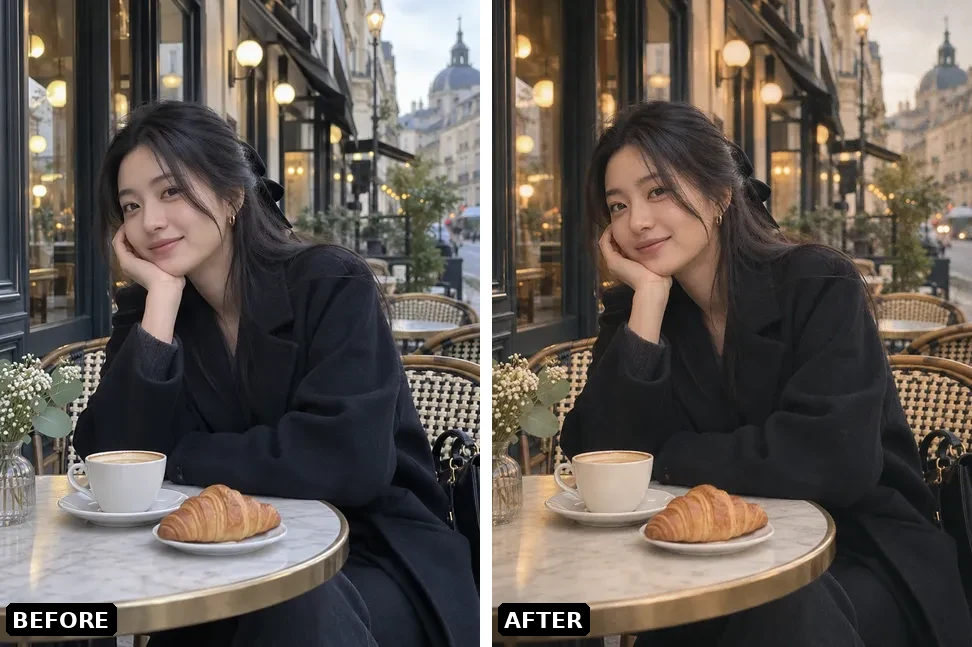
"Film Texture" mode demo: Left is before, right is after.
Magazine Collage (Vertical)
Our most playful mode. It creates a travel magazine spread using three horizontal photo windows bordered by irregular white torn paper edges. You are extracted as the foreground figure, with your hair, shoulders, or skirt overlapping the photo window borders. Large destination typography sits behind you, with a few letters naturally obscured by your body. The destination name is inferred from the scenery in the photo; if unrecognizable, it defaults to "WANDER". Defaults to vertical 3:4.
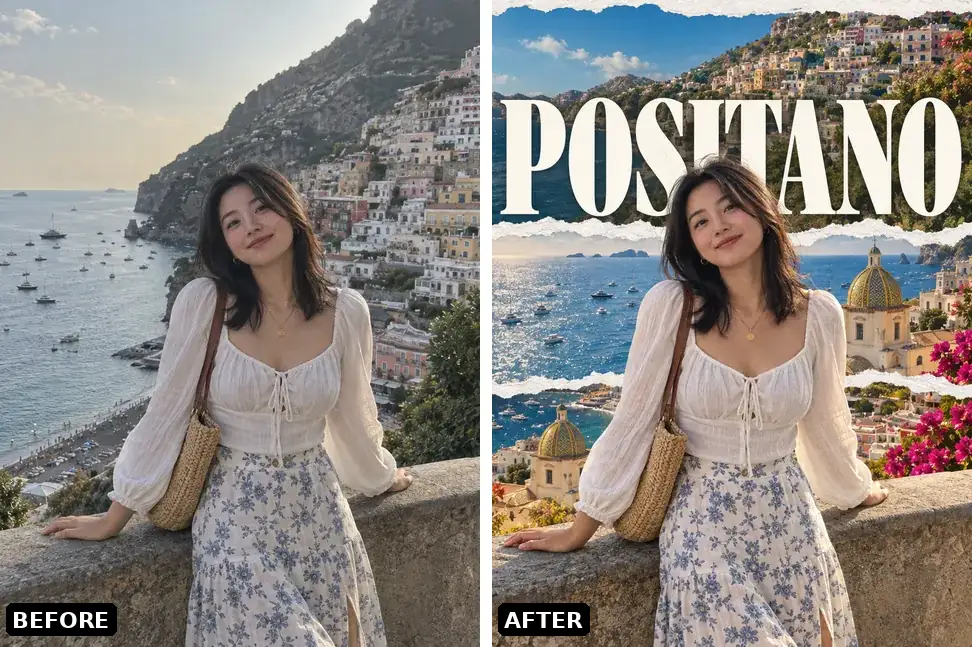
"Magazine Collage" mode demo: Left is before, right is after.
How to Use It on the Canvas
-
Open Genvizu Infinite Canvas, then drag the photo you want to rescue into the canvas or upload it directly;
-
Select the photo node, click the "+" next to the node (or right-click) to enter "Select Next Step", and switch to the Skills tab;
-
Find Photo Rescue under the "Repair" category;
-
Open "Rescue Mode" and select an option by referencing the before-and-after comparison thumbnails;
-
The "Additional Notes" field can be left blank or used to specify details you care about, such as "keep the street sign on the left" or "make the sky deeper blue";
-
Click Generate. If you want to try another mode, adjust the parameters and click again without needing to re-upload the photo.
It processes one photo at a time and outputs one image. It runs on GPT Image 2.5 by default, utilizing a vertical 3:4 aspect ratio and 2K resolution. If your photo is horizontal, simply change the aspect ratio to 4:3 or 3:2 in the model settings. Pricing follows the same structure as generating directly with GPT Image 2.5 on Genvizu; using this Skill incurs no extra charges, and exact credit consumption is subject to pricing page.
When Not to Use It
This is for "photo retouching," not "photo replacement": it will not transport you to a completely different location or change the primary objects in the composition—this is a design boundary. The two creative re-imagining modes (Retro Blue and Magazine Collage) significantly alter the atmosphere and layout, but person identity is still locked. It is not suitable for scenarios requiring pixel-exact replicas like ID photos, nor does it support editing only a single person in a group photo. If you want to transform photos into illustrations, posters, or avatars, check out the "Illustration" and "Creative" categories in the Skills panel.
Go Rescue a Photo on the Canvas
Pull out that travel photo that was almost perfect, and try Weather Rescue or Stranger Removal—Open Genvizu Infinite Canvas and start rescuing