360° AI Image Prompts: Drag to Spin and See Every Angle
Browse trending AI images you can drag to spin 360°, see how the subject holds up from every side, then reuse the image prompt to generate your own.
 Genvizu Team5 min read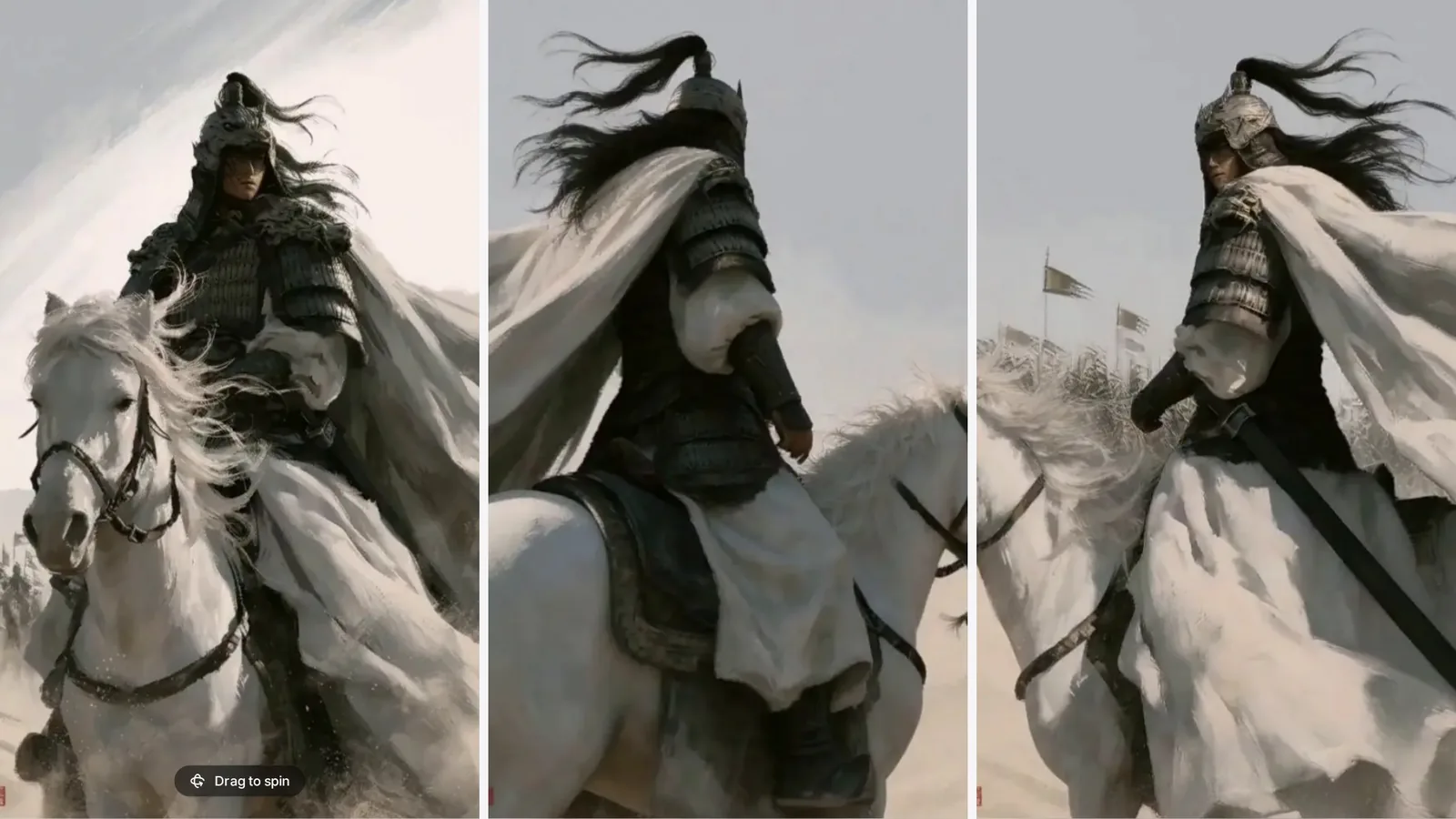
Genvizu's 360° Gallery lets you drag trending AI images around a full orbit, then copy the prompt behind the original image. Instead of judging a prompt from one flat frame, you can turn the subject, check the profile, the back of the outfit and the space around it, and then decide whether the prompt is worth reusing. Open it at the 360° Gallery.
Three angles from one drag of the Heroic General on Hilltop piece. Original work by an X creator, credited on its page.
What the 360° view is, and what it is not
Every piece in the gallery started as a single still image that was popular on X. Genvizu adds a short orbit to it afterwards with AI orbit generation, then turns that orbit into a viewer you can drag.
Two things follow from that, and both matter when you use the prompts:
- The prompt describes the still image only. The orbit is not in the prompt, and pasting the prompt into an image model gives you a single image, not a spin. Each detail page says this right under the prompt.
- The unseen sides are generated, not captured. A single image has no real back side. The orbit is the model's best continuation of the scene, so treat it as a strong visual reference rather than ground truth.
When an original post never shared its prompt, the page shows a prompt written from the image and marks it "AI-inferred, may not be exact".
How to use the 360° viewer
The same viewer works in the list, in the detail view and on phones.
| Where | What you do | What happens |
|---|---|---|
| Gallery list (desktop) | Move the cursor sideways over a card with the 360° badge | The card turns with your cursor, no click needed |
| Detail view | Drag left or right | The image follows your hand and keeps turning a little when you let go |
| Detail view | Leave it alone for a few seconds | It slowly spins on its own, unless your system has reduced motion on |
| Detail view | Press ← or → | It spins from the keyboard |
| Phone | Drag sideways | It spins without flipping to the next item |
| Phone | Tap the image | It opens a full-screen view you can keep dragging |
The viewer keeps the original aspect ratio, so a 9:16 portrait stays tall and a 16:9 landscape stays wide.
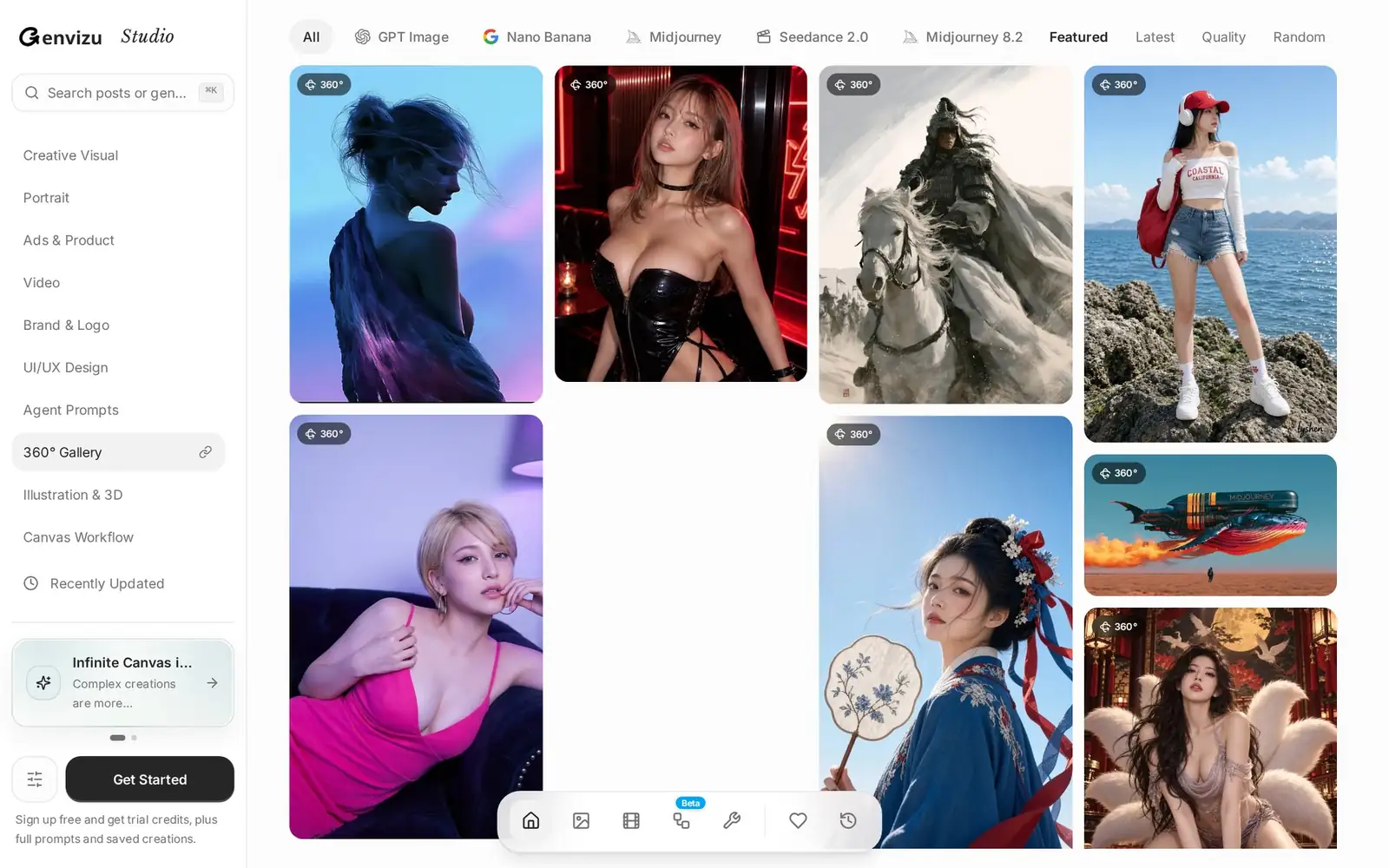
The 360° Gallery category in the studio sidebar. Every card in the list can be turned.
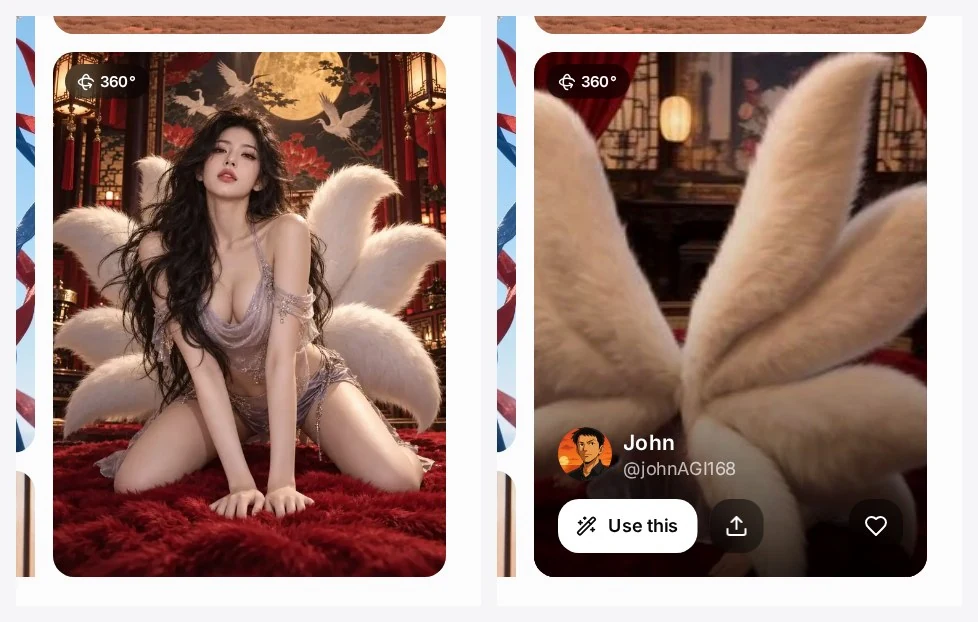
Left: a card at rest with its 360° badge. Right: the same card after moving the cursor across it.
Why spinning an image helps you read its prompt
A good prompt usually does four jobs: it names the subject, sets the space, places the light and picks a camera. One frame shows you the result of all four at once, which makes it hard to tell which words did the work. Turning the image separates them.
Subject and wardrobe. On the Nine-Tailed Fox Spirit Portrait, the side and rear angles show how the tails are layered and how the dress is finished at the back. If the prompt spends words on fabric and silhouette, you can see why.
Space. The orbit reveals what surrounds the subject: the pavilion interior behind the fox spirit, or the open desert under the Mechanical Desert Whale. A prompt that names a setting precisely tends to produce a space that still makes sense from the side.
Light. As the view turns, the bright side and the shadow side swap places. That tells you where the prompt put the light source, which is the single most reusable part of most portrait prompts.
Style. The ink-wash general keeps its brush texture and muted palette at every angle. That is a sign the style words, not the subject, carry the look, so you can swap the subject and keep the style.
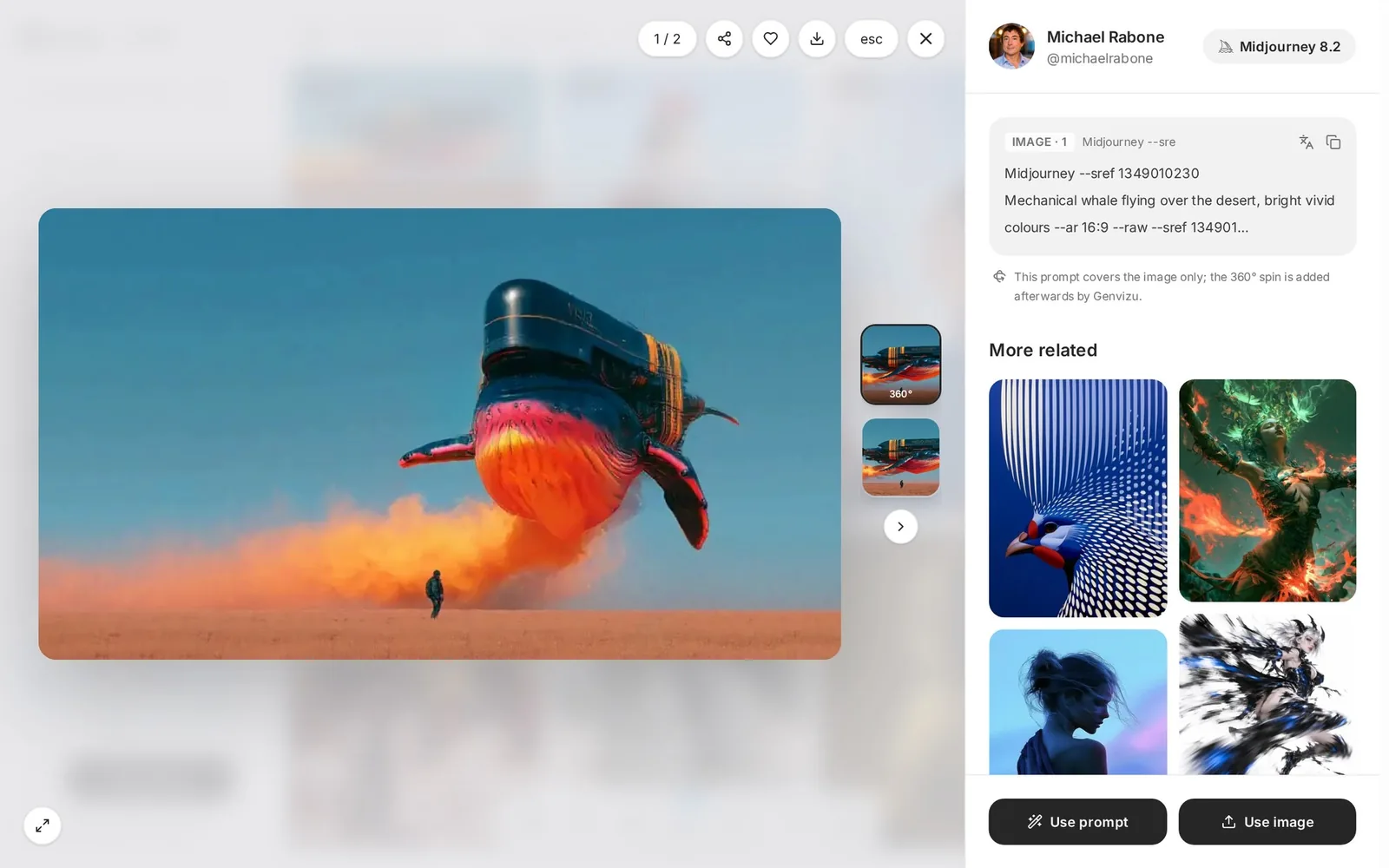
The detail view: the 360° viewer on the left, the creator, the image prompt and the disclaimer on the right.
Writing your own multi-angle prompts
If the orbit makes you want several angles of your own subject, these habits help most image models stay consistent across separate generations:
- Fix the subject block. Keep the description of the person or object word for word between generations and only change the camera line.
- Name the angle plainly. Use "front view", "left profile", "rear three-quarter view" or "seen from behind" rather than vague phrases like "different angle".
- Keep light and background stable. Repeat the same lighting and setting sentence, or the model will treat each angle as a new scene.
- Keep the subject centered. Asking for a centered subject and a consistent framing makes the set easier to compare.
- Use reference images where the model supports them. Feeding your first result back as a reference is usually the most reliable way to hold a face or a costume steady.
The pieces in the gallery were made with different models. The general and the whale credit Midjourney 8.2 and the fox spirit credits GPT Image 2.5, so check the model badge on each page before you reuse a prompt.
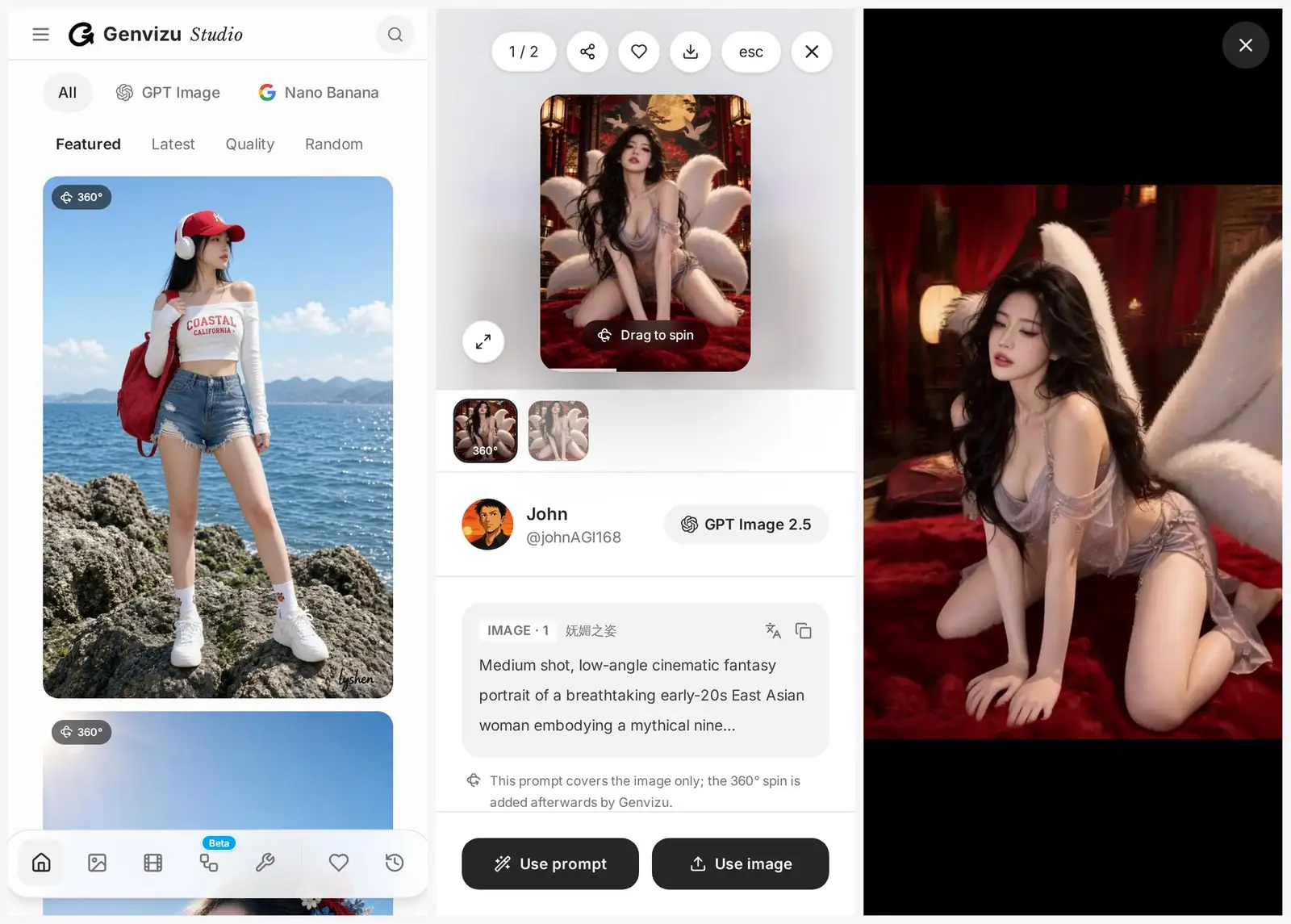
On a phone: the list, the detail sheet with the 360° view first, and the full-screen view after one tap.
Credits and takedowns
Every 360° piece comes from a public post on X. Each detail page names the original creator and links back to the post. If you made one of these images and want it removed, or want your work considered for a 360° orbit, contact us and we will handle it.
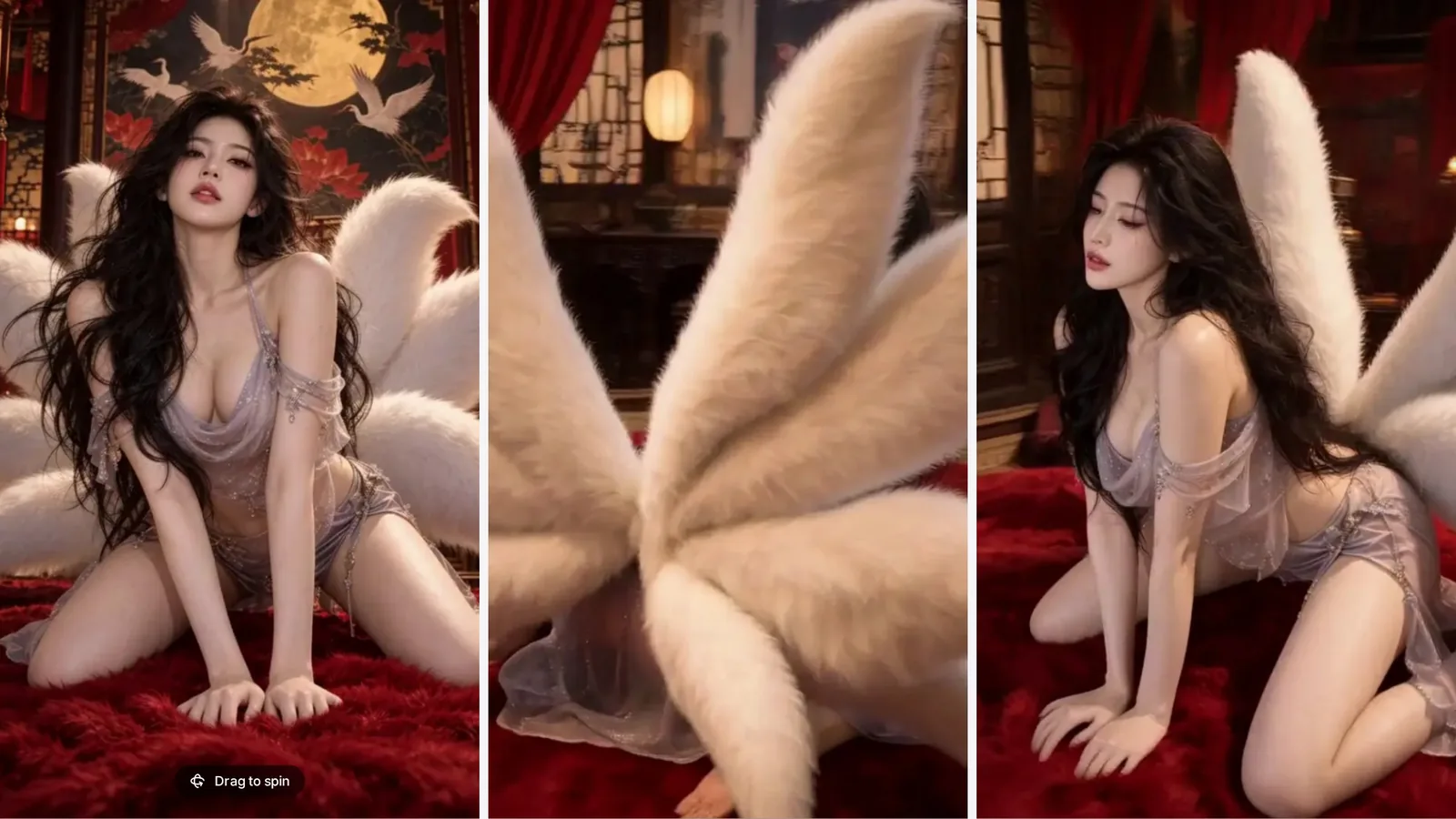
Three angles of the Nine-Tailed Fox Spirit Portrait. Original work by an X creator, credited on its page.
Spin one and take the prompt
Pick an image, drag it all the way around, and read the prompt once you know what it is really describing. You can browse and spin without an account. The full prompt and one-click copy need a free account, and "Use prompt" opens the studio with the prompt filled in so you can generate your own version straight away.