GPT Image 2.5 Launches on Genvizu: Same Pricing as GPT Image 2
GPT Image 2.5 is live on Genvizu: Flare and Sunburst, priced the same as GPT Image 2. 13 ratios, up to 16 reference images, auto-refund on failure.
 Genvizu Team5 min read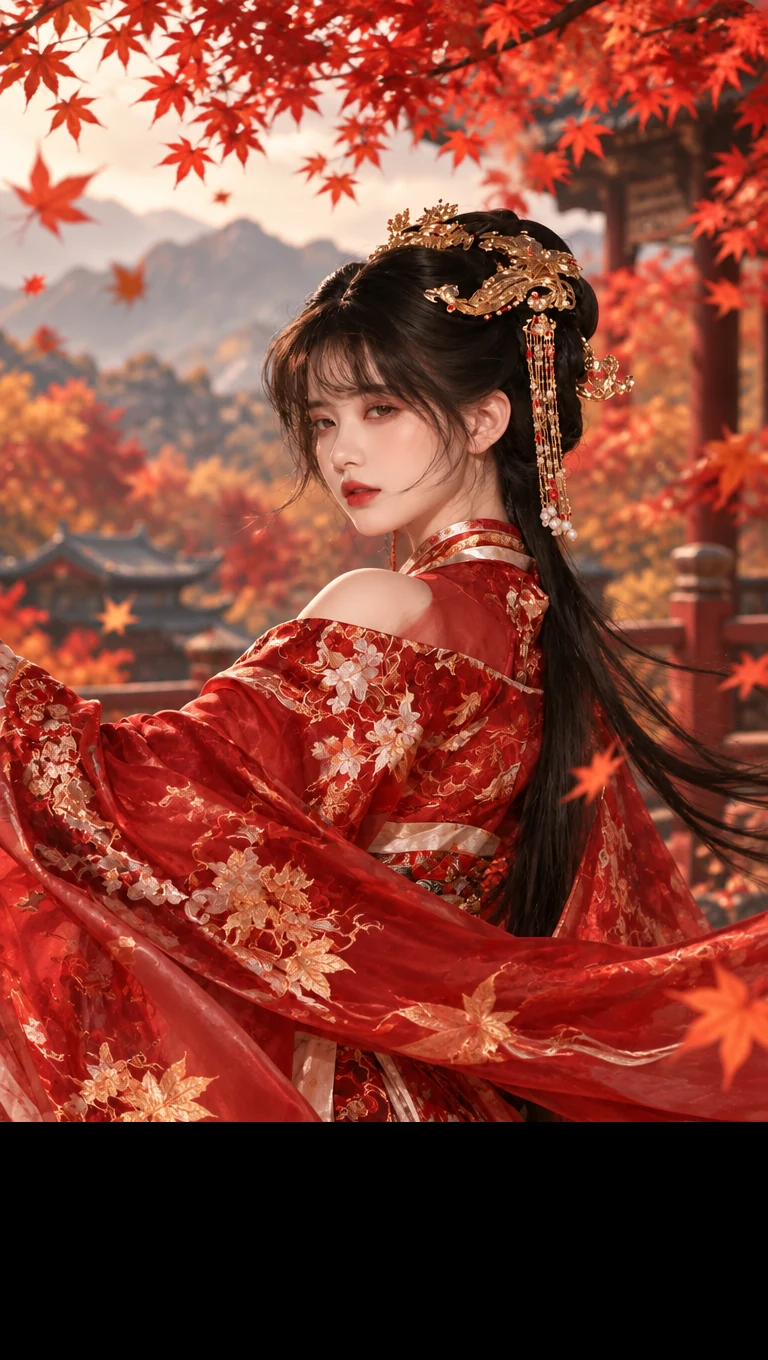
GPT Image 2.5 Launches on Genvizu: Flare for Fast Generation, Sunburst for Fine Editing, Same Pricing as GPT Image 2
GPT Image 2.5 is officially live on Genvizu today, with two entry points open at once: Flare, built for everyday generation with lower latency, and Sunburst, built for multi-round refinement and more accurate local edits. Both are already wired to the real API — any signed-in user can pick either one directly, with no need to bring your own OpenAI account or API key.
Let's start with what you care about most: the 1K / 2K / 4K tiers are 8 / 13 / 20 credits, Flare and Sunburst are priced exactly the same, and both match the pricing of the existing GPT Image 2 on the site — upgrading to 2.5 costs you nothing extra. For the technical details behind the launch and what OpenAI's own announcement said, see our preview post from a few days ago: GPT Image 2.5 Is Here: Flare & Sunburst Dual Models, Halved Latency, More Stable Reference Images. This post covers one thing only: it's live now — how to use it, how it's billed, and how to pick between the two entry points.
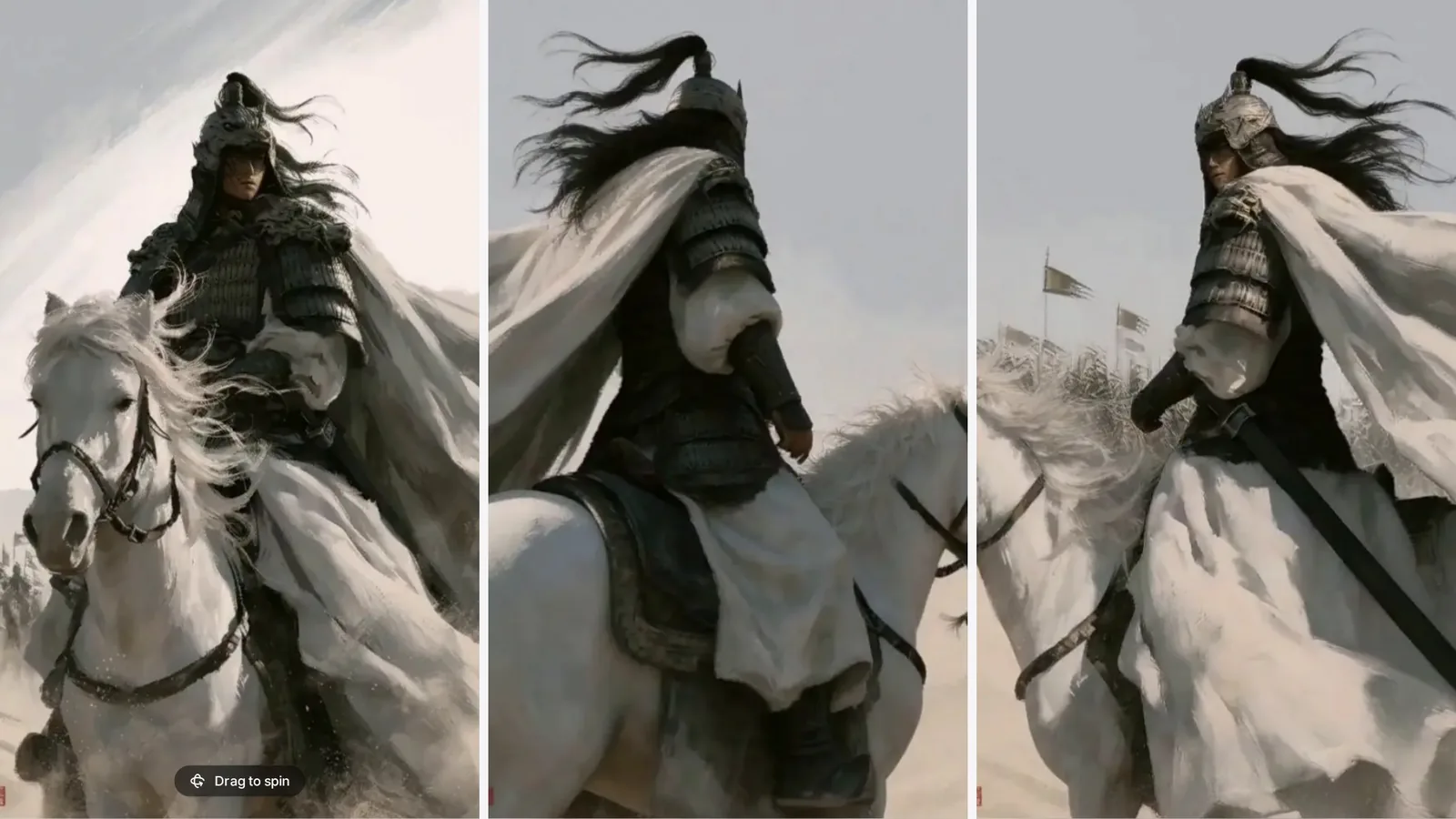
A real image-to-image output on Genvizu from GPT Image 2.5 Sunburst (one uploaded reference image, 1K, 9:16, 8 credits), unretouched. We generated it ourselves on launch day — treat it as a baseline for what you can get on the site.
Flare or Sunburst: pick in one line
Both entry points share the same parameter panel — aspect ratio, resolution, reference images. The difference is purely in generation strategy:
- Flare: pick it for everyday generation, batch drafting, and time-sensitive work. Lower latency, and one pass is usually enough.
- Sunburst: pick it when you need to go back and revise the same image across several rounds, and the subject and composition can't drift on any of them — more accurate local replacement, more stable multi-round editing, at the cost of slower single-run generation.
The simple rule: start with Flare; if a given image still isn't stable by the third revision, switch to Sunburst. They're priced identically, so switching doesn't touch your budget — pick by scenario without worrying about "which one costs more."
Pricing breakdown: same price across all three tiers, no surcharge for aspect ratio or reference count
| Resolution tier | Credits | Notes |
|---|---|---|
| 1K | 8 | Same price for Flare / Sunburst |
| 2K | 13 | Default tier |
| 4K | 20 | Same price for Flare / Sunburst |
A few points worth calling out:
- Flare and Sunburst are priced the same — which entry point you choose only affects generation speed and editing precision, not cost.
- Text-to-image and image-to-image are priced the same — generating with a reference image costs no more than a plain text prompt.
- Aspect ratio and reference image count don't add to the price — pick from all 13 ratios, use anywhere from 1 to 16 reference images, and the price only depends on the resolution tier.
- Failed generations are automatically refunded, consistent with Genvizu's site-wide policy — an API error on our end never costs you your balance.
See the model pricing table for the full per-model price list, and the pricing page for plan quotas and credit packs.
Parameters: 13 aspect ratios, a 20,000-character prompt limit, up to 16 reference images
GPT Image 2.5's parameter space on Genvizu largely mirrors GPT Image 2, with one clear difference that's easy to trip over — worth flagging up front:
🔴 Aspect ratio supports 13 options: 1:1 / 3:2 / 2:3 / 4:3 / 3:4 / 16:9 / 9:16 / 21:9 / 27:16 / 16:27 / 9:8 / 8:9 / auto — there is no 4:5 or 5:4. GPT Image 2 does have 4:5 and 5:4; the current upstream API for 2.5 doesn't expose them. If your workflow relies on a fixed 4:5 ratio for something like a Xiaohongshu cover, check this before switching to 2.5 — use the closest option, 3:4, instead, or keep using GPT Image 2.
The rest of the parameters:
- A 20,000-character prompt limit, matching GPT Image 2 — long prompts (character bibles, multi-part scene descriptions, precise layout instructions) can be written in full without worry.
- Three resolution tiers — 1K / 2K / 4K, defaulting to 2K.
- Up to 16 reference images, with a single generation producing 1 output image; skip the reference images for pure text-to-image, or add them to automatically switch to the image-to-image path.
- The
autoaspect ratio lets the model choose the composition based on your prompt — a good option to try first when you're not sure which ratio to use.
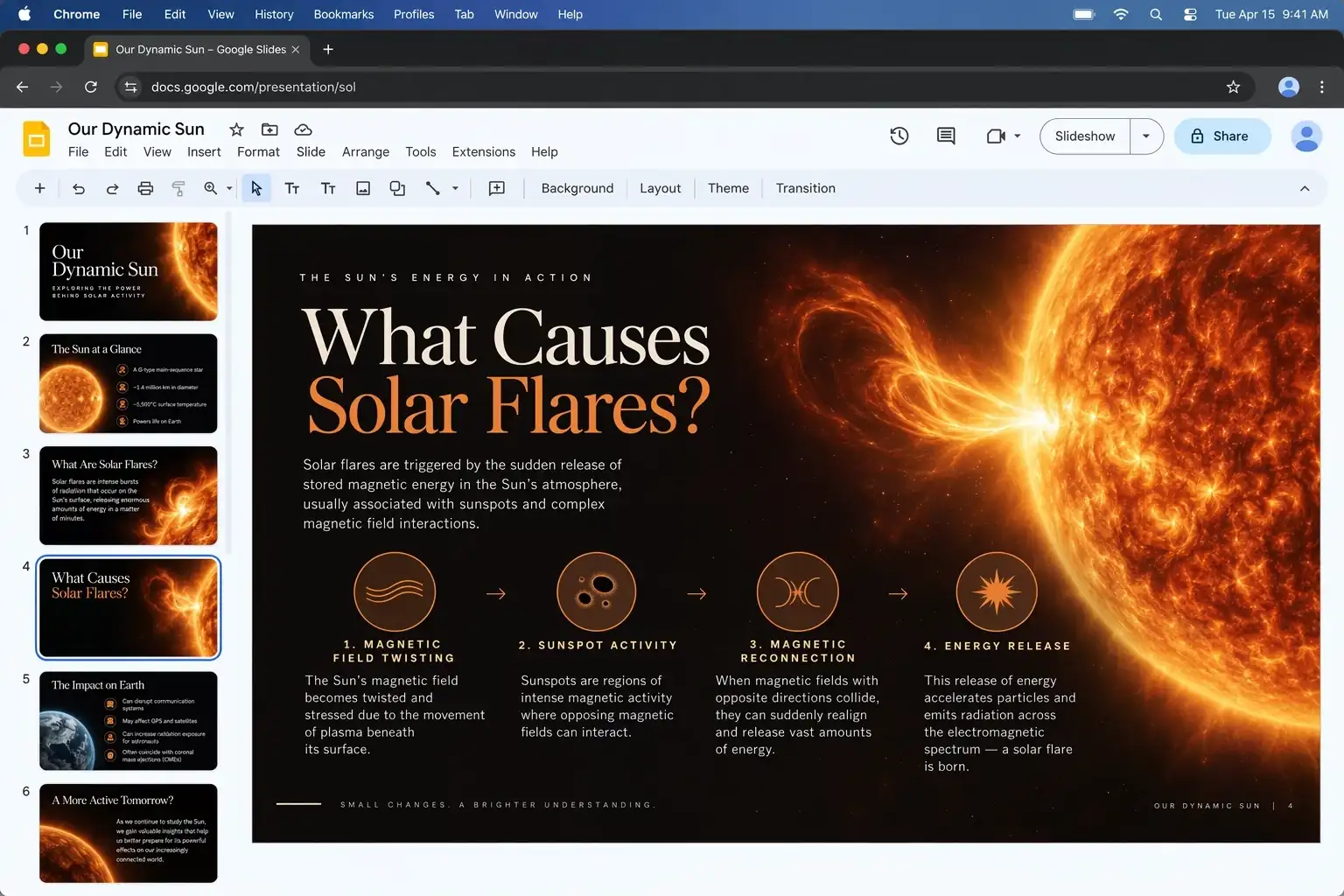
The 16:9 option among the 13 aspect ratios works well for slides like this one — title, imagery, a multi-step diagram, and explanatory text all laid out on a single frame. Image source: OpenAI.
How to use it on Genvizu
- Open the creation studio or infinite canvas;
- Find GPT Image 2.5 (Flare, the default) or GPT Image 2.5 Sunburst in the model dropdown — both are in the featured group;
- Write your prompt, upload reference images (up to 16) if you need to preserve a specific subject or scene, and pick an aspect ratio and resolution;
- Generate. The result lands in your generation history automatically, and you can keep going on the infinite canvas — feed it into an image-to-image model to revise, turn it into a video, or keep adjusting it with annotations.
Three scenarios you can switch over today
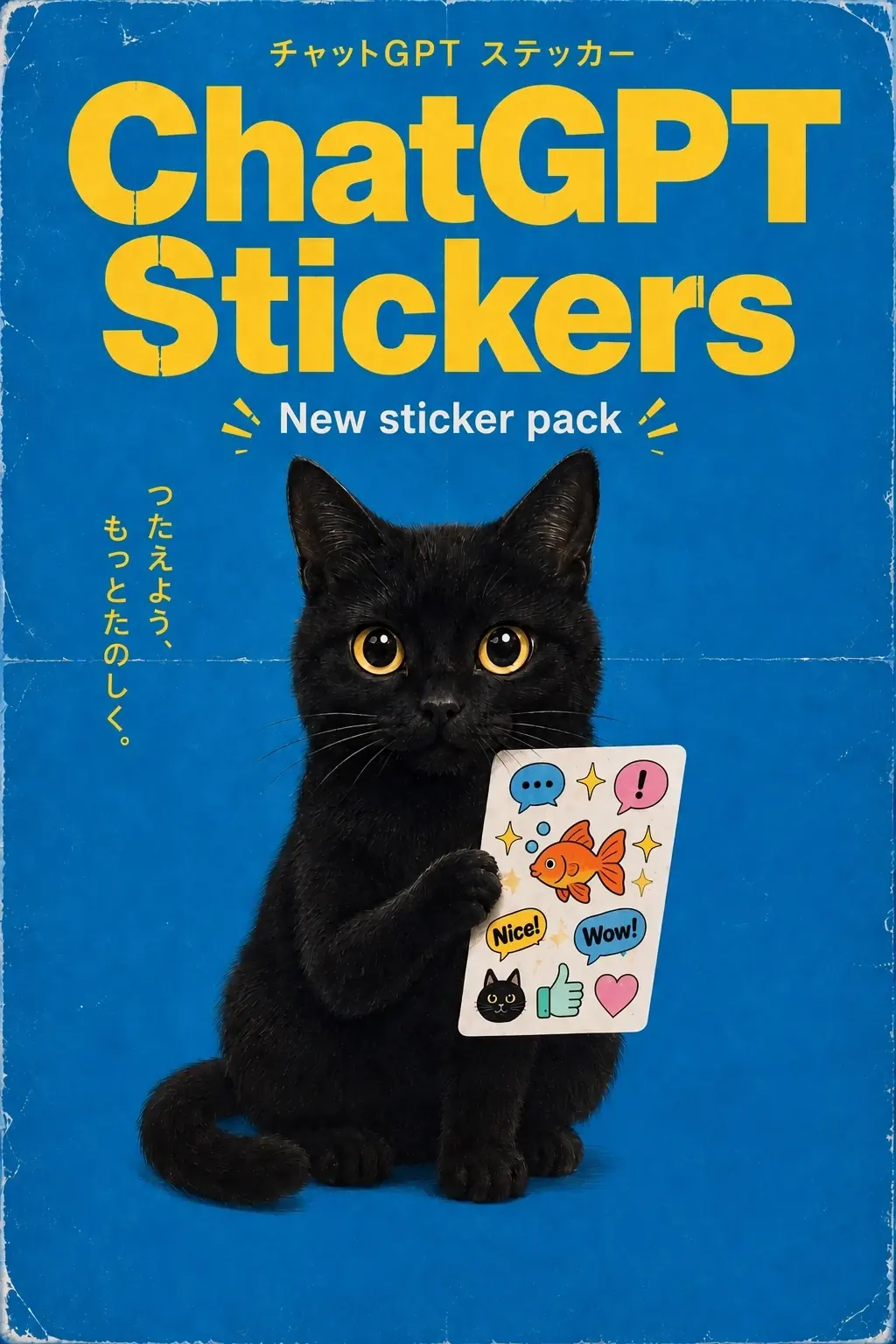
A sticker poster with an English headline and a Japanese subtitle — text rendering remains one of the strongest points of the GPT Image line. Image source: OpenAI.
1) Poster typography (Flare, pure text-to-image). The GPT Image line has long been one of the most reliable at rendering text, and 2.5 keeps that strength. When writing your prompt, put the exact text you want in quotes and describe its hierarchy:
A minimalist product launch poster, clean studio background in soft gradient blue.
Composition: product silhouette centered in the lower two-thirds, generous negative
space at the top for typography.
Typography: bold sans-serif headline "SPRING COLLECTION" across the top third,
smaller tracked-out subhead "NOW AVAILABLE" directly beneath it.
Style: high-end editorial poster, subtle grain texture, soft directional light from the left.
2) Swap the scene, keep the subject with a reference image (i2i, Flare or Sunburst). Upload a reference image of a product or person and have the model change the background and composition while holding on to the key features of "that thing":
Using the attached reference image as the subject, keep its exact shape, color and
proportions unchanged. Place it in a new scene: a sunlit wooden table by a window,
morning light, soft shadows, warm and minimal styling. Do not alter the subject itself,
only the surrounding environment and lighting.
3) Multi-round local edits, one change at a time (Sunburst, i2i). When revising the same image across several rounds, spell out exactly the one thing to change each time and leave everything else untouched:
Using the attached image, only change the background color from white to a soft sage
green. Keep the subject, its position, lighting and every other detail exactly as they are.
Do not modify the subject, shadows or composition.
Keep stacking follow-up instructions if a round doesn't land — Sunburst is noticeably less prone to drifting off course across this kind of continuous editing.
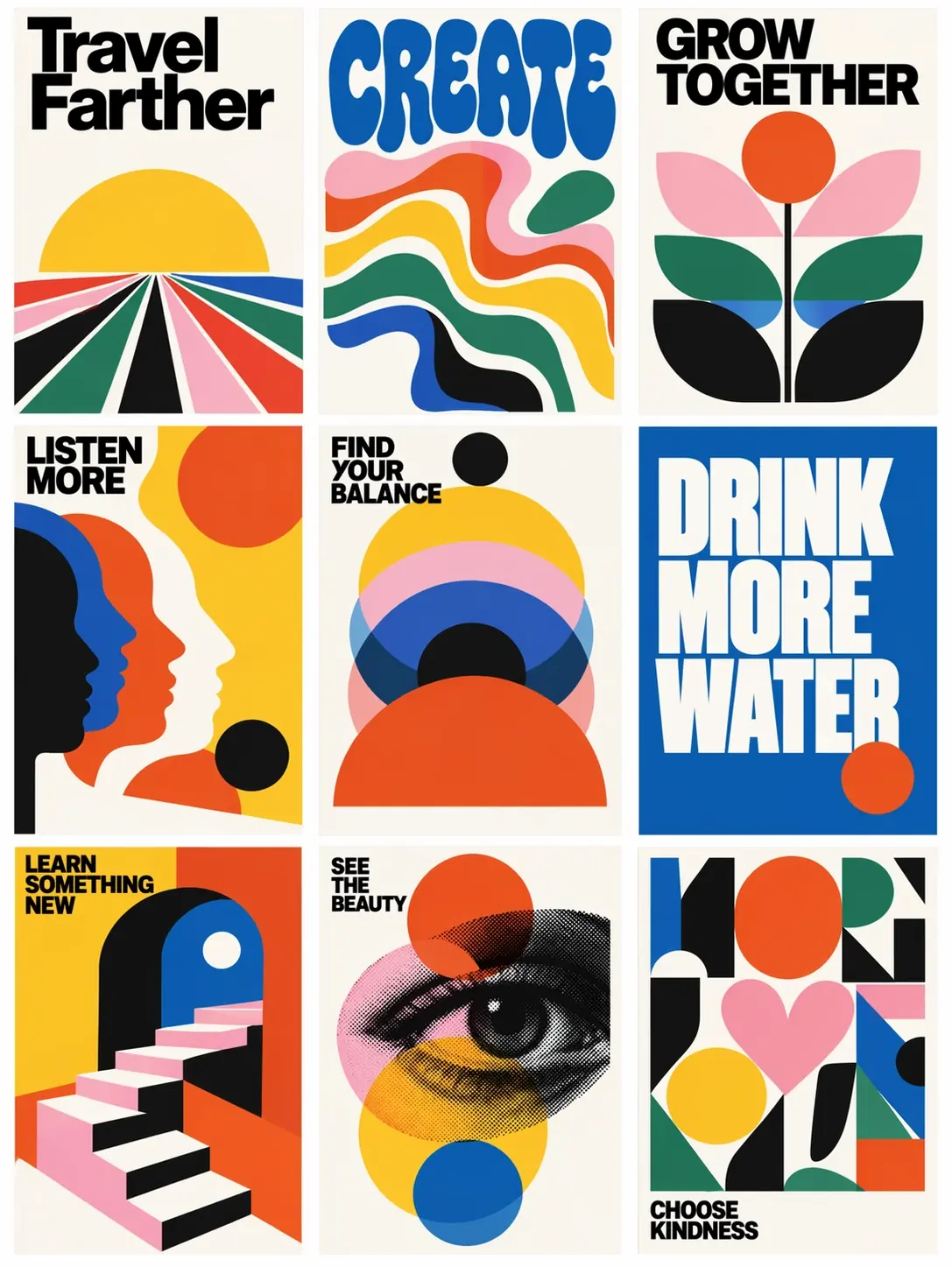
Nine posters generated in one pass, with a consistent style and layout rules throughout — a useful reference if you're building a set of social templates and need to keep the tone consistent across the batch. Image source: OpenAI.
Go try it now
Both GPT Image 2.5 entry points are already in the model selector — open the creation studio and generate your first image with Flare or Sunburst