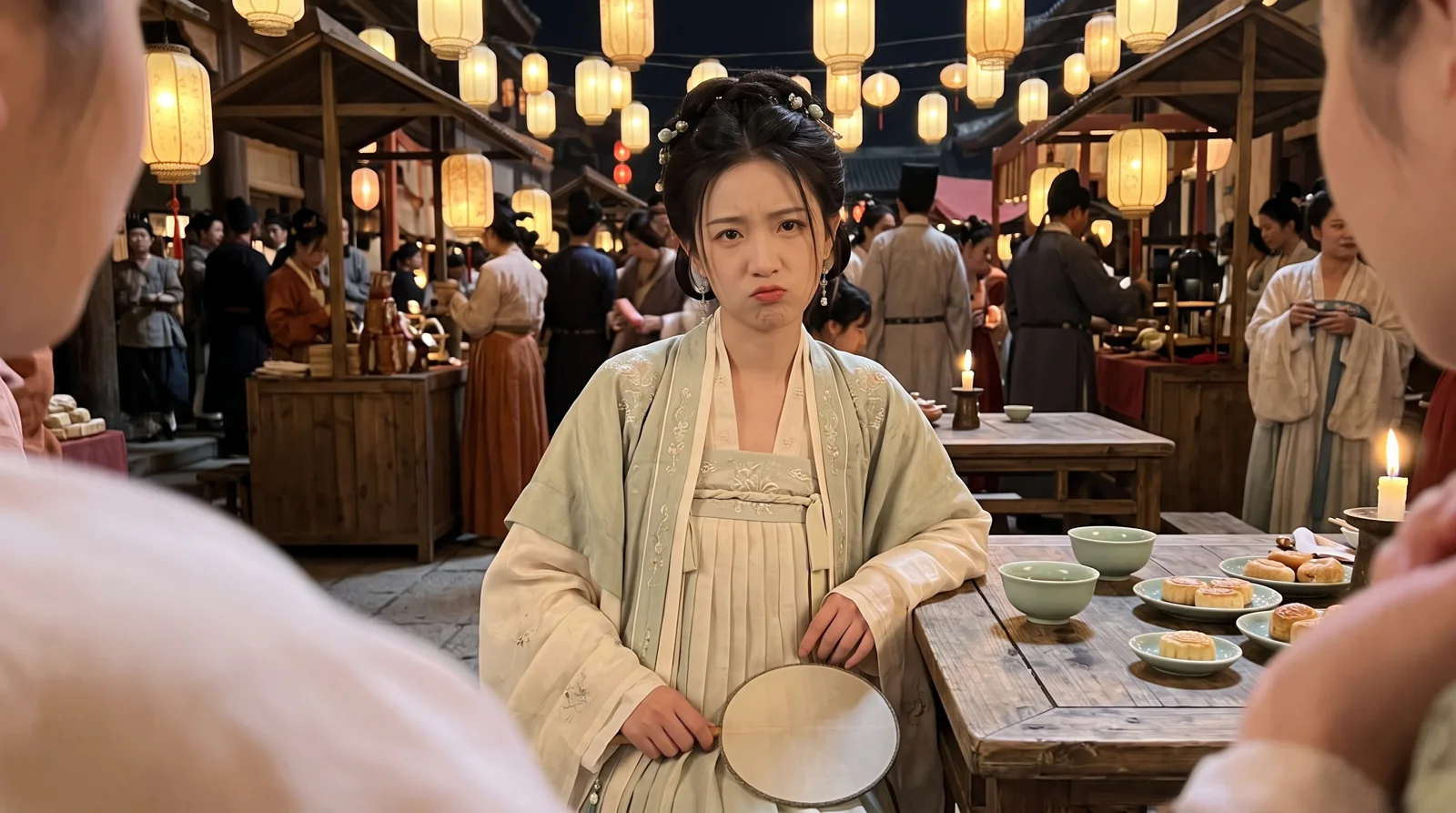
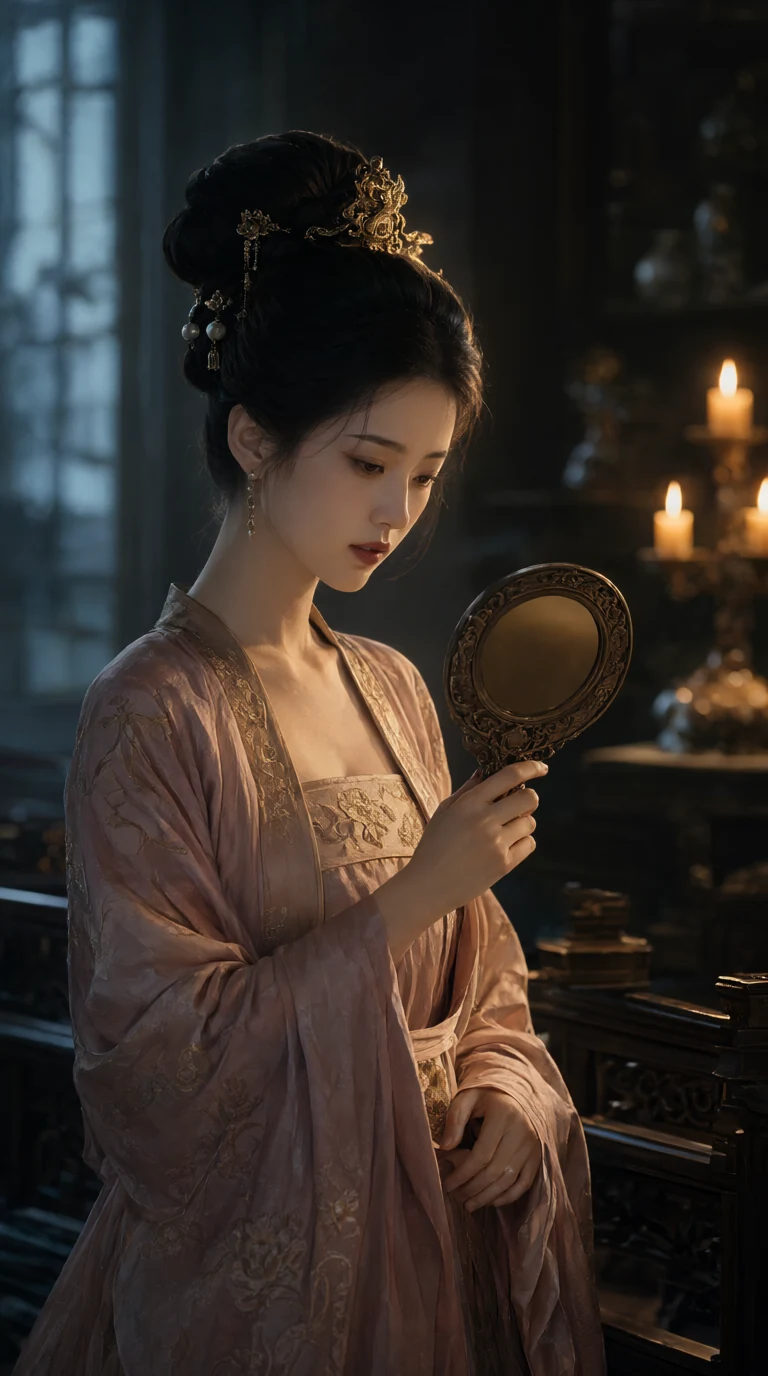
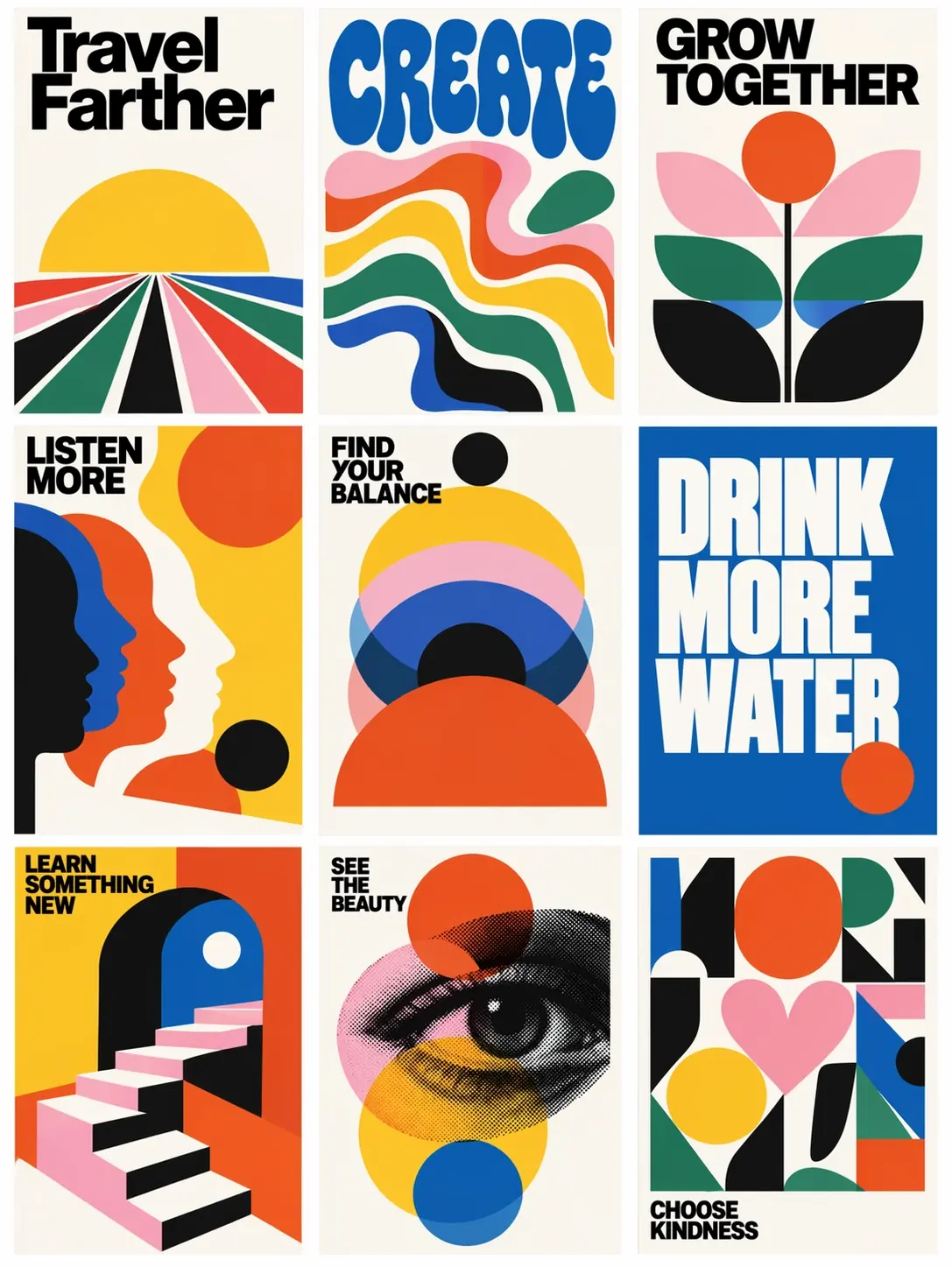
Grok Image 2 Now Live on Genvizu: 5 Credits/Image, 5 Aspect Ratios, Cleaner Text Layouts
Explore the new Grok Image 2 model on Genvizu. Learn about its 5-credit pricing, flexible aspect ratios, 5000-character prompt limit, and how to leverage its strengths for text-heavy and complex image generation.
 Genvizu Team4 min read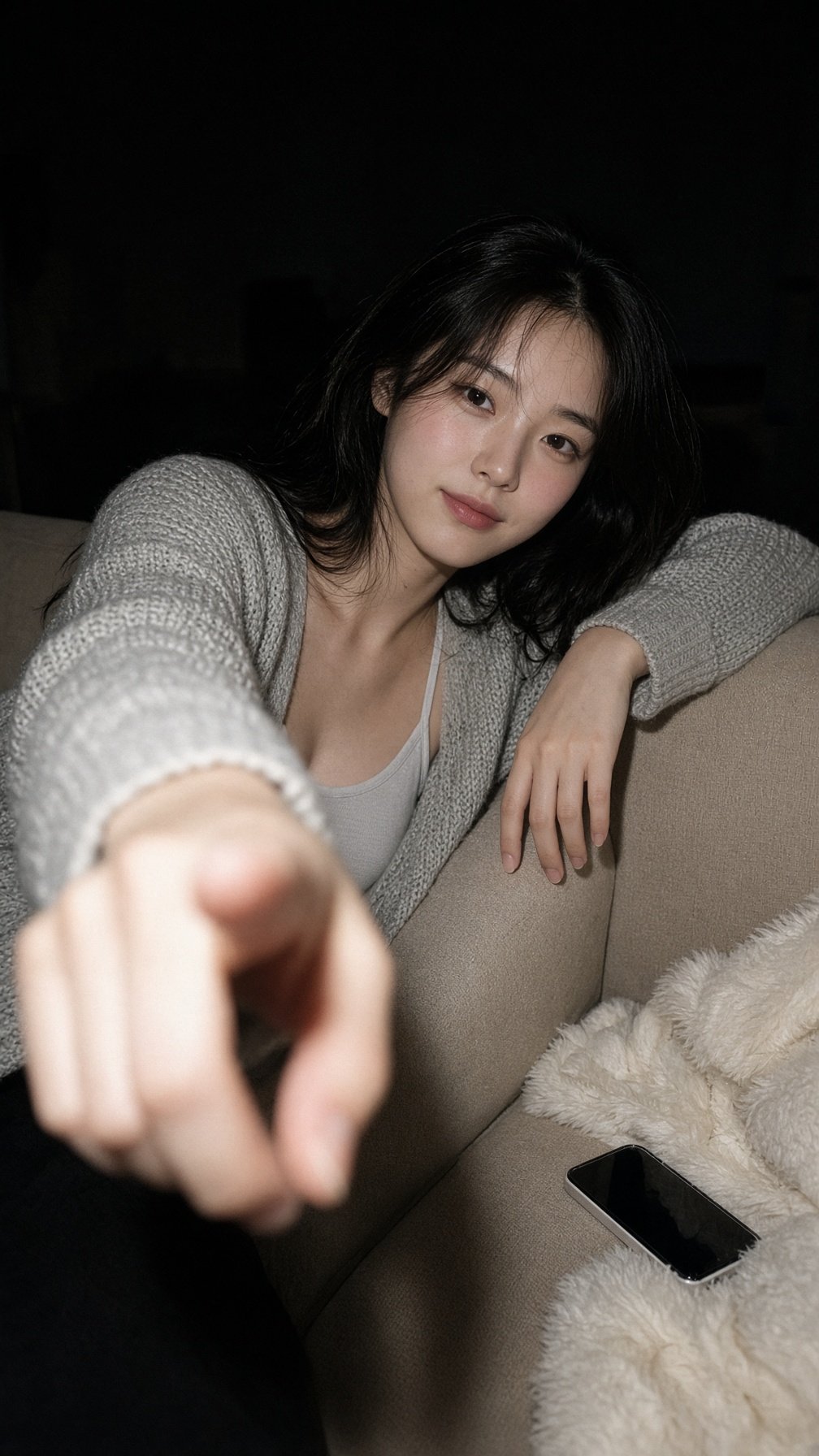
Grok Image 2 Launches on Genvizu: 5 Credits/Image, 5 Aspect Ratios, Cleaner Text Layouts
xAI's new generation image model Grok Image 2 (official name Imagine Image 2.0, released August 7, 2026) is now officially live on Genvizu. It has been switched to the real API and is directly available to all users.
Here's what you need to know about it on Genvizu in three sentences: 5 credits per image, 5 aspect ratios to choose from with no extra cost; prompt limit of 5000 characters; currently text-to-image only, with no support for reference images or image-to-image generation yet. Practical tests show approximately 80 seconds per image – this model isn't for rapid iteration but for clearly stating complex requirements and waiting for a ready-to-use final product.
How to Use on Genvizu
-
Open the Studio or Infinite Canvas on the Genvizu homepage;
-
Select Grok Image 2 from the model dropdown (under the xAI brand, marked as featured);
-
Write your prompt, select an aspect ratio, and click generate.
Since this model has no resolution or quality tiers, and no reference image input, the parameter panel automatically simplifies to just "Prompt + Aspect Ratio" – no need to agonize over which tier to choose, and the price won't change based on your selection.
Generated results will appear in your generation history like other models, and you can continue with subsequent operations on the Infinite Canvas: send it to an image-to-image model for revisions, create videos, or use annotations for image editing.
Pricing: 5 Credits/Image, No Extra Charge for Aspect Ratio
FeatureGrok Image 2Unit Price5 Credits / ImageAspect Ratio SurchargeNone (5 ratios at the same price)Resolution / Quality TiersNone (Single tier)Plan ThresholdNone (Available to all users, including free tier)
5 credits falls into the low-price tier for Genvizu image models: it's cheaper than GPT Image 2 (starting at 8 credits), Nano Banana 2 (starting at 10 credits), and Midjourney 8.x (starting at 23 credits), making the cost of trial and error very low. For a complete model-by-model price list, see Genvizu Model Pricing, and for plans and credit packs, see the Pricing page.
What Each of the 5 Aspect Ratios is Suitable For
Supported aspect ratios are 2:3 / 3:2 / 1:1 / 16:9 / 9:16:
-
2:3 — Vertical posters, book covers, cinematic poster compositions; the most stable option for layouts with large titles.
-
3:2 — Horizontal photographic scenes, banners, article header images.
-
1:1 — Avatars, icons, square images for platforms like Xiaohongshu / Instagram.
-
16:9 — Slides, YouTube covers, horizontal infographics.
-
9:16 — Mobile vertical screens, short video covers, Stories.
The default aspect ratio is 1:1. Remember to switch to vertical or horizontal before generating if needed – changing the aspect ratio with the same prompt will cause the model to rearrange the composition, not simply crop it.
What "Text-to-Image Only" Means
Grok Image 2 currently only accepts text input on Genvizu: you cannot upload reference images, nor can you perform image-to-image or inpainting. This is not a limitation but reflects the current scope of the upstream API – xAI's image editing capabilities use a different task chain protocol, which we will follow up on separately after evaluation.
Therefore, you can divide tasks as follows when selecting models:
-
For generating from scratch with detailed requirements, especially with text layouts in the image → Grok Image 2;
-
For maintaining character/product consistency or revising existing images → Use models that support reference images, such as Seedream 5.0 Pro (up to 5 reference images) or Nano Banana 2;
-
For local modifications to existing images → Use the annotation tool on the Infinite Canvas.
To understand Grok Image 2's strengths in instruction following, text layout, and complex composition, refer to our previous feature breakdown: Grok Image 2 Launch: Features, Highlights, and Benefits.
Three Prompt Writing Suggestions
1) Structure the scene as a checklist rather than a string of adjectives. This generation's strength lies in handling multiple constraints simultaneously, so clearly state: what the subject is, where it's positioned in the frame, what the background is, the color palette, and where the text should be placed. More structured writing leads to fewer revisions.
2) For text that needs to appear in the image, write it out exactly within quotation marks. Providing the exact string to be rendered, along with its hierarchy (main title/subtitle/caption) and desired font style (bold sans-serif, serif, handwritten), is much more reliable than just writing "add a slogan." For Chinese characters, it's still recommended to test on a small scale first, and proofread important brand names, prices, and dates character by character before release.
3) The 5000-character limit is for you to use, but don't write a rambling narrative. The value of a long prompt lies in specifying constraints, not in keyword stuffing. Divide it into sections like subject, composition, lighting, color, text, and style; this is more effective than a long string of comma-separated keywords.
Here's a directly usable example (2:3 vertical):
A vintage travel poster of a coastal town at golden hour, viewed from a hillside path.
Composition: winding stone path in the lower third leading to white houses and a lighthouse
on the right, calm sea and sailboats on the left, warm gradient sky.
Typography: bold condensed serif headline "PORTO ALEGRE" across the top third,
small caps subtitle "SUMMER 1962" beneath it, thin rule line separating them.
Style: screen-printed poster, limited palette of teal, sand and burnt orange, subtle paper grain.
Replace the PORTO ALEGRE and scene description with your own content, and switch the aspect ratio as needed to reuse the same structure.
Try It Now
To see how it performs on your own posters, infographics, or social media images, you can select it directly in the model selector – Open Genvizu and Start Creating